VoIP Troubleshooting Guide: 25 Common Phone Problems and How to Fix Them
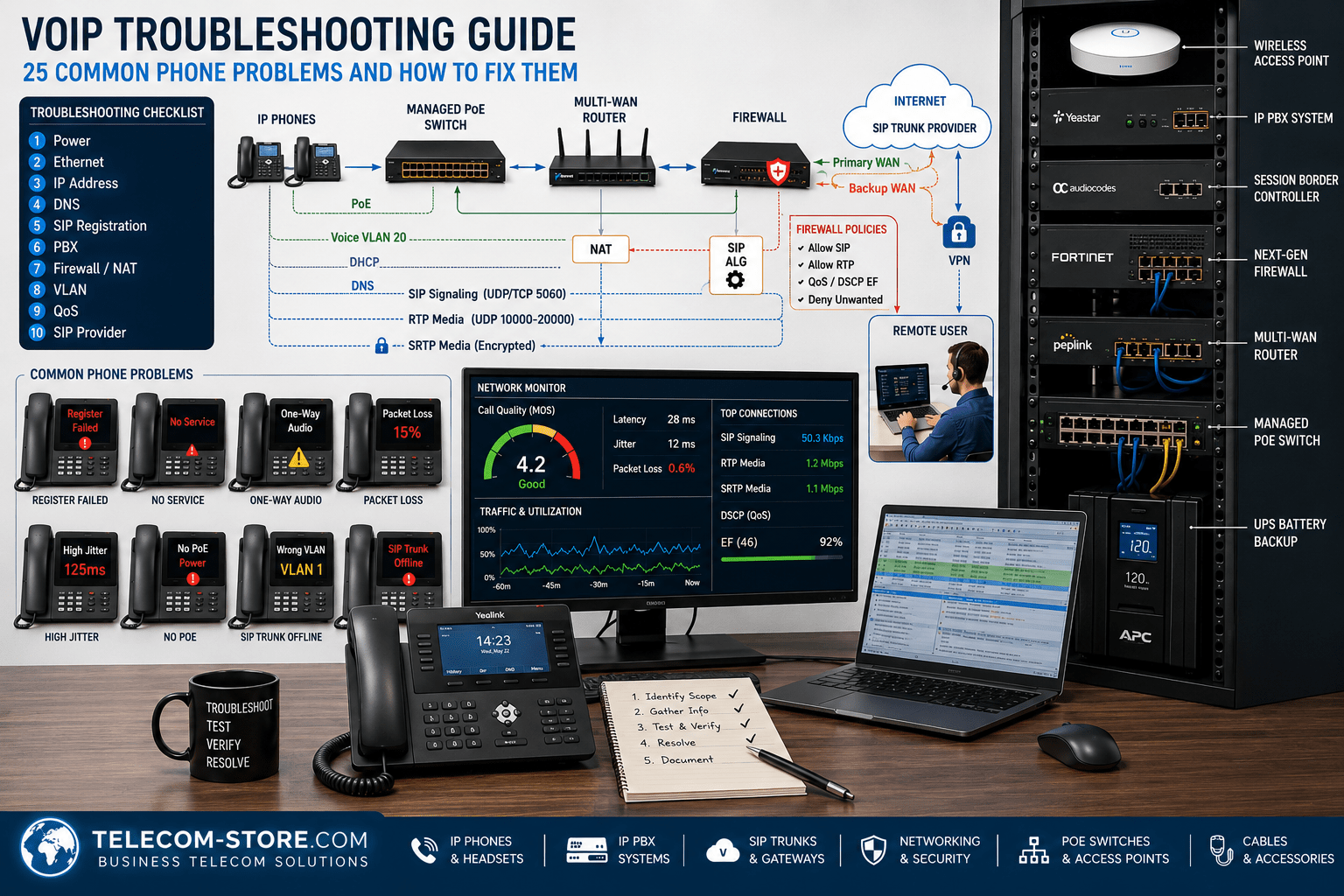
VoIP phone problems can originate almost anywhere between the handset and the person on the other end of the call. A failed Ethernet connection, exhausted PoE budget, incorrect VLAN, DNS failure, SIP authentication error, firewall rule, Internet problem, PBX configuration issue, or SIP trunk outage can produce symptoms that appear surprisingly similar.
Therefore, effective VoIP troubleshooting is less about randomly changing settings and more about testing the system in a logical order.
This VoIP troubleshooting guide covers 25 common business phone problems, their likely causes, and practical steps for isolating them. It applies broadly to standards-based SIP phones, hosted VoIP services, on-premises IP PBX systems, SIP trunks, managed PoE networks, and remote users.
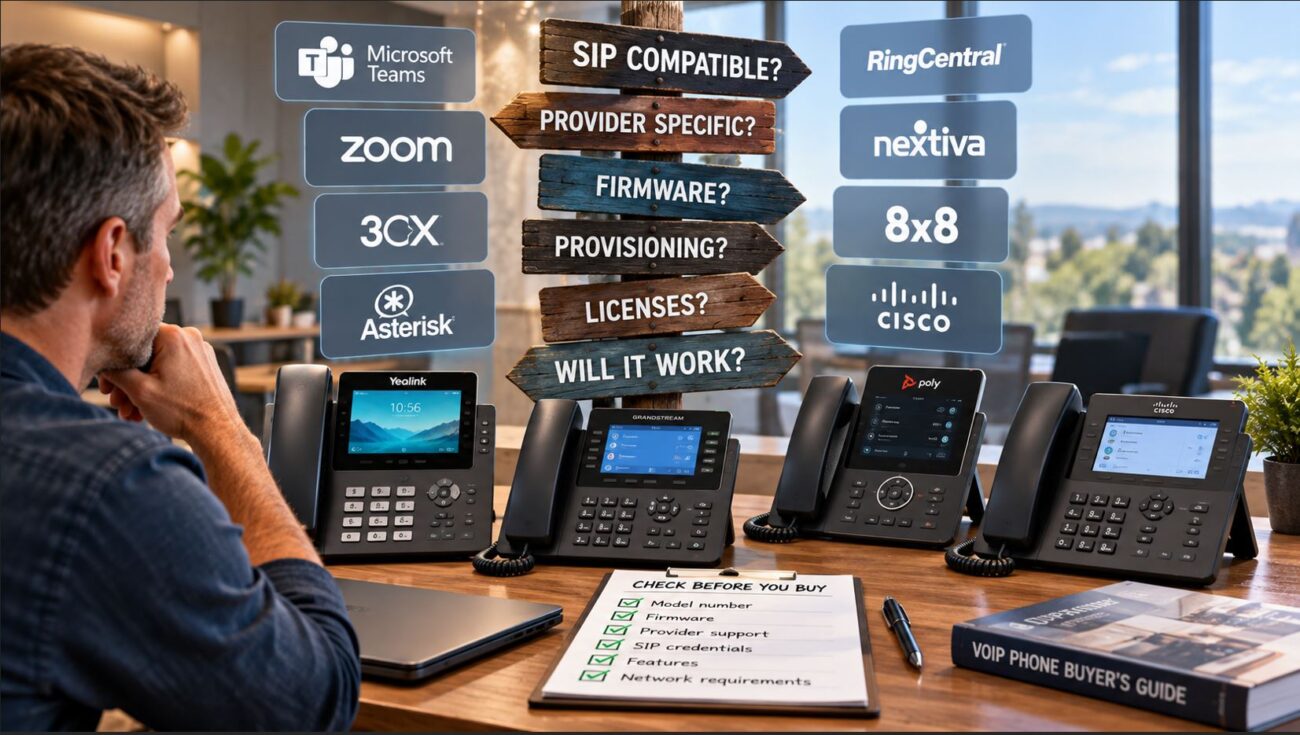
If you are troubleshooting a phone that specifically refuses to register, also see our detailed guide to VoIP phone registration problems. For broader purchasing and infrastructure planning, the Telecom Store Business VoIP Equipment Buying Guide covers phones, networking equipment, PBX systems, and related components.
Quick VoIP Troubleshooting Checklist
Before changing advanced SIP or firewall settings, work through the basic network path first. Many apparently complicated VoIP problems originate at the physical or IP networking layer.
- Confirm that the phone has power.
- Verify the Ethernet cable and switch port.
- Confirm that the phone received a valid IP address.
- Verify the correct voice VLAN.
- Test the default gateway and Internet connection.
- Verify DNS resolution.
- Check SIP registration status.
- Confirm the PBX or hosted VoIP platform is reachable.
- Review firewall, NAT, and SIP ALG behavior.
- Check RTP audio, packet loss, latency, jitter, and QoS.
- Review recent configuration or firmware changes.
- Test another known-good phone, cable, and switch port when possible.
VoIP Problems at a Glance
| Problem |
Common Cause |
First Thing to Check |
| Phone has no power |
PoE or power supply |
Switch port and PoE budget |
| Network disconnected |
Cable or switch port |
Link LEDs and cabling |
| No IP address |
DHCP problem |
DHCP server and VLAN |
| Wrong VLAN |
Switch or discovery configuration |
Voice VLAN assignment |
| DNS failure |
DNS configuration |
DNS server and hostname resolution |
| Registration failed |
SIP configuration |
Registrar and credentials |
| Authentication failed |
Wrong username/password |
Authentication ID |
| Registration drops |
NAT or network instability |
Firewall and Internet connection |
| No dial tone |
Phone or account state |
Registration and handset |
| Cannot make calls |
Dial plan or trunk |
Outbound routing |
| Cannot receive calls |
Inbound routing or registration |
DID destination |
| One-way audio |
RTP/NAT/firewall |
Media path |
| No audio |
RTP blocked |
Firewall and SDP |
| Choppy audio |
Packet loss/jitter |
Network performance |
| Robotic audio |
Jitter or congestion |
QoS and WAN utilization |
| Audio delay |
High latency |
WAN path |
| Dropped calls |
NAT/session timeout |
Firewall timers |
| Calls drop at same interval |
SIP/session timer issue |
SIP signaling |
| DTMF does not work |
DTMF method mismatch |
RFC 2833/4733 or provider setting |
| Caller ID incorrect |
PBX/provider configuration |
Outbound caller ID |
| Voicemail unavailable |
Feature code or PBX |
Mailbox configuration |
| Phone will not provision |
Provisioning/DNS/TLS |
Provisioning URL |
| Phone continually reboots |
Power or firmware |
PoE stability |
| Remote phone will not work |
NAT/VPN/SBC |
Remote connectivity |
| Entire office loses VoIP |
WAN/PBX/power/provider |
Shared infrastructure |
1. VoIP Phone Has No Power
If the display is completely dark, start at the power layer. Do not troubleshoot SIP until the phone can boot normally.
Common causes
- PoE is disabled on the switch port.
- The switch does not support PoE.
- The switch’s available PoE budget has been exhausted.
- A damaged Ethernet cable prevents power delivery.
- The external AC adapter has failed.
- The phone requires a different PoE standard or power level.
How to fix it
Connect the phone to a known-good PoE port or approved AC adapter. Check the managed switch interface for PoE status and power consumption. If multiple devices stopped powering simultaneously, inspect the switch, UPS, and electrical supply.
2. Phone Shows Network Disconnected
A powered phone can still have no Ethernet link.
Replace the patch cable with a known-good cable, inspect the wall jack and patch panel, and move the phone temporarily to a working switch port. Check the phone and switch link indicators. Also verify that the switch port has not been administratively disabled.
3. Phone Does Not Receive an IP Address
A phone displaying an address such as 0.0.0.0 or continuously reporting that it is acquiring an address usually points to DHCP or VLAN connectivity.
Confirm that a DHCP server exists on the phone’s network, that the DHCP scope still has available addresses, and that the switch port reaches the intended VLAN. If a static IP address is configured, verify the address, subnet mask, gateway, and DNS settings.
4. Phone Is on the Wrong Voice VLAN
Business networks commonly separate phones from ordinary computers using a voice VLAN. A phone placed on the wrong VLAN may receive an IP address but still be unable to reach the PBX or provisioning server.
Check the switch port’s tagged and untagged VLAN configuration along with any LLDP-MED, CDP, DHCP option, or manually configured VLAN settings used by the deployment.
For larger deployments, managed switches are generally preferable because they provide VLAN, QoS, PoE monitoring, and diagnostic capabilities. Our VoIP QoS configuration guide explains how VLANs and traffic prioritization fit into a business voice network.
5. DNS Failure Prevents the Phone from Connecting
A phone may have a valid IP address and Internet access yet still fail to register if it cannot resolve the hostname of its SIP server or provisioning platform.
Check the DNS servers assigned through DHCP or configured manually. If the phone is configured with a SIP hostname, test whether that hostname resolves from another device on the same VLAN.
Temporary success after replacing a hostname with an IP address is a strong indication that DNS requires further investigation. However, do not permanently replace hostnames with IP addresses unless the provider specifically supports that configuration.
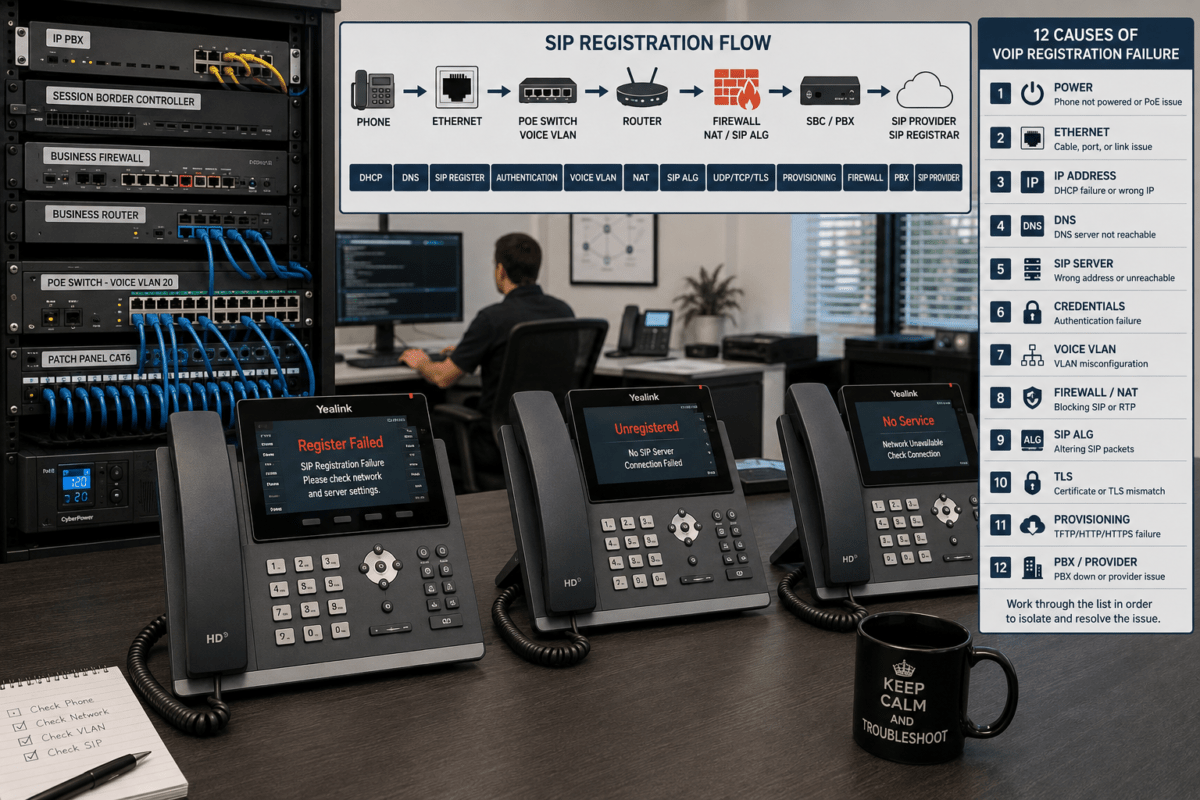
6. VoIP Phone Says Register Failed
SIP registration tells the phone system where the endpoint is located and that it is available to place and receive calls. SIP itself is an application-layer signaling protocol used for establishing, modifying, and terminating communication sessions.
If registration fails, verify:
- SIP registrar or server address
- Extension or SIP user ID
- Authentication username
- Password
- SIP transport
- Required port
- Outbound proxy, if required
- Network and DNS connectivity
See Common Reasons VoIP Phones Won’t Register for a dedicated registration troubleshooting workflow.
7. Authentication Failed or 403 Forbidden
An authentication error usually means the SIP server can be reached but is rejecting the credentials or account.
Do not assume that the extension number and authentication username are identical. Some platforms use separate values. Re-enter the authentication ID and password carefully, confirm the account is active, and verify that the provider has not restricted registration by IP address, device identifier, or location.
8. Phone Registers and Then Becomes Unregistered
Intermittent registration can be more difficult to diagnose because the phone initially appears normal.
Investigate Internet instability, DHCP lease changes, DNS failures, NAT mappings, firewall session timeouts, SIP keep-alive behavior, duplicate registrations, and PBX availability. If many phones lose registration simultaneously, focus on shared infrastructure rather than individual handsets.
9. No Dial Tone
With digital VoIP phones, lack of dial tone does not automatically mean the telephone line itself has failed.
Confirm that the phone is registered, the correct account or line is selected, the handset cable is connected properly, and the speakerphone works. If speakerphone audio works but the handset does not, the handset, cord, or handset port may be defective.
10. Phone Cannot Make Outbound Calls
If the phone registers but outbound calls fail, inspect the PBX or hosted platform rather than immediately replacing the phone.
Common causes include:
- Incorrect dial plan
- Missing outbound route
- SIP trunk unavailable
- Wrong number format
- Calling restrictions
- Insufficient trunk channels
- Provider account or billing issue
When a SIP trunk is involved, verify that the trunk itself is registered or otherwise reachable and that outbound routing sends the dialed number to the correct provider.
11. Phone Cannot Receive Incoming Calls
If outgoing calls work but incoming calls do not, confirm that the DID or telephone number is routed to the correct extension, ring group, IVR, queue, or other destination.
Also check whether the phone remains registered from the server’s perspective. An endpoint behind problematic NAT may appear functional for outbound calls while inbound signaling becomes unreliable.
12. One-Way Audio
One-way audio occurs when one party can hear the other but audio does not travel in both directions. Because SIP signaling and RTP media can follow different paths, a call can establish successfully even when the media path is broken.
Common causes include NAT configuration, firewall rules, incorrect RTP addresses, SIP ALG behavior, VPN routing, or an improperly configured Session Border Controller.
Use our detailed step-by-step VoIP one-way audio guide for a deeper diagnostic process.
13. Call Connects but There Is No Audio
If neither party hears anything, examine the RTP media path.
Verify the PBX and provider’s required RTP port ranges, firewall policies, NAT configuration, and any SBC rules. Packet capture tools can help determine whether RTP packets are leaving and returning to the expected addresses.
Do not blindly open large firewall port ranges to the public Internet. Follow the PBX or service provider’s documented network requirements and restrict access where possible.
14. Choppy or Broken Audio
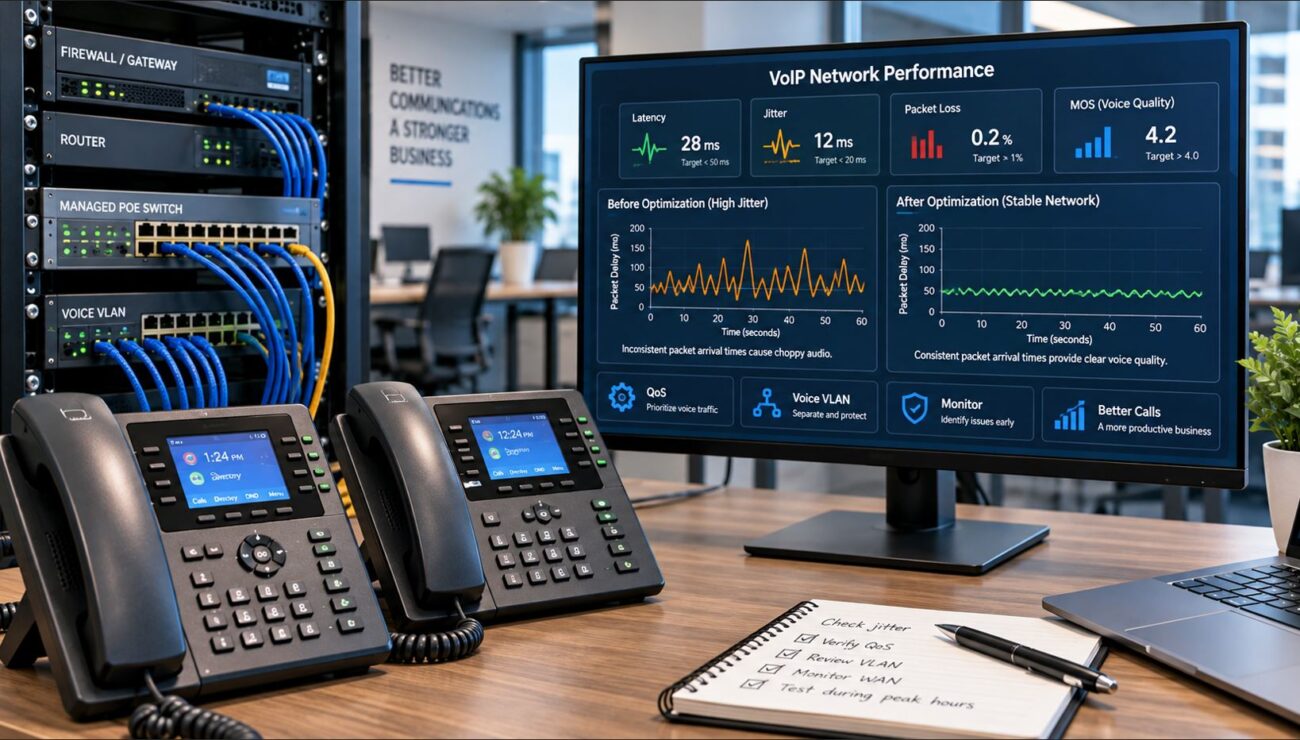
Choppy speech commonly occurs when RTP packets are lost, delayed, or delivered too irregularly for the receiving jitter buffer to reconstruct the audio smoothly.
Check packet loss, jitter, WAN congestion, duplex or interface errors, overloaded Wi-Fi, VPN performance, and Internet utilization.
Our VoIP call quality troubleshooting guide covers these measurements in greater detail.
15. Robotic or Distorted Voice
Robotic audio is another common symptom of packet loss or excessive jitter. It can also occur when a network device is overloaded or voice traffic competes with large downloads, cloud backups, video, or other bandwidth-intensive applications.
Check switch interface statistics and WAN utilization during the actual problem rather than relying only on an Internet speed test performed later.
16. Noticeable Delay During Calls
Excessive latency produces awkward conversational delays and causes callers to talk over each other.
Trace the network path and determine whether the delay originates on the LAN, VPN, Internet connection, service provider, or a geographically distant voice platform. Wi-Fi retransmissions and congested WAN links can also contribute.
When possible, compare the affected phone with a wired endpoint on the same network.
17. Calls Drop Unexpectedly
A call that begins normally and disconnects later can point to several layers of the VoIP system.
Investigate:
- Internet interruptions
- Firewall session timeouts
- NAT mappings
- SIP session timers
- PBX resource problems
- SIP trunk failures
- Failover events
- VPN instability
Look for a pattern. A random drop and a call that disconnects at almost exactly the same elapsed time are different diagnostic clues.
18. Calls Always Drop After the Same Amount of Time
If calls repeatedly disconnect after nearly the same interval, inspect SIP signaling, session timers, NAT behavior, firewall timers, and missing acknowledgement messages.
A packet capture is particularly useful because it can show which device actually initiates the disconnect and whether expected SIP messages fail to reach their destination.
19. Keypad Tones or DTMF Do Not Work
A user may place a call successfully but be unable to navigate an automated attendant, enter a conference PIN, or control voicemail.
This frequently indicates that the phone, PBX, and provider disagree about how DTMF digits should be transported.
Compare the endpoint and provider configuration for the supported DTMF method. Avoid changing multiple codec and DTMF parameters simultaneously because doing so makes the actual cause harder to identify.
20. Caller ID Is Missing or Incorrect
Incorrect outbound caller ID normally originates in the account, PBX, trunk, or provider configuration rather than the desk phone itself.
Check the extension’s outbound caller ID, outbound route, trunk settings, and provider requirements. Providers may reject or replace caller ID values that the account is not authorized to present.
For inbound caller ID problems, determine whether the PBX receives the correct information before troubleshooting the endpoint display.
21. Voicemail Does Not Work
First determine whether the problem involves accessing voicemail, depositing messages, message-waiting indication, or voicemail-to-email.
Check the mailbox assignment, feature code, voicemail destination, dial plan, PIN, message storage, and PBX service status. If voicemail works but the phone’s message indicator does not, investigate the phone’s subscription and message-waiting configuration separately.
22. Phone Will Not Provision
Automatic provisioning can configure SIP accounts, firmware, buttons, VLANs, and other settings across many phones. When provisioning fails, manually configuring every phone may hide the actual infrastructure problem.
Verify:
- Provisioning server URL
- DNS resolution
- HTTP/HTTPS reachability
- Credentials
- Device MAC address
- Configuration filename
- TLS certificate validity
- Vendor or PBX provisioning template
Review the phone’s provisioning log whenever available. It often identifies an HTTP error, DNS failure, certificate problem, missing file, or authentication issue directly.
23. VoIP Phone Keeps Rebooting
Repeated rebooting often points to unstable power, firmware, provisioning, or hardware.
If the phone uses PoE, review switch logs and PoE events. Make sure the switch has sufficient total power budget and that the cable is sound. Then temporarily prevent automatic provisioning if appropriate and determine whether a configuration or firmware process is deliberately forcing the phone to reboot.
If only one endpoint exhibits the behavior after cables and ports have been swapped, the phone itself becomes a stronger suspect.
24. Remote VoIP Phone Will Not Work
Remote phones introduce additional NAT, firewall, Internet, VPN, and security considerations.
Depending on the architecture, remote connectivity may use a VPN, Session Border Controller, provider-specific edge service, SIP/TLS, SRTP, or other secure remote-access method. Follow the PBX or hosted provider’s supported design rather than simply forwarding SIP ports to an internal phone system.
NAT traversal mechanisms can help communication endpoints establish usable media paths, but the exact method depends on the platform and deployment.
25. Every VoIP Phone in the Office Stops Working
When an entire site fails simultaneously, troubleshooting individual phones wastes time. Look for a shared point of failure.
Start with:
- Utility power and UPS status
- Core switch and PoE switch
- Router
- Firewall
- Internet connection
- DNS
- IP PBX
- Session Border Controller
- SIP trunk or hosted provider
If computers also lost Internet connectivity, investigate the network or ISP first. If data services work normally while all phones fail together, concentrate on the voice VLAN, PBX, firewall, SBC, DNS, and SIP provider.
Businesses designing a more resilient voice environment should also review the guide to keeping Internet and VoIP running during a power outage.
How to Troubleshoot VoIP in the Right Order
The most efficient method is to troubleshoot from the bottom of the network upward. This prevents technicians from spending time changing SIP parameters when the real problem is a cable, VLAN, DHCP server, or Internet connection.
| Step |
Layer |
What to Verify |
| 1 |
Power |
PoE, AC adapter, UPS |
| 2 |
Physical network |
Cable, jack, switch port |
| 3 |
IP networking |
IP address, subnet, gateway, VLAN |
| 4 |
Network services |
DHCP and DNS |
| 5 |
SIP signaling |
Registration, authentication, routing |
| 6 |
PBX |
Extensions, dial plan, trunks |
| 7 |
Firewall/NAT |
Policies, NAT, SIP handling |
| 8 |
Media |
RTP/SRTP, codecs, audio path |
| 9 |
Performance |
Latency, jitter, packet loss, QoS |
| 10 |
Provider/WAN |
Internet and SIP service status |
QoS and Network Performance Matter
Adding bandwidth alone does not automatically solve VoIP call-quality problems. Voice is real-time traffic, so packet delivery consistency matters.
On networks where voice competes with other traffic, managed switches and routers can identify and prioritize appropriate traffic classes. The Differentiated Services Expedited Forwarding behavior was designed as a building block for traffic requiring low delay, low jitter, and low loss.
However, QoS must be designed end to end. Marking traffic on a phone does little good if the switch, router, WAN, or service provider ignores or rewrites those markings.
See our business VoIP QoS configuration guide for a more complete explanation.
When Should You Use Packet Capture?
Packet capture becomes useful when basic troubleshooting proves that the network is functioning but the exact SIP or RTP failure remains unclear.
A capture can help identify:
- SIP registration requests and responses
- Authentication failures
- SIP response codes
- Missing acknowledgements
- Incorrect IP addresses in session descriptions
- RTP reaching only one side
- Unexpected retransmissions
- Call-disconnect signaling
- DNS failures
Capture traffic only where authorized, because signaling and media traces may contain telephone numbers, addresses, credentials or authentication data, and conversation content depending on the protocols and encryption in use.
Do Not Automatically Disable Security Features
Troubleshooting advice sometimes recommends disabling firewalls, encryption, SIP security, or other protective controls simply to make a phone work. That should not be the normal solution.
Instead, identify the actual traffic required by the phone system and create appropriately scoped policies. Where supported by the deployment, technologies such as TLS, SRTP, VPNs, and Session Border Controllers can improve security while supporting legitimate voice traffic.
When Is the Phone Actually the Problem?
Phones do fail, but replacement should usually follow basic isolation testing.
A handset becomes a stronger suspect when:
- The problem follows the phone to another known-good switch port.
- A known-good phone works on the original cable and port.
- A factory reset and correct reprovisioning do not resolve the problem.
- The phone has obvious physical damage.
- PoE and voltage are stable.
- The phone repeatedly crashes while identical devices operate correctly.
Before replacing equipment across a larger deployment, confirm that the problem is not caused by firmware, provisioning, network configuration, or provider compatibility.
Building a More Troubleshootable VoIP Network
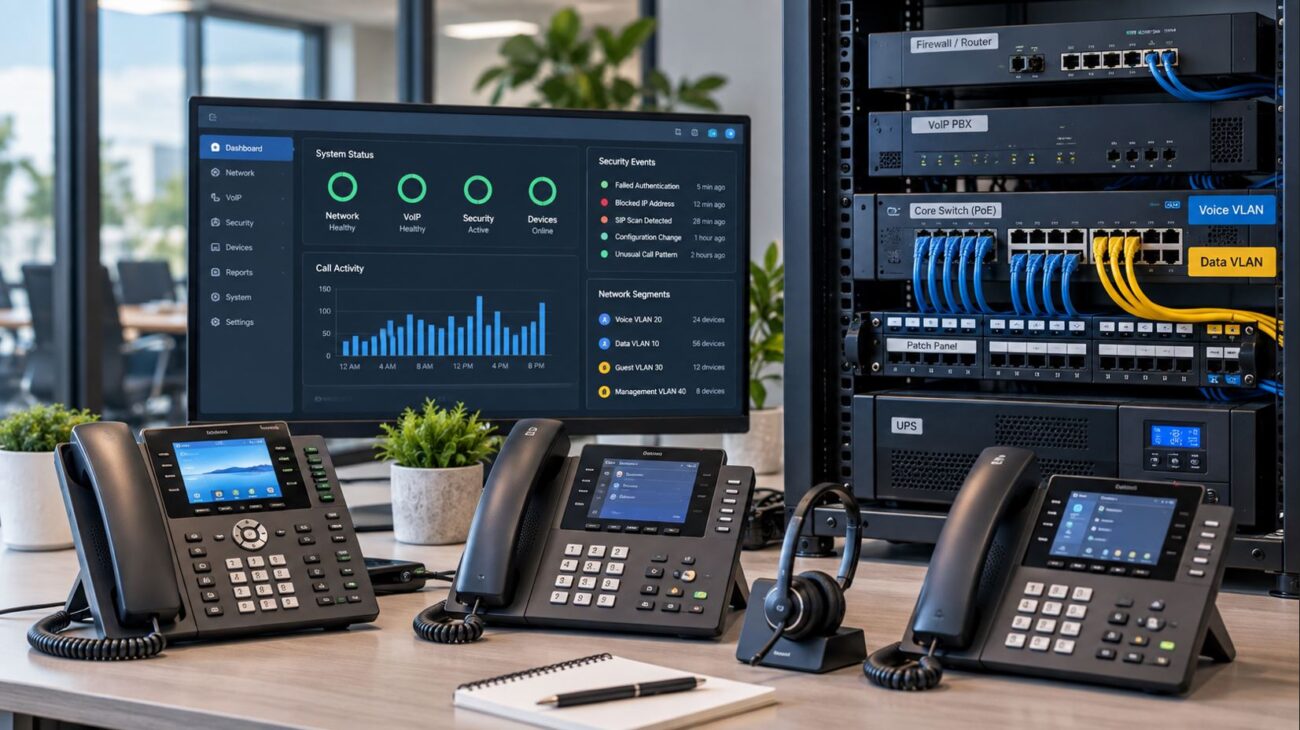
Good network design makes future problems easier to diagnose. Business VoIP environments benefit from documented IP addressing, clearly defined voice VLANs, managed PoE switches, centralized configuration, network monitoring, UPS protection, appropriate firewall policies, reliable DNS and DHCP, and well-documented SIP trunk settings.
For a wider look at equipment selection, see the Telecom Store Buying Guide for Business Phones and VoIP Equipment.
Frequently Asked Questions About VoIP Troubleshooting
What should I check first when a VoIP phone stops working?
Start with power and the physical network connection. Next confirm the phone has a valid IP address, gateway, VLAN, and DNS service before troubleshooting SIP registration, PBX settings, firewall policies, or the provider.
Why does my VoIP phone say registration failed?
Common causes include incorrect SIP credentials, the wrong registrar, DNS problems, firewall or NAT issues, an unreachable PBX, provisioning errors, or a disabled account.
What causes one-way audio on VoIP calls?
One-way audio frequently indicates a problem with the RTP media path. NAT, firewall policies, incorrect media addresses, VPN routing, or SBC configuration should be investigated.
Why do VoIP calls sound robotic?
Robotic or distorted voice commonly results from packet loss, jitter, congestion, Wi-Fi interference, overloaded network equipment, or unstable WAN connectivity.
Can SIP ALG cause VoIP problems?
It can in some network environments because SIP ALG modifies SIP traffic. Whether it should be disabled depends on the router, firewall, provider, and PBX architecture. Follow the recommendations for the specific platform rather than treating one setting as universal.
Does increasing Internet speed fix VoIP quality?
Not necessarily. Adequate bandwidth is necessary, but latency, jitter, packet loss, congestion, routing, and QoS can matter just as much. A faster Internet plan will not repair a local VLAN, cabling, firewall, or SIP configuration problem.
Should VoIP phones use a separate VLAN?
A dedicated voice VLAN is common in managed business networks because it helps separate traffic, apply policies, organize addressing, and troubleshoot the voice environment. Whether it is necessary depends on the size and requirements of the deployment.
When should I call the VoIP provider?
Contact the provider after verifying local power, cabling, IP connectivity, DNS, and basic configuration, or sooner if the provider reports an outage. Supplying timestamps, affected numbers, SIP response codes, call examples, and packet captures when appropriate can make escalation more effective.
Final VoIP Troubleshooting Checklist
- Check power and PoE.
- Check Ethernet cabling and switch ports.
- Verify the IP address, gateway, and subnet.
- Confirm the correct voice VLAN.
- Test DHCP and DNS.
- Verify SIP server settings and credentials.
- Check PBX registration and routing.
- Inspect firewall and NAT behavior.
- Verify the RTP media path.
- Measure packet loss, latency, and jitter.
- Review QoS configuration.
- Check SIP trunk and provider status.
- Review provisioning and firmware.
- Compare against a known-good phone.
- Document the final cause before making additional changes.
Conclusion
VoIP troubleshooting becomes much easier when each layer is tested in sequence. Begin with power and Ethernet, continue through IP addressing, VLANs, DHCP and DNS, and then examine SIP registration, the PBX, firewall, NAT, RTP media, QoS, the Internet connection, and the service provider.
Most importantly, use the symptom to narrow the search. One phone failing usually points toward the endpoint or its connection. Every phone failing simultaneously suggests shared infrastructure. A call that connects without audio points toward the media path, while a phone that cannot register points toward SIP signaling, authentication, DNS, or connectivity.
A structured approach reduces unnecessary equipment replacement, limits configuration changes, and provides better information when a problem must be escalated to a VoIP provider, network administrator, or equipment manufacturer.
Telecom-Store.com provides business VoIP phones, IP PBX systems, networking equipment, PoE hardware, headsets, conferencing equipment, and related telecom infrastructure. For additional deployment information and troubleshooting resources, visit the Telecom Store business VoIP and networking blog.
Authoritative Technical References