Zoom Rooms on Windows 10: What Businesses Need to Do Before Support Ends
Organizations still operating Zoom Rooms on Windows 10 should begin planning their migration now.
Zoom has announced that the last supported Zoom Rooms release for Windows 10 Retail/GAC is expected in September 2026. After that release, the Zoom Rooms application will no longer receive normal feature updates on Windows 10 Retail/GAC. Zoom currently lists December 2027 as the platform’s end-of-support date.
This does not mean every Windows 10 Zoom Room will suddenly stop working in September 2026. However, continuing to depend on an aging operating system introduces increasing security, compatibility, support, and lifecycle risks.
The timing is especially important because Microsoft ended general support for Windows 10 on October 14, 2025. Businesses therefore need to determine whether their existing Zoom Rooms PCs can move to Windows 11, whether they should replace aging room computers, or whether an appliance-based architecture makes more sense for future meeting-room deployments.
Zoom Rooms Windows 10 Support: The Key Dates
Milestone
Date
What It Means
Microsoft Windows 10 general support ended
October 14, 2025
Microsoft stopped providing normal security updates, feature updates, and technical support for standard Windows 10 editions.
Expected final Zoom Rooms release for Windows 10 Retail/GAC
September 2026
Windows 10 Retail/GAC Zoom Rooms systems are expected to stop receiving normal future Zoom Rooms releases after this point.
Zoom Rooms Windows 10 Retail/GAC end of support
December 2027
Zoom indicates the platform may no longer be supported or able to continue functioning with Zoom services after end of support.
Quick answer: If your organization still has Zoom Rooms running Windows 10 Retail/GAC, inventory those systems now and plan either an upgrade to Windows 11 or a hardware replacement. Do not wait until the final supported software release.
Why Is Zoom Ending Windows 10 Support?
Zoom’s decision follows the broader Windows operating-system lifecycle.
Microsoft ended general Windows 10 support in October 2025. Although Windows 10 computers can continue operating, standard installations no longer receive the same ongoing security fixes, software updates, and technical assistance available on supported operating systems.
Zoom maintains its own software lifecycle and periodically raises the minimum supported application version. Maintaining Zoom Rooms on an operating system that no longer receives normal vendor support eventually becomes difficult from both a security and software-development perspective.
For IT departments, the issue is therefore bigger than whether the Zoom Rooms application launches today. The real concern is whether the room remains maintainable, secure, compatible, and supportable over its remaining service life.
Will Zoom Rooms Stop Working in September 2026?
No. September 2026 is currently expected to be the final supported Zoom Rooms software release for Windows 10 Retail/GAC, not an immediate shutdown date.
According to Zoom’s current lifecycle notice, December 2027 is the expected end-of-support date.
That means a Windows 10 room may continue operating after September 2026 using its final compatible Zoom Rooms software version. However, it will no longer follow the normal feature-update path available to supported operating systems.
This creates several potential problems over time:
New Zoom Rooms features may not become available.
Compatibility with other meeting technologies may change.
Security requirements may evolve.
Future minimum-version enforcement may eventually prevent continued operation.
Hardware manufacturers may independently end support for older room computers.
IT teams may have difficulty getting full vendor support for an unsupported operating system.
For a business-critical conference room, waiting until connectivity or compatibility actually fails is generally a poor migration strategy.
Step 1: Find Every Zoom Room Still Running Windows 10
The first step is inventory.
Zoom specifically recommends identifying devices still running Windows 10 before beginning the migration process.
For an individual room PC, Windows version information can be checked under:
Settings → System → About
Organizations managing many conference rooms should build an inventory containing at least:
Room name and location
Zoom Rooms computer manufacturer and model
Current Windows edition
Windows version
Processor generation
Installed memory
TPM capability
BIOS or firmware version
Zoom Rooms application version
Camera model
Microphone and speaker system
Room controller model
Display configuration
Warranty status
Approximate installation date
This inventory makes it much easier to determine which rooms can be upgraded and which should be replaced.
Step 2: Determine Whether the Existing Room PC Can Run Windows 11
Do not assume that every Windows 10 conference-room PC can simply be upgraded.
Windows 11 introduces hardware requirements that can affect older meeting-room computers. Compatibility may depend on the processor, TPM implementation, Secure Boot capability, firmware, device drivers, and manufacturer support.
Zoom specifically advises organizations to evaluate hardware compatibility before performing an operating-system upgrade.
The most important question is not simply whether Windows 11 can technically be installed. IT teams should determine whether the complete room configuration is supported by the hardware manufacturer and Zoom after the upgrade.
Check More Than the PC
A conference room is an integrated system. Before upgrading the operating system, verify compatibility with:
USB cameras
PTZ cameras
USB audio interfaces
DSP systems
Speakerphones
Touch controllers
Content-sharing hardware
Capture devices
Room schedulers
Display drivers
Network adapters
An operating-system migration should be treated as a room-system change rather than an ordinary desktop-PC upgrade.
Step 3: Decide Whether to Upgrade or Replace the Room Computer
There are two primary paths for Windows-based Zoom Rooms.
Option 1: Upgrade the Existing PC to Windows 11
An operating-system upgrade may make sense when the existing computer is relatively new, officially supports Windows 11, has adequate processing capability, and remains supported by its manufacturer.
This can preserve the existing cameras, microphones, controllers, cabling, and displays while extending the usable life of the room.
Option 2: Replace the Existing Zoom Rooms PC
Replacement often makes more sense when the existing room computer is several generations old or does not meet current platform requirements.
Installing a modern Zoom Rooms computer can also provide an opportunity to standardize hardware across multiple rooms and simplify future support.
Zoom currently recommends Windows 11 for Windows-based Zoom Rooms and maintains a certified hardware list for room computers and kits.
A Current Windows 11 Zoom Rooms Replacement Option
Businesses that prefer to remain with a Windows-based Zoom Rooms architecture can consider a current-generation room kit rather than trying to extend the life of an aging Windows 10 computer.
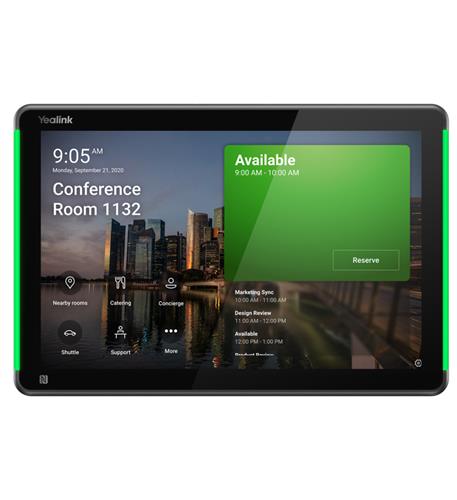
The kit uses Yealink’s MCore4 room computer platform together with an 11.6-inch MTouch Plus control panel and RoomSensor.
Zoom currently lists the Yealink MCoreKit-C5U-ZR among its certified Zoom Rooms Windows computers and identifies the platform as using Windows 11 IoT Enterprise.
Businesses replacing older Windows 10 installations should also consider whether they still need a Windows-based room at all.
Consideration
Windows-Based Zoom Room
Zoom Room Appliance
Operating system
Windows
Typically vendor-managed Android/AOSP
Hardware flexibility
High
More integrated
Peripheral choices
Broad USB and AV flexibility
Depends on certified appliance
IT management
Requires Windows lifecycle management
OS and firmware generally managed through appliance/vendor lifecycle
Complex AV rooms
Often advantageous
Depends on room requirements
Deployment simplicity
More individual components
Often simpler
Neither architecture is automatically better.
Windows-based systems remain useful when organizations require flexible peripherals, specialized AV integration, multiple cameras, complex USB architectures, or particular room features.
Appliances can reduce PC administration and simplify smaller or standardized meeting spaces.
Zoom currently recommends Android AOSP 12 or higher for new appliance-oriented deployments, although support depends on the specific certified hardware and vendor lifecycle.
Do Not Confuse Windows 10 Retail With Windows 10 IoT LTSC
IT departments should verify the exact Windows edition before assuming a room is affected by the September 2026 milestone.
Zoom has stated that the support timeline for Windows 10 IoT LTSC will be provided separately.
This distinction is especially important for purpose-built conference-room systems because some commercial meeting-room PCs use Windows IoT editions rather than the standard Windows editions found on ordinary office computers.
Inventory the actual operating-system edition before classifying a room for replacement.
Step 4: Test Before Migrating Production Rooms
Do not perform an organization-wide upgrade without testing a representative room first.
A pilot room should be used to test:
Zoom Rooms sign-in and activation
Calendar integration
Camera detection
Microphone selection
Speaker output
Touch controller pairing
Content sharing
Wireless sharing
HDMI ingest
Dual-display operation
External meeting interoperability
Room scheduling
Network access
Device management
Automatic Zoom Rooms updates
Complete several real meetings before approving the configuration for wider deployment.
Step 5: Review Your Network at the Same Time
An operating-system migration is also a good opportunity to review the underlying conference-room network.
Check:
Ethernet cabling
Switch capacity
PoE requirements for controllers and peripherals
VLAN configuration
DHCP
DNS
NTP
Firewall rules
Quality of Service
Internet bandwidth
Wireless coverage for wireless accessories
UPS protection
A modern Zoom Room still depends on a stable network. Replacing the room PC without correcting packet loss, poor wireless coverage, switching problems, or inadequate Internet connectivity will not solve underlying meeting-quality issues.
Step 6: Use Device Management to Maintain the New Environment
Businesses managing multiple Zoom Rooms should establish a consistent device-management process after migration.
Zoom Device Management can support Zoom Rooms application updates and, on supported platforms, operating-system or firmware management.
This helps reduce the likelihood that individual meeting rooms drift onto outdated software versions.
Your lifecycle policy should include:
Regular Zoom Rooms software updates
Operating-system maintenance
Firmware updates
Peripheral compatibility testing
Security reviews
Hardware warranty tracking
Planned replacement dates
Should You Replace Cameras and Audio Equipment Too?
Not necessarily.
If your existing camera, microphone, speakers, and controller remain supported and meet your room requirements, replacing only the room computer may be sufficient.
However, a Windows 10 migration can be a useful trigger for reviewing older AV equipment.
Consider replacing peripherals when:
The camera lacks modern framing capabilities.
Microphone coverage is inadequate.
Users frequently complain about echo or poor audio.
The room has expanded since the original installation.
The existing hardware is no longer supported.
USB or driver compatibility is becoming problematic.
The organization wants standardized hardware across locations.
Choosing Hardware by Room Size
Room Type
Typical Priority
Migration Consideration
Focus room
Simple camera and audio
A compact appliance may be sufficient
Huddle room
Wide camera coverage and simple control
Consider an integrated bar or compact Windows kit
Medium conference room
Improved microphone pickup and camera framing
Evaluate expansion microphone and multi-display needs
Large conference room
Advanced cameras, multiple microphones and displays
Windows architecture may offer greater integration flexibility
Boardroom
Custom AV and high-quality audio
Evaluate the complete AV architecture before replacing the room PC
Zoom Rooms Windows 10 Migration Checklist
Use this checklist for every affected room:
Identify the Windows edition and version.
Record the room computer model and age.
Confirm Windows 11 hardware compatibility.
Check manufacturer support for the upgrade.
Verify Zoom Rooms hardware certification where applicable.
Inventory cameras, microphones, speakers, controllers, and displays.
Confirm peripheral Windows 11 compatibility.
Back up configuration information.
Test the proposed replacement or upgrade in a pilot room.
Verify calendar and identity integrations.
Test external meeting interoperability.
Verify networking and firewall access.
Schedule migration outside important meeting periods.
Document the completed configuration.
Establish the next hardware lifecycle review date.
Common Migration Mistakes to Avoid
Waiting Until the Final Supported Release
OS migrations can expose hardware, driver, firmware, and peripheral problems. Waiting until the last minute eliminates the time needed to resolve them properly.
Upgrading Windows Without Checking Vendor Support
A PC may technically run Windows 11 while the complete conference-room system is not officially supported in that configuration.
Replacing the PC Without Testing Peripherals
Cameras and audio devices should be tested with the new environment before production deployment.
Ignoring the Controller
The room controller is a critical component. Verify its software, operating system, pairing, and lifecycle independently from the room computer.
Assuming All Windows 10 Editions Have the Same Timeline
The September 2026 announcement specifically concerns Windows 10 Retail/GAC. Windows IoT editions have separate lifecycle considerations.
Ignoring Network Problems
An upgraded room cannot compensate for packet loss, insufficient bandwidth, poor Wi-Fi, or improperly configured network infrastructure.
What Businesses Should Do Now
Businesses with only one or two Zoom Rooms should inspect those systems now and determine whether they can move cleanly to Windows 11.
Organizations with many conference rooms should approach the issue as a formal migration project.
A practical sequence is:
Inventory all Zoom Rooms.
Identify Windows 10 Retail/GAC systems.
Separate upgradeable computers from replacement candidates.
Select a pilot room.
Test Windows 11 or replacement hardware.
Validate cameras, audio, controllers, displays, and network connectivity.
Create a standardized migration configuration.
Deploy the new configuration room by room.
Monitor the rooms through Zoom Device Management.
Retire unsupported hardware.
Should You Upgrade or Buy a New Zoom Rooms System?
If the existing room computer is relatively new, fully supports Windows 11, and works with the existing AV equipment, upgrading it may be the most economical path.
If the computer is old, unsupported, difficult to service, or already causing compatibility problems, replacement is usually the better long-term investment.
Businesses refreshing an older Windows 10 Zoom Room can also use the migration as an opportunity to improve camera framing, microphone coverage, content sharing, touch control, and room management instead of simply swapping one PC for another.
Final Recommendation
The Windows 10 Zoom Rooms transition should be treated as a lifecycle-management project rather than an emergency software update.
September 2026 is expected to mark the final normal Zoom Rooms release for Windows 10 Retail/GAC, while Zoom currently identifies December 2027 as the end-of-support date. Microsoft has already ended general support for standard Windows 10 installations.
Businesses should therefore identify affected rooms now, verify the exact Windows edition, determine Windows 11 compatibility, test a replacement architecture, and create a migration schedule.
For newer systems, an operating-system upgrade may be sufficient. For aging room computers, moving to a current certified Zoom Rooms platform can provide a cleaner and more supportable path forward.
Zoom expects September 2026 to be the final supported Zoom Rooms release for Windows 10 Retail/GAC. Zoom currently lists December 2027 as the platform’s end-of-support date.
Will Zoom Rooms stop working in September 2026?
Not necessarily. September 2026 is expected to be the final normal software release for Windows 10 Retail/GAC. The current Zoom end-of-support date is December 2027.
Should businesses upgrade Zoom Rooms to Windows 11?
Businesses using Windows 10 Retail/GAC should evaluate migration to Windows 11 or another supported Zoom Rooms platform. Hardware compatibility and vendor support should be verified before upgrading.
Can an old Zoom Rooms PC be upgraded to Windows 11?
Possibly. Compatibility depends on the room computer’s processor, TPM, Secure Boot support, firmware, drivers, and hardware-vendor support.
Does Windows 10 itself still receive support from Microsoft?
General support for Windows 10 ended on October 14, 2025. Certain specialized editions and Extended Security Update arrangements have different lifecycle provisions.
What operating systems does Zoom recommend for Zoom Rooms?
Zoom currently recommends Windows 11, macOS 12 or higher, and Android AOSP 12 or higher, depending on the room architecture.
Do Zoom Room appliances avoid Windows lifecycle issues?
They avoid Windows lifecycle management, but appliance hardware has its own operating-system, firmware, vendor, and Zoom support lifecycle. Appliance systems still require lifecycle planning.
Do I need to replace the entire conference room?
No. If the cameras, microphones, controllers, speakers, displays, and network infrastructure remain compatible, businesses may be able to replace or upgrade only the room computer.
To provide the best experiences, we use technologies like cookies to store and/or access device information. Consenting to these technologies will allow us to process data such as browsing behavior or unique IDs on this site. Not consenting or withdrawing consent, may adversely affect certain features and functions.
Functional
Always active
The technical storage or access is strictly necessary for the legitimate purpose of enabling the use of a specific service explicitly requested by the subscriber or user, or for the sole purpose of carrying out the transmission of a communication over an electronic communications network.
Preferences
The technical storage or access is necessary for the legitimate purpose of storing preferences that are not requested by the subscriber or user.
Statistics
The technical storage or access that is used exclusively for statistical purposes.The technical storage or access that is used exclusively for anonymous statistical purposes. Without a subpoena, voluntary compliance on the part of your Internet Service Provider, or additional records from a third party, information stored or retrieved for this purpose alone cannot usually be used to identify you.
Marketing
The technical storage or access is required to create user profiles to send advertising, or to track the user on a website or across several websites for similar marketing purposes.