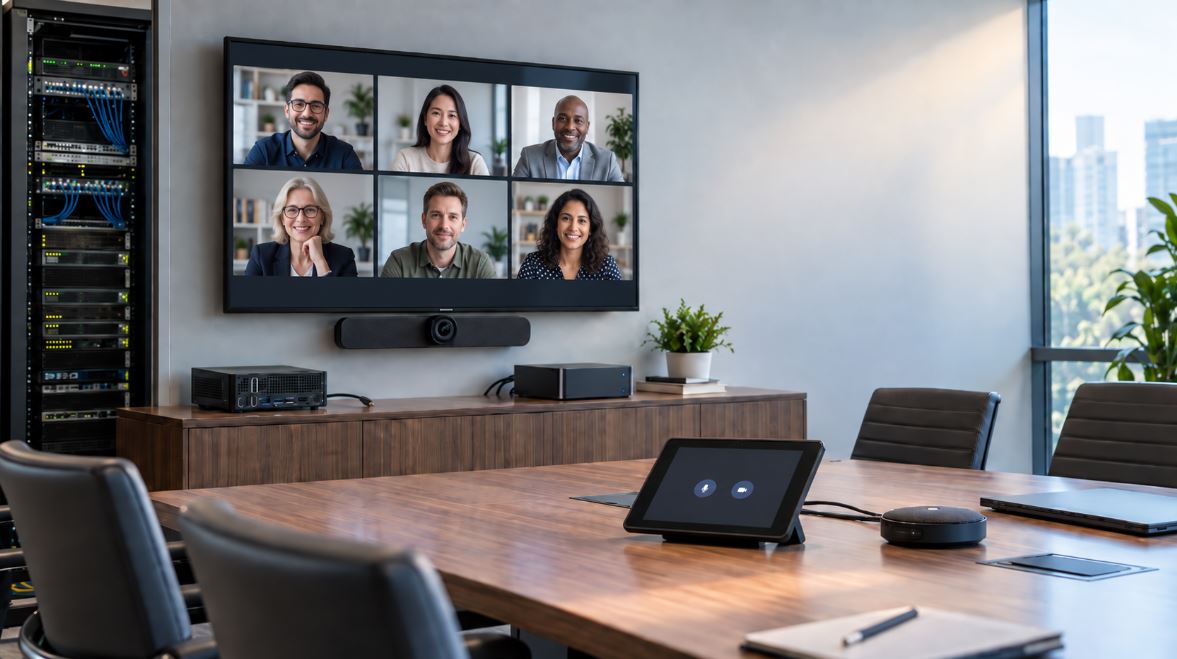
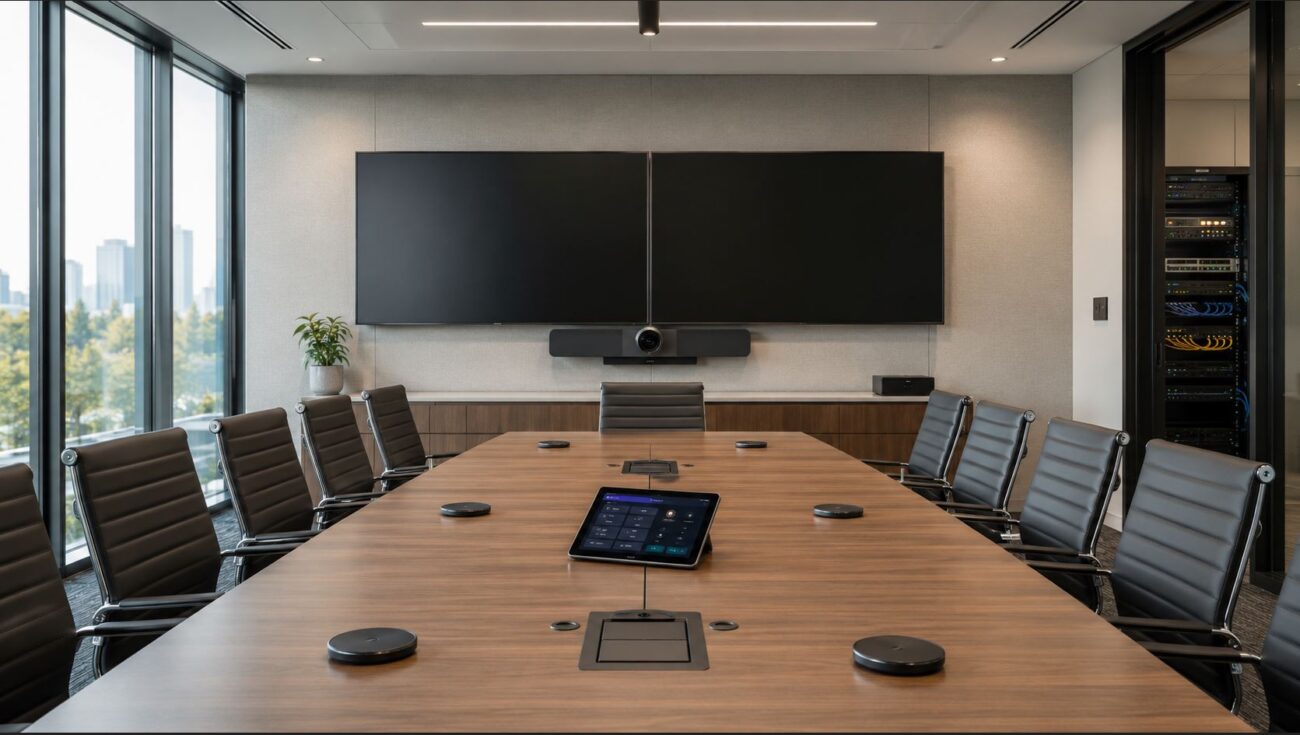
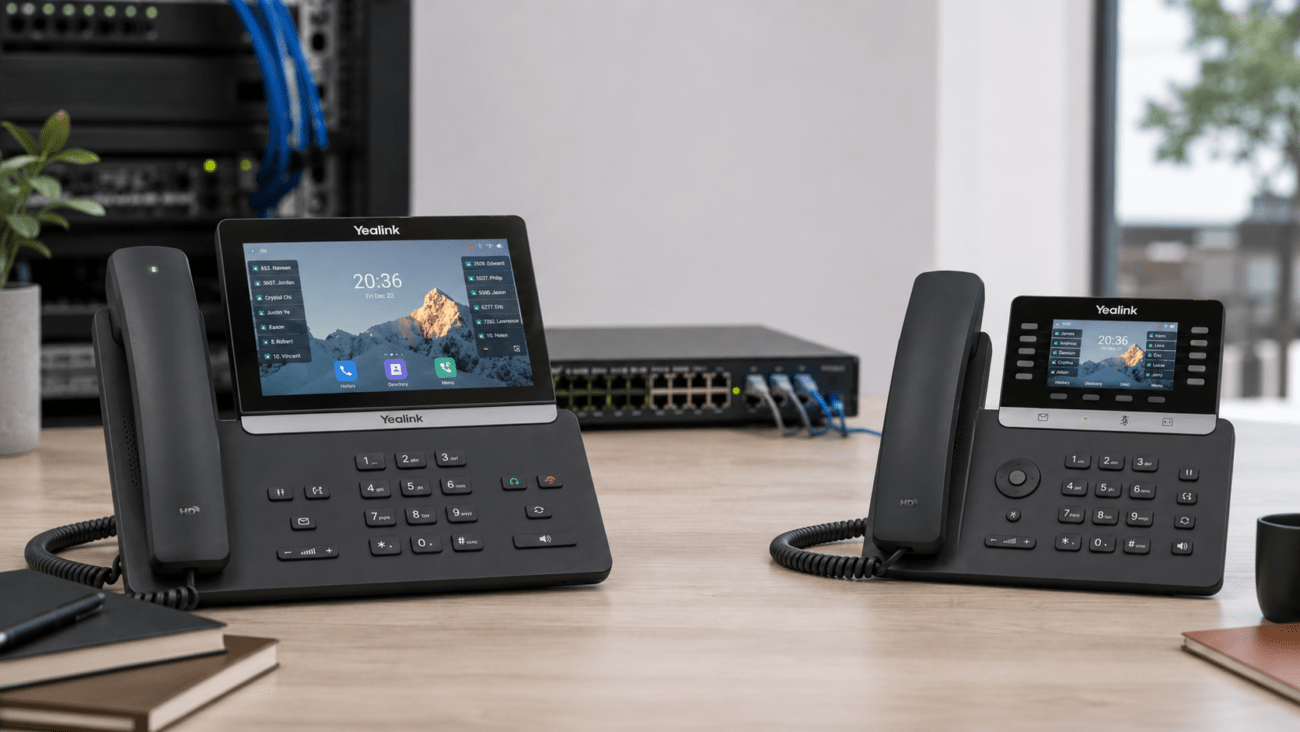
Zoom Rooms vs Microsoft Teams Rooms: Can They Work Together?
Businesses increasingly use both Zoom and Microsoft Teams, which creates an important conference room question: Can Zoom Rooms and Microsoft Teams Rooms work together?
The short answer is yes, with limitations.
A properly configured Microsoft Teams Room can join supported Zoom meetings, and a Zoom Room can join Microsoft Teams meetings. However, this interoperability does not turn one room system into a fully native version of the other platform. Cross-platform meetings may provide fewer controls and features than meetings hosted on the room system’s native platform.
For organizations that regularly receive meeting invitations from customers, vendors and partners using different collaboration platforms, understanding these differences is important before choosing conference room hardware.
This guide explains how Zoom Rooms and Microsoft Teams Rooms interoperability works, what Direct Guest Join means, where SIP interoperability fits in, what features may be limited and how businesses should design rooms that need to support both platforms.
Quick Answer: Can Zoom Rooms and Teams Rooms Join Each Other?
Yes.
Microsoft Teams Rooms can join Zoom meetings using supported third-party meeting functionality such as Direct Guest Join or, in some environments, SIP-based cross-platform meeting interoperability.
Zoom Rooms can join Microsoft Teams meetings when Microsoft Teams interoperability is enabled in the Zoom Rooms configuration.
However, joining a third-party meeting is not the same as running that platform natively.
A Teams Room participating in a Zoom meeting is still fundamentally a Teams Room. Likewise, a Zoom Room participating in a Teams meeting remains a Zoom Room.
The distinction matters because some meeting controls, advanced collaboration features, content-sharing options and platform-specific functions may not be available during a cross-platform meeting.
Zoom Rooms vs Microsoft Teams Rooms: Native vs Cross-Platform Use
Scenario
Experience
Typical Result
Teams Room joining Teams meeting
Native
Full Teams Rooms experience
Teams Room joining Zoom meeting
Cross-platform
Supported, but some features may be limited
Zoom Room joining Zoom meeting
Native
Full Zoom Rooms experience
Zoom Room joining Teams meeting
Cross-platform
Supported, but some features may be limited
If almost every meeting in a conference room uses one collaboration platform, the room should generally be deployed natively for that platform. Cross-platform interoperability is most useful for external meetings and organizations that regularly collaborate with businesses using another service.
Microsoft provides third-party meeting support for Teams Rooms so organizations can participate in meetings hosted on platforms such as Zoom without placing a separate computer in the conference room.
Two important technologies are involved:
Direct Guest Join
Cross-platform SIP meeting join
What Is Direct Guest Join?
Direct Guest Join allows a Teams Room to connect to a supported third-party meeting through a web-based meeting experience.
For Zoom, the Teams Room recognizes the Zoom meeting information contained in the room’s calendar invitation and presents the meeting on the room console. When properly configured, users can select the meeting and join without manually starting Zoom on a laptop.
This is particularly useful when a company primarily uses Microsoft Teams internally but receives Zoom invitations from customers, suppliers or business partners.
Microsoft currently documents Direct Guest Join support for Zoom on both Teams Rooms on Windows and Teams Rooms on Android, although platform capabilities can differ.
For one-touch joining to work correctly, the Zoom invitation generally needs to reach the calendar associated with the Teams Room resource account.
The room system must be able to read the third-party meeting information contained in the calendar invitation.
That means IT administrators need to verify:
The room resource mailbox receives external meeting invitations
The original Zoom meeting URL remains readable
Email security systems are not rewriting the meeting URL in a way the room cannot recognize
Third-party meeting support is enabled on the Teams Room
The network permits access to the required Zoom services
Microsoft specifically advises administrators to account for URL-rewriting security systems because modifying a third-party meeting URL can prevent the room from recognizing the invitation.
What Is Cross-Platform SIP Join?
Microsoft Teams Rooms can also support cross-platform meeting connections through SIP when the appropriate services and configuration are available.
SIP-based interoperability can provide advantages over a browser-based guest experience in some enterprise deployments, especially where organizations already operate video interoperability infrastructure.
Microsoft currently distinguishes between Direct Guest Join using WebRTC and cross-platform meetings using SIP.
According to Microsoft’s current guidance, SIP-based cross-platform meeting support can provide higher video resolutions than Direct Guest Join in supported configurations. However, SIP interoperability adds infrastructure and configuration considerations that may not be justified for a small office that only joins an occasional external Zoom meeting.
How Zoom Rooms Join Microsoft Teams Meetings
The reverse scenario is also supported. A business using Zoom Rooms as its primary conference room platform can configure those rooms to participate in Microsoft Teams meetings.
Zoom provides a Microsoft Teams interoperability setting within Zoom Rooms administration.
When enabled and properly configured, a Zoom Room can recognize Microsoft Teams meeting information from its connected calendar and provide a meeting join option.
Zoom describes its web-based Teams joining method as a browser experience provided by Microsoft. Therefore, the Zoom Room is accessing the Teams meeting as a guest rather than becoming a native Teams Room.
Administrators generally enable Teams interoperability through the Zoom administration portal.
Configuration options can include:
Support for Microsoft Teams meetings
Joining Teams meetings through the web client
Room guest name and email information
An optional Teams join button on the room controller
Preferred interoperability connection methods
Organizations should test the exact Zoom Room hardware and software versions they plan to deploy rather than assuming every Zoom Rooms appliance provides identical interoperability features.
Is the Experience the Same as a Native Teams or Zoom Meeting?
No. This is one of the most important points for businesses planning mixed-platform conference rooms.
Interoperability provides meeting access, not complete feature equivalence.
When a Zoom Room joins a Microsoft Teams meeting or a Teams Room joins a Zoom meeting, the third-party experience can have fewer features than the native platform.
Potential differences can involve:
Meeting layouts
Chat
Reactions
Whiteboarding
Breakout rooms
Participant management
Advanced camera controls
Content sharing
Platform-specific AI features
Meeting recording controls
The exact capabilities can change as Microsoft and Zoom update their platforms. Therefore, administrators should verify current platform documentation before a major room deployment.
Example: Zoom Room Joining a Teams Meeting
Consider a sales organization that standardizes all conference rooms on Zoom Rooms.
A major customer sends the sales team a Microsoft Teams meeting invitation.
If Teams interoperability has been properly enabled, the meeting can appear on the Zoom Room’s calendar. The salesperson enters the conference room, selects the Teams meeting and joins using the room’s existing camera, microphones, speakers and display.
The employee does not need to disconnect the room hardware and reconnect everything to a laptop simply because the customer uses Teams.
However, the interface and available controls may differ from those of a native Zoom meeting.
Example: Teams Room Joining a Zoom Meeting
Now consider an organization standardized on Microsoft 365 and Microsoft Teams Rooms.
A supplier schedules a Zoom meeting and invites the company’s conference room resource mailbox.
With third-party joining enabled and the calendar configured correctly, the Zoom meeting can appear on the Teams Room console. The user selects the meeting and joins through the supported guest experience.
The room remains managed as a Microsoft Teams Room even though it is participating in a Zoom meeting.
Do You Need Separate Teams and Zoom Hardware?
Not necessarily.
A company does not need to install one complete Teams system and a second complete Zoom system in every conference room simply because employees receive meetings from both platforms.
Instead, most organizations should choose a primary room platform and then configure interoperability for secondary platforms.
For example:
Organization
Recommended Native Platform
Secondary Meeting Access
Microsoft 365 company
Microsoft Teams Rooms
Enable Zoom interoperability
Zoom-first company
Zoom Rooms
Enable Microsoft Teams interoperability
Customer-facing organization using both equally
Evaluate workflow and hardware carefully
Consider interoperability plus BYOD
Occasional third-party meetings
Primary corporate platform
Direct Guest Join may be sufficient
Complex enterprise AV environment
Primary platform based on IT standard
Evaluate SIP/CVI and professional AV design
Where BYOD Fits Into a Mixed Teams and Zoom Room
Bring Your Own Device, or BYOD, is another way to provide platform flexibility.
With an appropriate room system or USB bridge, a user connects a laptop to the room and uses the room’s camera, microphones, speakers and display as peripherals.
The employee can then open virtually any supported conferencing application on the laptop.
This can be valuable when:
A guest uses an uncommon meeting platform
Direct Guest Join lacks a required feature
A meeting requires advanced host controls
Content sharing behaves differently through the guest interface
The organization needs a fallback method
For rooms that frequently deal with multiple collaboration services, having both native room functionality and a tested BYOD fallback can be a practical design.
Choosing Hardware for Teams and Zoom Interoperability
Do not select conferencing hardware based solely on whether a product description mentions both Microsoft Teams and Zoom.
Instead, determine which platform will run natively on the room system and how the other platform will be accessed.
Check Platform Certification
For native deployments, verify that the complete room system is certified or supported for the selected collaboration platform.
Certification can affect:
Provisioning
Device management
Firmware updates
Camera controls
Touch controller behavior
Calendar integration
One-touch meeting join
Consider Yealink Room Hardware
Yealink offers conferencing hardware for organizations deploying Microsoft Teams Rooms, Zoom Rooms and flexible meeting spaces.
For example, Telecom-Store carries the Yealink C5U Zoom Rooms Base Kit, which combines room compute and touch-control components for a dedicated conference room deployment.
Always verify the exact hardware SKU, firmware, operating mode and platform certification before ordering. Similar-looking room systems may be supplied in different Teams, Zoom or general-purpose configurations.
Teams Rooms on Windows vs Android
Microsoft Teams Rooms are available on both Windows and Android platforms.
Both platforms currently support Zoom Direct Guest Join, but there can be differences in cross-platform meeting features.
For example, Microsoft’s current feature comparison shows Zoom Direct Guest Join on both Windows and Android, while some other third-party services have platform-specific availability.
Therefore, an organization deploying dozens of conference rooms should not assume a Windows-based Teams Room and an Android-based Teams Room will always provide identical third-party capabilities.
Standardizing the operating platform can simplify:
Deployment
User training
Firmware management
Troubleshooting
Security policies
Cross-platform testing
Network Requirements for Cross-Platform Meeting Rooms
A room that can technically join both Teams and Zoom still requires a properly designed network.
Video conferencing is sensitive to:
Packet loss
Latency
Jitter
Internet congestion
Firewall restrictions
DNS problems
Web filtering
Direct Guest Join is particularly important from a firewall perspective because the room connects directly to the third-party conferencing service.
IT administrators should therefore verify that security policies permit access to the required Microsoft and Zoom services.
Network segmentation and Quality of Service can also be appropriate in larger deployments, particularly when voice and video traffic share WAN links with backups, cloud applications and large file transfers.
Common Reasons Teams and Zoom Interoperability Does Not Work
The Third-Party Meeting Option Is Disabled
Simply installing a supported room system does not guarantee cross-platform joining is enabled. Administrators may need to enable the appropriate third-party meeting provider.
The Room Was Not Invited to the Meeting
For calendar-based one-touch join, the room resource generally needs to receive the meeting invitation.
The Meeting Link Was Modified
Email-security products that rewrite URLs can prevent a room system from recognizing the meeting provider or extracting the required meeting information.
External Calendar Messages Are Not Being Processed
The room resource mailbox must be configured appropriately for external invitations.
The Firewall Blocks the Third-Party Platform
A Teams Room joining Zoom needs network access to Zoom services, just as a Zoom Room joining Teams needs access to Microsoft services.
Users Expect Native Features
A successful connection does not mean every native collaboration feature will be available. Some apparent “problems” are simply limitations of the guest meeting experience.
Teams Rooms vs Zoom Rooms Interoperability Checklist
Choose the primary native room platform.
Verify the room hardware is supported or certified for that platform.
Confirm the required room license is assigned.
Enable supported third-party meeting providers.
Configure the room resource calendar correctly.
Allow external meeting invitations where required.
Verify security software does not break meeting URLs.
Allow required Microsoft and Zoom network destinations.
Test camera, microphone and speaker operation.
Test content sharing during third-party meetings.
Document features that differ from native meetings.
Provide a BYOD fallback when necessary.
Test actual customer and vendor invitations before deployment.
Should a Business Standardize on Teams Rooms or Zoom Rooms?
Interoperability makes mixed-platform communication easier, but it does not eliminate the advantages of standardization.
If most employees already use Microsoft 365, Outlook and Teams, Microsoft Teams Rooms will often provide the most consistent native workflow.
If the organization primarily operates on Zoom and regularly hosts Zoom Meetings, a native Zoom Rooms deployment will generally provide the more consistent experience.
The presence of outside organizations using another platform should not automatically force the business to maintain two separate room systems.
Instead, determine:
Which platform hosts most internal meetings?
Which calendar environment is already deployed?
Which platform does IT already manage?
How frequently are external Teams or Zoom meetings received?
Do users require advanced features when joining the secondary platform?
Would Direct Guest Join be sufficient?
Is a BYOD fallback acceptable?
Can Zoom Rooms and Microsoft Teams Rooms Work Together? Final Answer
Yes. Zoom Rooms and Microsoft Teams Rooms can participate in each other’s meetings when the appropriate interoperability features are enabled and configured.
Microsoft Teams Rooms can join Zoom meetings through mechanisms including Direct Guest Join and supported SIP-based interoperability. Zoom Rooms can join Microsoft Teams meetings through Zoom’s Microsoft Teams interoperability options.
However, neither approach completely converts one platform into the other. Cross-platform meetings can provide fewer features than native meetings, and functionality can vary according to room operating system, software version, hardware and administrator configuration.
For most businesses, the practical approach is to select Teams Rooms or Zoom Rooms as the native platform based on the organization’s primary collaboration environment, then enable interoperability for external meetings.
Organizations that require maximum flexibility should also consider hardware that supports a BYOD fallback so employees can connect a laptop and use the room’s professional camera, microphones, speakers and displays when a guest meeting requires features unavailable through direct interoperability.
Yes. Microsoft Teams Rooms support Zoom as a third-party meeting provider. Depending on the deployment, the room can use Direct Guest Join or supported SIP-based cross-platform meeting functionality.
Can a Zoom Room join a Microsoft Teams meeting?
Yes. Zoom Rooms support Microsoft Teams interoperability when the appropriate Zoom Rooms administrator settings are enabled and the meeting information is available to the room.
What is Direct Guest Join?
Direct Guest Join is a web-based interoperability method that allows a supported conference room system to participate in a meeting hosted by another conferencing platform without operating as a native room for that platform.
Do Teams Rooms need Zoom installed to join Zoom meetings?
No. A Teams Room using Direct Guest Join does not need to become a native Zoom Room. It connects to the supported Zoom meeting through the third-party guest meeting experience.
Does a Zoom Room become a Teams Room when it joins a Teams meeting?
No. It remains a Zoom Room and joins the Microsoft Teams meeting through the configured interoperability method.
Will all Teams features work from a Zoom Room?
No. Cross-platform meetings can have fewer features than a native Teams Rooms meeting. The available controls depend on the interoperability method and current platform capabilities.
Will all Zoom features work from a Teams Room?
No. A Teams Room joining Zoom through Direct Guest Join does not provide the complete native Zoom Rooms feature set.
Do I need separate conference room systems for Teams and Zoom?
Usually not. Many organizations choose one native room platform and enable cross-platform joining for the other. Separate systems may be justified only when the organization requires full native functionality from both platforms in the same location.
Should I use Teams Rooms or Zoom Rooms if my company uses both?
Choose the native platform that matches the collaboration system used for most internal meetings, then evaluate Direct Guest Join, SIP interoperability and BYOD for the secondary platform.
Why does a Zoom or Teams meeting not appear on the room controller?
Common causes include third-party meeting support being disabled, external invitations not being processed by the room mailbox, calendar integration problems, modified meeting URLs or unsupported configuration. Verify the room account, calendar settings and interoperability options first.
To provide the best experiences, we use technologies like cookies to store and/or access device information. Consenting to these technologies will allow us to process data such as browsing behavior or unique IDs on this site. Not consenting or withdrawing consent, may adversely affect certain features and functions.
Functional
Always active
The technical storage or access is strictly necessary for the legitimate purpose of enabling the use of a specific service explicitly requested by the subscriber or user, or for the sole purpose of carrying out the transmission of a communication over an electronic communications network.
Preferences
The technical storage or access is necessary for the legitimate purpose of storing preferences that are not requested by the subscriber or user.
Statistics
The technical storage or access that is used exclusively for statistical purposes.The technical storage or access that is used exclusively for anonymous statistical purposes. Without a subpoena, voluntary compliance on the part of your Internet Service Provider, or additional records from a third party, information stored or retrieved for this purpose alone cannot usually be used to identify you.
Marketing
The technical storage or access is required to create user profiles to send advertising, or to track the user on a website or across several websites for similar marketing purposes.