How to Choose a Video Conferencing System for a Conference Room in 2026
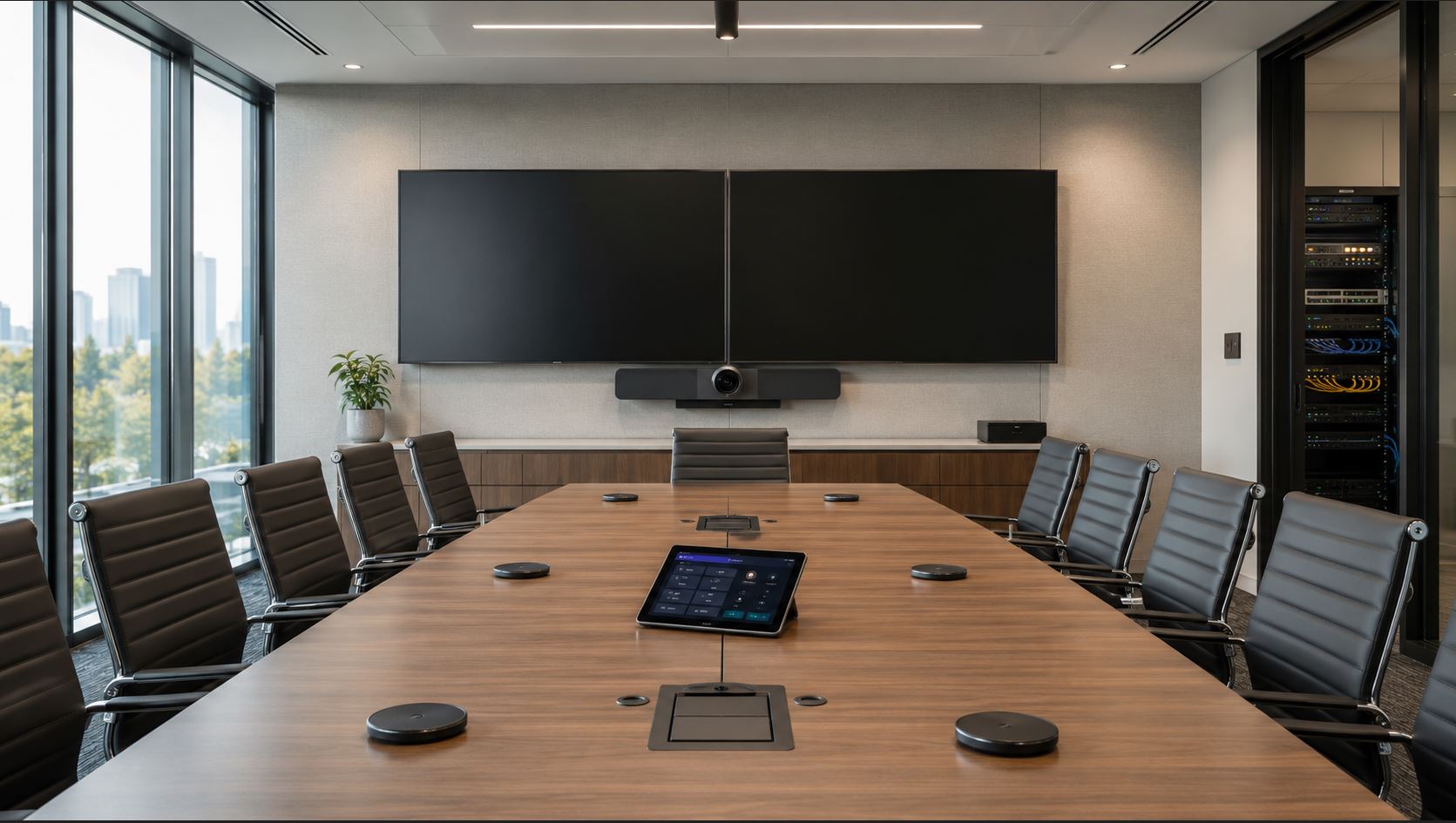
Choosing a video conferencing system for a conference room in 2026 requires more than selecting a camera and connecting it to a display. Businesses now need to consider room size, microphone coverage, camera placement, collaboration platforms, network design, room controls, content sharing, device management, and the experience of both in-room and remote participants.
The right system for a four-person huddle room may be completely inappropriate for a 20-person boardroom. Likewise, a company that primarily uses Microsoft Teams may need different hardware than an organization standardized on Zoom Rooms or one that regularly hosts meetings across multiple platforms.
This guide explains how to choose a conference room video system based on actual deployment requirements rather than marketing specifications alone.
Quick Answer: What Should You Look for in a Conference Room Video System?
A business should choose a video conferencing system based on five primary factors:
Room size and seating layout
Primary collaboration platform
Camera coverage and positioning
Microphone pickup and speaker coverage
Ease of operation and management
For small rooms, an all-in-one video bar may provide everything needed in a single device. Medium and large rooms often benefit from expandable microphones, separate cameras, additional speakers, or modular AV components.
Organizations should also decide whether they want a dedicated Microsoft Teams Rooms or Zoom Rooms experience, a BYOD system, or a room capable of supporting several meeting platforms.
Start With the Conference Room, Not the Camera
One of the most common purchasing mistakes is selecting conferencing hardware before evaluating the physical room.
Begin by documenting:
Room dimensions
Table shape and length
Maximum number of seats
Distance from the camera to the farthest participant
Display location
Ceiling height
Available Ethernet cabling
Power availability
Acoustic conditions
Whether the room may expand or be reconfigured
A system with excellent specifications can still perform poorly if microphones are too far from participants or if the camera cannot properly frame people sitting at the end of the table.
Match the System to the Room Size
Room Type
Typical Capacity
Common Hardware Approach
Key Considerations
Focus / Phone Booth
1-2 people
Webcam or compact all-in-one system
Simple operation, minimal cabling
Huddle Room
2-6 people
All-in-one collaboration bar
Wide field of view, integrated audio
Small Conference Room
4-8 people
Video bar or compact room kit
Camera framing and microphone pickup
Medium Conference Room
8-14 people
Expandable video bar or modular system
Audio expansion, camera reach, dual displays
Large Conference Room
14+ people
Modular AV system
PTZ/multi-camera coverage, distributed microphones and speakers
These ranges are planning guidelines rather than strict rules. Table geometry and room acoustics can matter as much as seat count.
Zoom’s current Zoom Rooms requirements similarly distinguish among focus rooms, huddle/small rooms, medium rooms, and large rooms because different room sizes place different demands on displays, processing, cameras, and advanced video features. :contentReference[oaicite:0]{index=0}
Choose the Collaboration Platform First
Before selecting room hardware, determine which conferencing platform the organization expects to use most often.
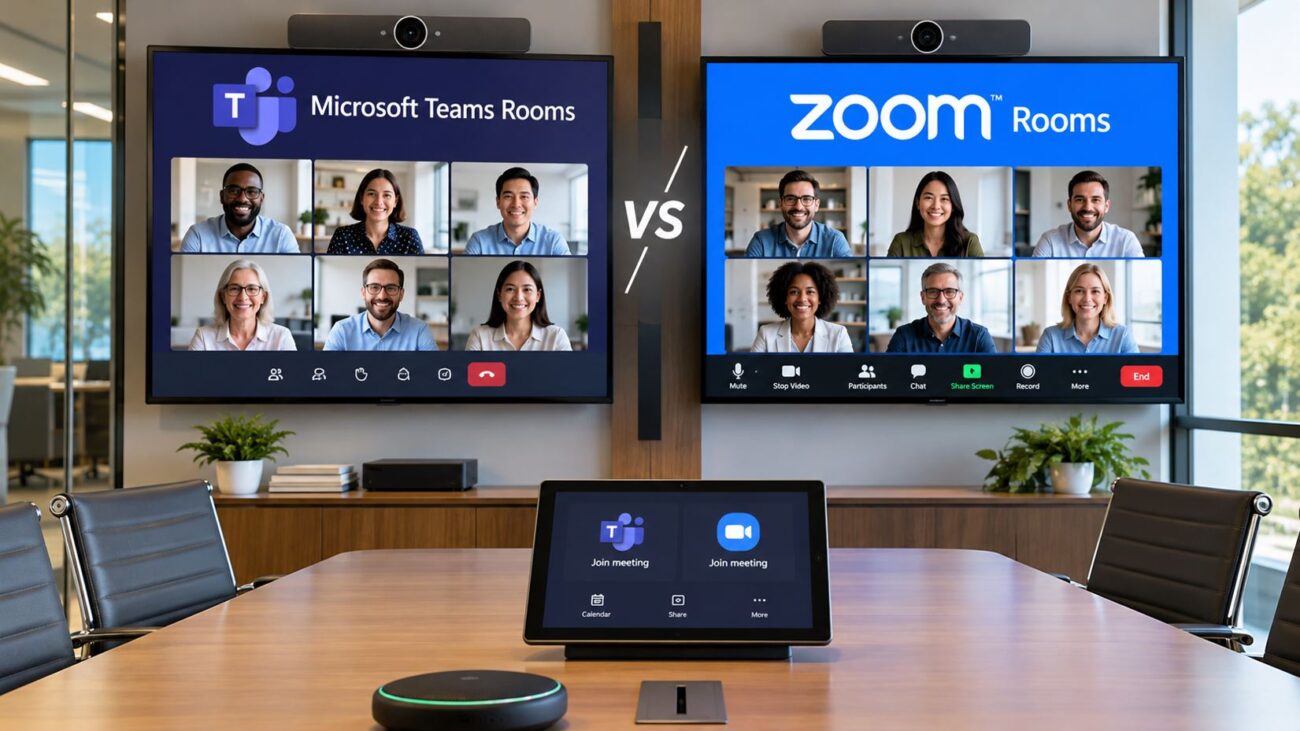
Microsoft Teams Rooms
Microsoft Teams Rooms are designed for businesses that use Microsoft Teams as a primary collaboration platform. A native Teams Room typically provides a dedicated room interface, calendar integration, meeting controls, content sharing, and centralized administration.
Businesses deploying Teams Rooms on Windows should pay particular attention to current platform support. Microsoft ended support for Teams Rooms devices running Windows 10 in October 2025, and supported deployments should now be based on compatible Windows 11 hardware. Microsoft’s current lifecycle documentation lists Windows 11 25H2 and 24H2 as supported Teams Rooms versions.
Zoom Rooms provide a dedicated meeting-room experience centered on Zoom. Current Zoom Rooms deployments can use appliance-based room systems, Windows systems, macOS systems, controllers, and various certified conferencing devices. Zoom’s 2026 requirements also distinguish between basic and performance hardware configurations depending on room size and features such as multi-camera operation and intelligent framing.
What If Your Business Uses Both Teams and Zoom?
Many organizations receive meeting invitations from customers, vendors, and partners using different platforms. In that situation, native interoperability features can help, but cross-platform participation does not necessarily provide the same feature set as a native meeting.
Businesses increasingly choose between appliance-based systems and Windows-based room architectures.
Appliance-Based Video Conferencing
An appliance system typically combines the conferencing application and AV hardware into a purpose-built device. Many modern collaboration bars fall into this category.
Advantages can include:
Fewer individual components
Fast installation
Simplified cabling
Consistent user interface
Reduced desktop-PC management
They are particularly attractive in huddle rooms and small-to-medium conference rooms.
Windows-Based Room Systems
Windows-based room systems typically use a dedicated conferencing computer along with cameras, microphones, speakers, and a room controller.
Advantages can include:
Greater hardware flexibility
Support for larger room architectures
More options for multi-camera deployments
Integration with specialized AV equipment
Greater expansion potential
They are often appropriate for organizations standardizing large numbers of rooms or building more complex medium and large conference spaces.
Camera Selection: Field of View Is Only the Beginning
A camera must capture everyone naturally without forcing remote participants to look at an excessively wide view of an empty conference room.
Important specifications and features include:
Horizontal field of view
Optical or digital zoom capability
Camera resolution
Auto-framing
Speaker tracking
Presenter tracking
Multi-camera support
Low-light performance
Wide-Angle Cameras
Wide-angle cameras are useful when participants sit relatively close to the display and camera. This makes them especially suitable for huddle rooms.
However, simply choosing the widest possible camera is not always beneficial. In longer rooms, participants at the far end of the table may appear very small.
PTZ Cameras
Pan-tilt-zoom cameras can be more appropriate for larger rooms because they can frame participants more tightly over greater distances.
Large spaces may also benefit from multiple cameras. For example, separate views can cover the conference table, presenter area, whiteboard, or audience.
Audio Is Often More Important Than Video
Businesses frequently focus on camera resolution while underestimating audio. In practice, poor audio disrupts meetings more quickly than slightly lower video quality.
A properly designed room should allow participants to speak naturally without leaning toward a microphone.
Microphone Pickup
Consider:
Maximum pickup distance
Table length
Participant seating
Expansion microphone support
Ceiling versus tabletop microphones
Noise suppression
Echo cancellation
An integrated video bar may be sufficient in a smaller room. A long conference table may require expansion microphones even if the camera itself can visually cover the entire room.
Speaker Coverage
Remote participants must also be heard clearly throughout the space. Large rooms may require external or distributed speakers instead of relying entirely on speakers integrated into a display or camera bar.
When an All-in-One Video Bar Makes Sense
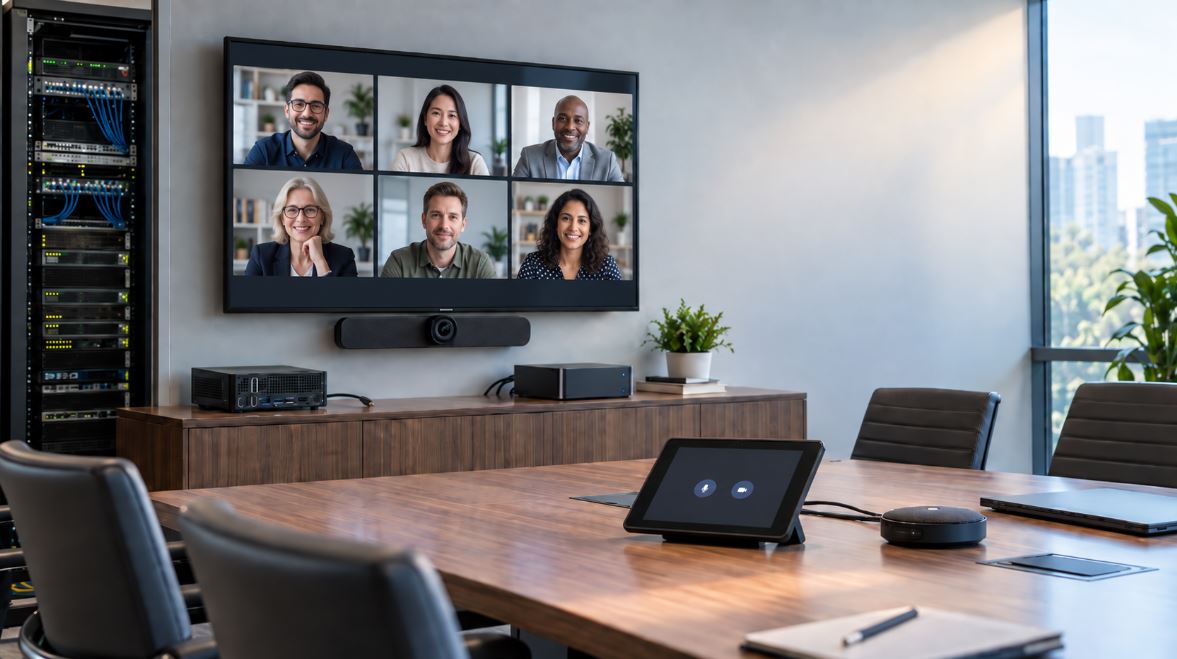
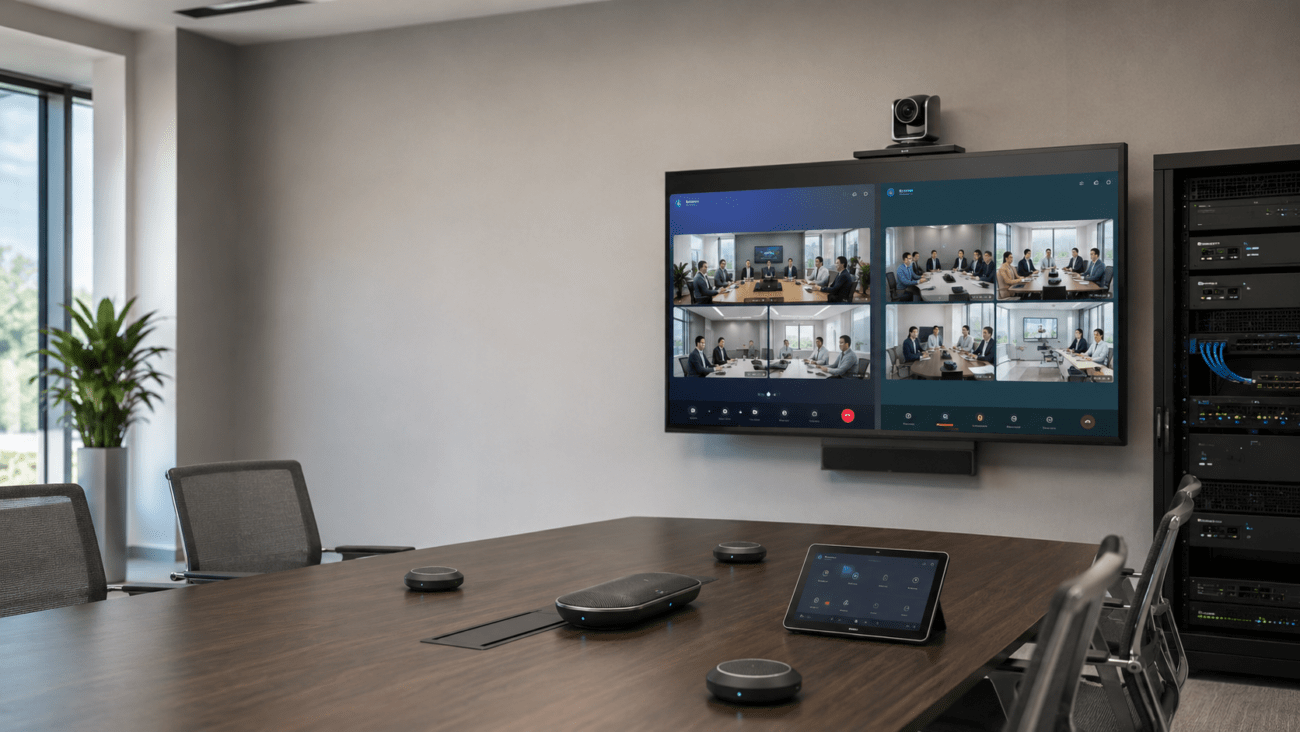
All-in-one video bars combine the camera, microphones, speakers, and conferencing electronics into a compact package.
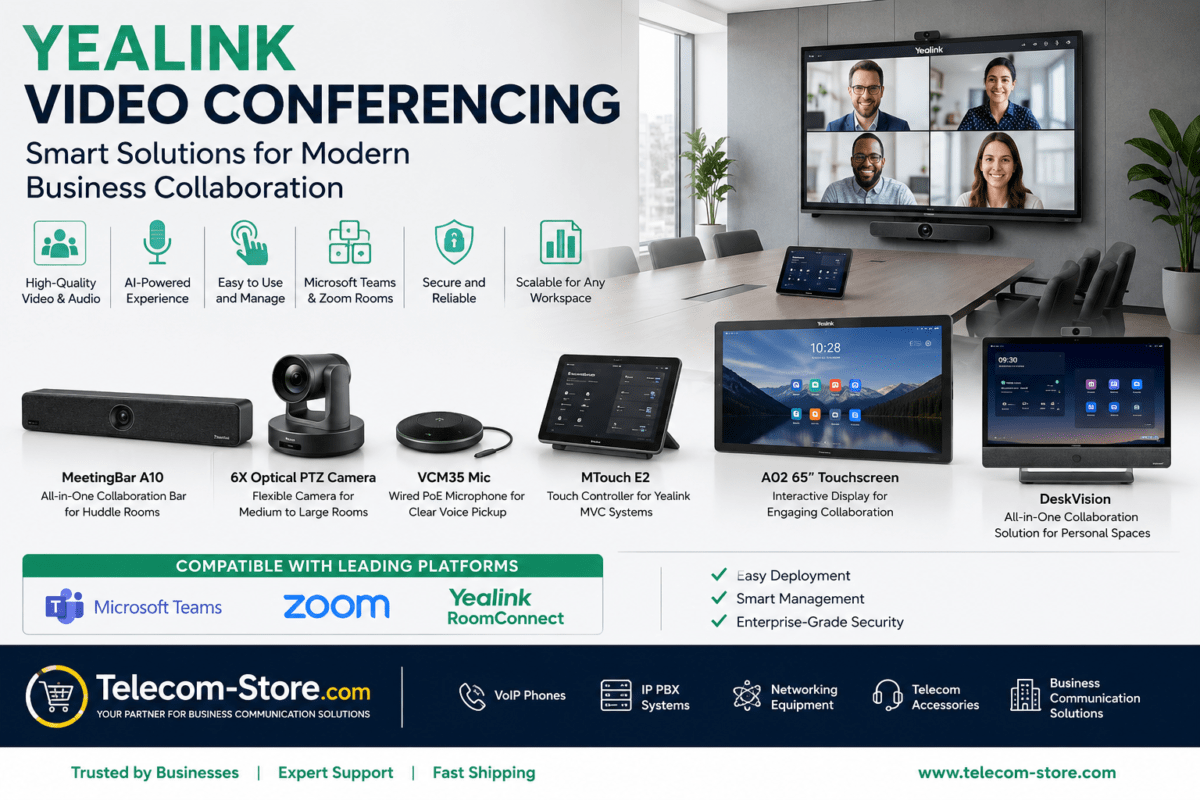
For example, the Yealink MVCS40-C5U Teams Rooms system combines a SmartVision 40 camera bar with an MCore4 room computer, MTouch Plus controller, and room sensor. The system supports wireless content sharing and BYOD and provides microphone expansion options when additional room coverage is required.
When a Modular Conferencing System Is Better
A modular architecture becomes more attractive when one or more of the following conditions apply:
The room is long or unusually shaped
Multiple cameras are required
Ceiling microphones are preferred
Separate speakers are required
The room has divisible spaces
There is an existing professional AV system
Multiple presentation areas must be captured
For complex installations, an AV processor can coordinate multiple cameras and audio devices. The Yealink AVHub meeting AV processor, for example, supports multi-camera layouts and multiple external microphone and speaker configurations for professional room deployments.
Evaluate Camera and Microphone Expansion Before Buying
A room may start with eight users and expand to twelve later. Purchasing a system with no expansion capability can force an unnecessary replacement.
Before buying, determine whether the system supports:
Additional microphones
Additional speakers
Additional cameras
Room controllers
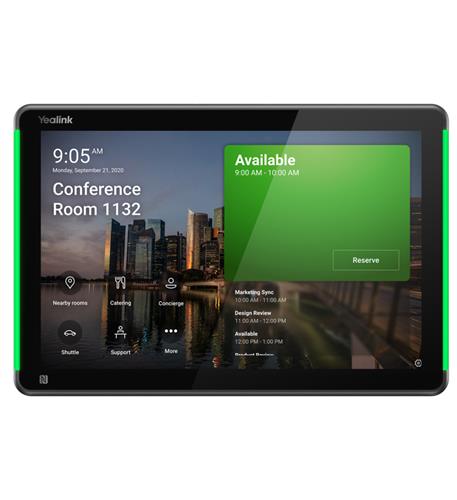
Scheduling panels
Secondary displays
Wireless presentation
Future AV integration
The Yealink MeetingBar A50 Teams Rooms system, for example, includes a triple-camera system, built-in stereo speakers, a 16-microphone array, MTouch Plus panel, and RoomSensor, while also supporting expansion microphones and external audio options.
BYOD Can Be Important Even in a Dedicated Room
BYOD, or Bring Your Own Device, allows a participant to connect a laptop and use the room’s camera, microphones, speakers, and display with another conferencing application.
This can be valuable when employees use Teams internally but occasionally receive invitations to Webex, Google Meet, or another service.
When evaluating BYOD support, ask:
Does the room support wired BYOD?
Does it support wireless BYOD?
Which peripherals become available to the laptop?
Can users switch between native room mode and BYOD easily?
Are additional adapters required?
Do not assume that cross-platform guest joining and BYOD are the same thing. They solve different problems.
Single Display vs. Dual Displays
A single display is usually sufficient for a small meeting room. Larger rooms or collaboration-heavy environments may benefit from two displays.
A dual-display configuration can show:
Remote participants on one screen
Shared content on the second screen
This can improve usability during presentations, design reviews, training sessions, and meetings where participants need to see both people and detailed content simultaneously.
Verify that the selected room system explicitly supports the number and resolution of displays you intend to install. Zoom, for example, publishes different screen capabilities depending on room type and processing platform.
Interactive Displays and Digital Whiteboards
Some organizations want the conferencing display to double as a collaborative whiteboard.
An interactive meeting board can consolidate:
Video conferencing
Touch control
Whiteboarding
Content annotation
Presentation display
The Yealink MeetingBoard 65 Pro combines a 65-inch touchscreen with a triple-camera system, integrated professional audio, and whiteboard collaboration capabilities. It supports native Teams and Zoom operation as well as a general collaboration mode.
This type of integrated system can work well in collaborative meeting rooms, design spaces, classrooms, and executive conference rooms where whiteboarding is frequently used.
Do Not Ignore the Network
A video conferencing system depends heavily on the underlying network.
Before deployment, IT teams should evaluate:
Internet bandwidth
Latency
Packet loss
Jitter
Ethernet connectivity
Wireless coverage if Wi-Fi is used
VLAN design
Firewall policies
DNS reliability
Quality of Service policies where appropriate
Whenever practical, dedicated conferencing appliances should use a stable wired Ethernet connection.
Zoom’s current desktop requirements specify broadband connectivity along with suitable camera, microphone, and speaker hardware. Room systems add additional hardware and network considerations depending on the desired room features.
Consider PoE Requirements
Many conferencing accessories use Power over Ethernet, particularly room controllers, scheduling panels, and some peripheral devices.
Before installation, confirm:
Whether each device requires PoE
The required PoE standard
Total PoE power budget
Available switch ports
Whether remote rooms are connected to the correct VLAN
A switch having enough physical ports does not necessarily mean it has enough PoE capacity to power every connected device.
Room Controllers Reduce User Friction
A dedicated touchscreen controller can make the room much easier to operate.
Typical controller functions include:
Starting scheduled meetings
Joining meetings
Muting microphones
Adjusting volume
Controlling cameras
Sharing content
Managing meeting participants
The goal should be to let a user walk into the room and start a meeting without finding remotes, logging into a PC, or reconnecting cables.
Choose Hardware That IT Can Manage
For organizations with multiple rooms, centralized management becomes increasingly important.
IT administrators should consider whether they can remotely:
Monitor device health
Deploy firmware updates
View room status
Troubleshoot peripherals
Check connectivity
Standardize settings
Manage user access
A system that is easy to install but difficult to maintain can become expensive when deployed across dozens of rooms.
Video Conferencing Decision Matrix
Requirement
Recommended Direction
2-6 person huddle room
Compact all-in-one video bar
6-10 person conference room
Video bar with expandable audio or room kit
10-20 person room
Expandable bar or modular camera/audio system
Large boardroom
Modular AV system with PTZ or multiple cameras
Primarily Microsoft 365/Teams
Native Microsoft Teams Room
Primarily Zoom
Native Zoom Room
Frequent use of unrelated meeting platforms
Native room system plus interoperability/BYOD strategy
Frequent whiteboarding
Interactive meeting board
Many conference rooms
Standardized hardware with centralized management
Example Conference Room Deployments
Example 1: Six-Person Huddle Room
A six-person room with a short table and a wall-mounted display may only need:
All-in-one video bar
Single display
Touch controller
Ethernet connection
There may be little benefit in installing a complex multi-camera AV system in this environment.
Example 2: Twelve-Person Conference Room
A twelve-person room with a longer table may require:
High-performance collaboration bar or camera system
Expansion microphones
Room controller
One or two displays
BYOD capability
Wired network connectivity
A system such as the Yealink MVCS40-C5U may be suitable when its camera and audio coverage match the actual room dimensions. Larger rooms may justify the more expandable MeetingBar A50-based system.
Example 3: Large Boardroom
A 20-seat boardroom may need:
PTZ or multiple cameras
Ceiling or distributed microphones
External speakers
AV processor
Dual displays
Room control panel
Centralized device management
In this case, designing the audio and camera coverage first is more important than choosing a particular product family.
Common Video Conferencing Purchasing Mistakes
Buying Based Only on Camera Resolution
A 4K or high-megapixel camera does not guarantee a good conference-room experience. Lens selection, framing, distance, microphone coverage, and lighting matter just as much.
Ignoring the Farthest Seat
Always design around the person sitting farthest from the camera and microphones.
Assuming Integrated Audio Covers Every Room
A built-in microphone array may work extremely well in its intended room size but may not cover a long boardroom.
Choosing Hardware Before Choosing Teams or Zoom
Native platform requirements should be understood before purchasing room hardware.
Ignoring Future Expansion
Consider additional microphones, displays, cameras, and room-control requirements before standardizing equipment.
Using Wi-Fi When Ethernet Is Readily Available
Wi-Fi can work well, but wired Ethernet generally provides a more predictable connection for permanently installed room systems.
Conference Room Video System Checklist
Measure the room.
Count maximum seats.
Document table dimensions.
Identify the primary conferencing platform.
Determine whether BYOD is required.
Determine the number of displays.
Calculate camera-to-participant distance.
Calculate microphone coverage.
Plan speaker coverage.
Confirm expansion options.
Verify Ethernet availability.
Check PoE requirements.
Review firewall and VLAN configuration.
Plan centralized device management.
Confirm mounting hardware and cable paths.
Verify current Teams Rooms or Zoom Rooms certification/support before purchasing.
Frequently Asked Questions
What is the best video conferencing system for a small conference room?
For many small conference rooms, an all-in-one collaboration bar is the simplest option because it combines the camera, microphones, speakers, and conferencing platform into a compact system. The correct model depends on room dimensions, number of participants, and whether the organization uses Microsoft Teams Rooms, Zoom Rooms, or another platform.
How many microphones does a conference room need?
There is no universal number. Microphone quantity depends on pickup range, table dimensions, room acoustics, seating arrangement, and the specific microphone technology. Design the system so the farthest participant can speak naturally and still be heard clearly.
Is a video bar better than a PTZ camera?
A video bar is usually easier to install in small and medium rooms because it integrates video and audio. A PTZ camera is often more appropriate for larger rooms where additional zoom, camera positioning, or multiple camera angles are required.
Should conference room video systems use Wi-Fi or Ethernet?
For permanent installations, wired Ethernet is generally preferred because it offers predictable connectivity and simplifies troubleshooting. Wi-Fi may still be appropriate when cabling is impractical or when supported wireless peripherals are part of the room design.
Can a Microsoft Teams Room join a Zoom meeting?
Yes, supported Teams Rooms can participate in certain third-party meetings, including Zoom, through supported interoperability features. However, the experience may not provide all the capabilities of a native Zoom Room. See our Teams Rooms and Zoom Rooms interoperability guide for more information.
Do I need two displays in a conference room?
Not necessarily. One display is sufficient for many small and medium meeting rooms. Dual displays become more useful when users frequently need to see remote participants and shared content at the same time.
How do I choose between Teams Rooms and Zoom Rooms?
Start with the platform your organization already uses most frequently. Businesses deeply integrated with Microsoft 365 often favor Teams Rooms, while Zoom-centric organizations generally benefit from Zoom Rooms. Hardware, administration, external meeting requirements, and user workflow should also influence the decision.
Final Recommendation
The best video conferencing system is not necessarily the system with the most features. It is the system that fits the room, supports the organization’s primary meeting platform, provides complete camera and audio coverage, and remains simple enough for employees to use without IT assistance.
Small rooms can often be standardized around an all-in-one collaboration bar. Medium rooms require more careful attention to microphone coverage and expansion. Large rooms should be treated as AV design projects that may require multiple cameras, distributed microphones, separate speakers, and centralized processing.
Most importantly, define the room requirements before purchasing the hardware. That approach reduces compatibility problems, improves the meeting experience, and makes future expansion considerably easier.
To provide the best experiences, we use technologies like cookies to store and/or access device information. Consenting to these technologies will allow us to process data such as browsing behavior or unique IDs on this site. Not consenting or withdrawing consent, may adversely affect certain features and functions.
Functional
Always active
The technical storage or access is strictly necessary for the legitimate purpose of enabling the use of a specific service explicitly requested by the subscriber or user, or for the sole purpose of carrying out the transmission of a communication over an electronic communications network.
Preferences
The technical storage or access is necessary for the legitimate purpose of storing preferences that are not requested by the subscriber or user.
Statistics
The technical storage or access that is used exclusively for statistical purposes.The technical storage or access that is used exclusively for anonymous statistical purposes. Without a subpoena, voluntary compliance on the part of your Internet Service Provider, or additional records from a third party, information stored or retrieved for this purpose alone cannot usually be used to identify you.
Marketing
The technical storage or access is required to create user profiles to send advertising, or to track the user on a website or across several websites for similar marketing purposes.