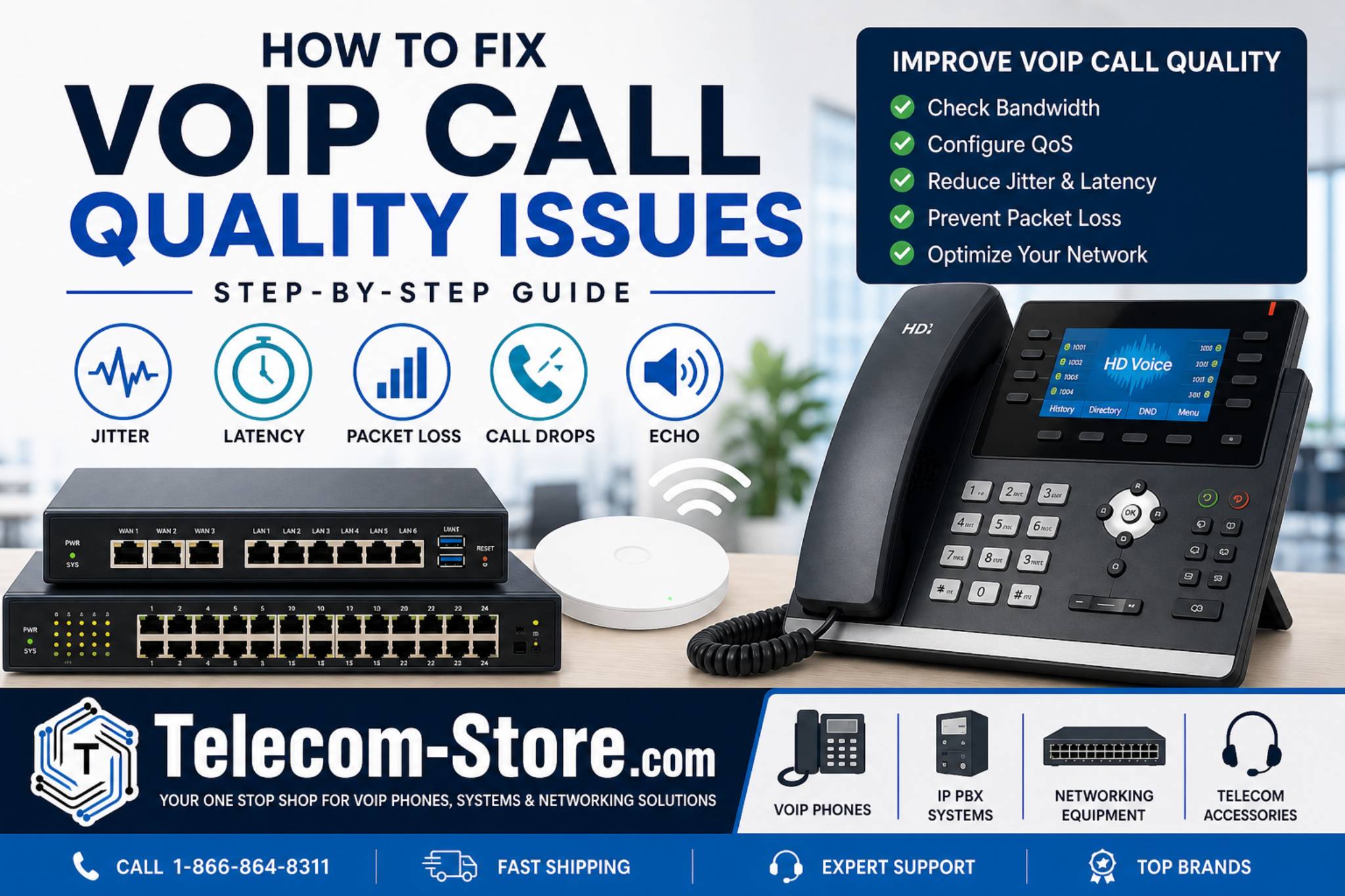
How to Fix VoIP Call Quality Issues – What Actually Works for Business
Summary for IT buyers: If your VoIP calls are choppy, delayed, or echoing, don’t panic. Most call quality issues trace back to network problems or the wrong equipment—not the VoIP service itself. You don’t have to replace your whole phone system. Instead, work through a solid troubleshooting process and upgrade targeted network hardware. Here’s how to approach and solve the most common VoIP call quality issues, step by step, with practical examples and real product options.
Identifying & Comparing Common VoIP Call Quality Problems
| Issue |
Typical Cause |
Best First Fix |
| Choppy or robotic audio |
Jitter, packet loss |
Check jitter/packet loss; Enable QoS; Use wired; Upgrade switch |
| Delayed/lags (high latency) |
Network latency |
Test/monitor WAN; Reboot equipment; Set QoS |
| Dropped calls |
Network instability |
Speed test; Check cable quality; Replace old hardware |
| One-way audio |
Firewall/NAT config |
Check router firewall; Open SIP/RTP ports |
| Echo |
Device/network config |
Echo-cancelling phones; Check cabling |
Understanding Root Causes: Why VoIP Calls Go Bad
If your business switched from conventional phones to VoIP, remember: everything now depends on your data network. No dedicated circuit—voice packets must compete with streaming, file uploads, cloud backups, and guest WiFi. Small mistakes anywhere in the network can harm call clarity.
- Bandwidth shortages: The more calls, the more bandwidth—especially during busy office hours.
- Jitter: Fluctuations in packet delivery make voices sound broken.
- High latency: Noticeable delays (over 150ms) disrupt conversation flow.
- Packet loss: Lost packets remove bits of conversation, leading to dropped or garbled words.
- Weak network hardware: Older/consumer switches & routers lack traffic management tools for modern VoIP.
Step-by-Step Checklist for Fixing VoIP Call Quality
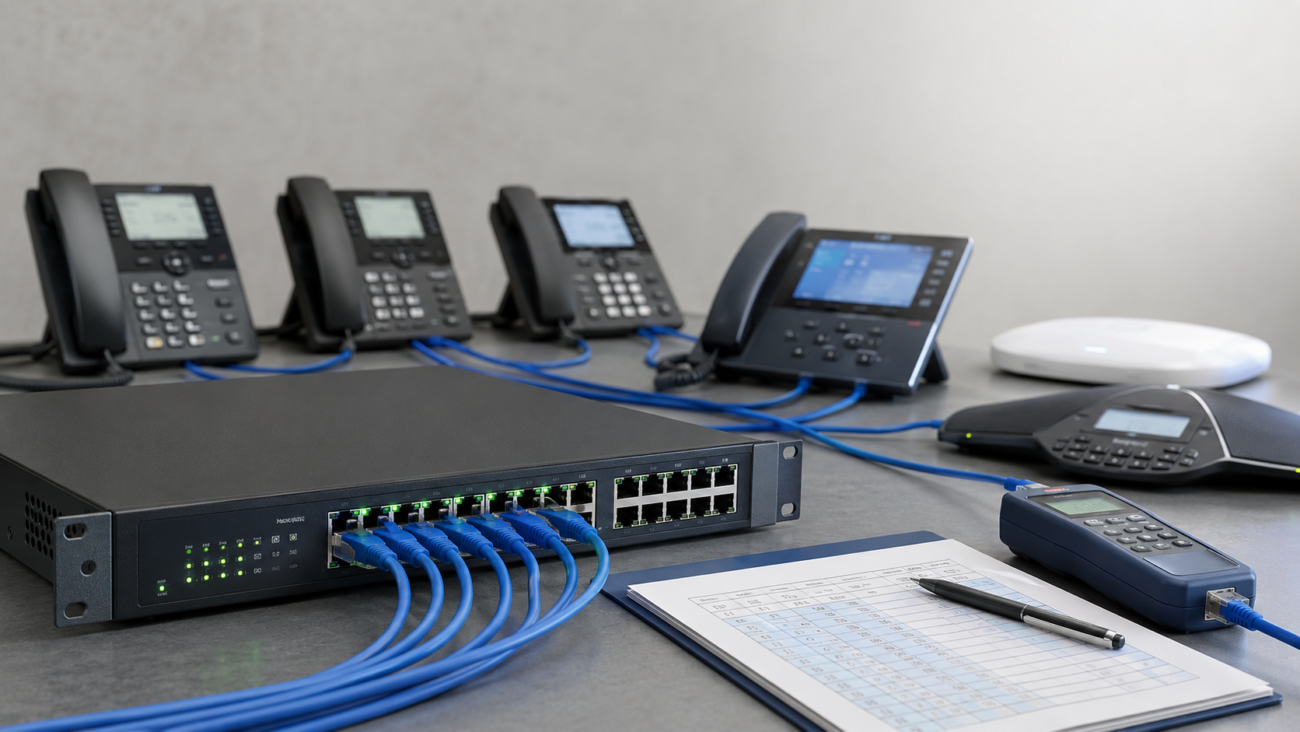
Step 1: Test Your Network
Start with a speed and VoIP quality test. Check the following and write them down:
- Download/upload speed (should have at least a 1 Mbps margin over all requirements)
- Jitter (ideally <30 ms)
- Latency (target <100 ms)
- Packet loss (should be 0%)
If your numbers are outside these ranges, your main problem is network—not your phones.
Step 2: Calculate VoIP Bandwidth Requirements
- Standard voice call: 100 kbps (typical codec)
- HD/wideband call: 150–200 kbps
Multiply by your maximum simultaneous calls. Add a safety margin, and don’t let calls fight with video meetings or large file transfers if you can avoid it. If in doubt, test during your busiest business hours—especially when using shared office networks.
Step 3: Enable QoS on Your Router
Quality of Service (QoS) is one of the fastest ways to improve VoIP. It lets you prioritize voice traffic—so SIP calls go before streaming or backups. This is essential for any busy office or business phone system.
Consider a business-class router such as the Grandstream GWN7003 Multi WAN VPN Router. This model gives you easy control of VoIP traffic and can segment office and guest traffic. Consumer routers often don’t offer this control, so if you’re still on consumer gear, it’s worth the upgrade.
Step 4: Check (and Upgrade) Your Network Switches
Using IP phones and PoE desk phones? Your switch matters as much as your router. Unmanaged or old switches can choke voice traffic. Check if your switches are unmanaged—or have no PoE. In busy offices or larger deployments, use a managed PoE switch such as the NEC QX F1006 for stable power delivery, VLAN support, and real-time troubleshooting. Managed switches give you complete traffic control.
Not sure what to choose? Browse our full network switch selection or see managed-only options here.
Step 5: Fix WiFi for VoIP Calls
Wired is best, but if you use WiFi phones or softphones, your wireless coverage must be strong and consistent. Ceiling-mount managed access points such as EnGenius WiFi 6 APs eliminate dead zones and handle busy environments better than basic routers. Place your APs for even coverage and consider dual-band/tri-band models for larger spaces. Avoid mixing voice and heavy guest traffic on a single WiFi network where possible.
Step 6: Check & Upgrade Your VoIP Phones
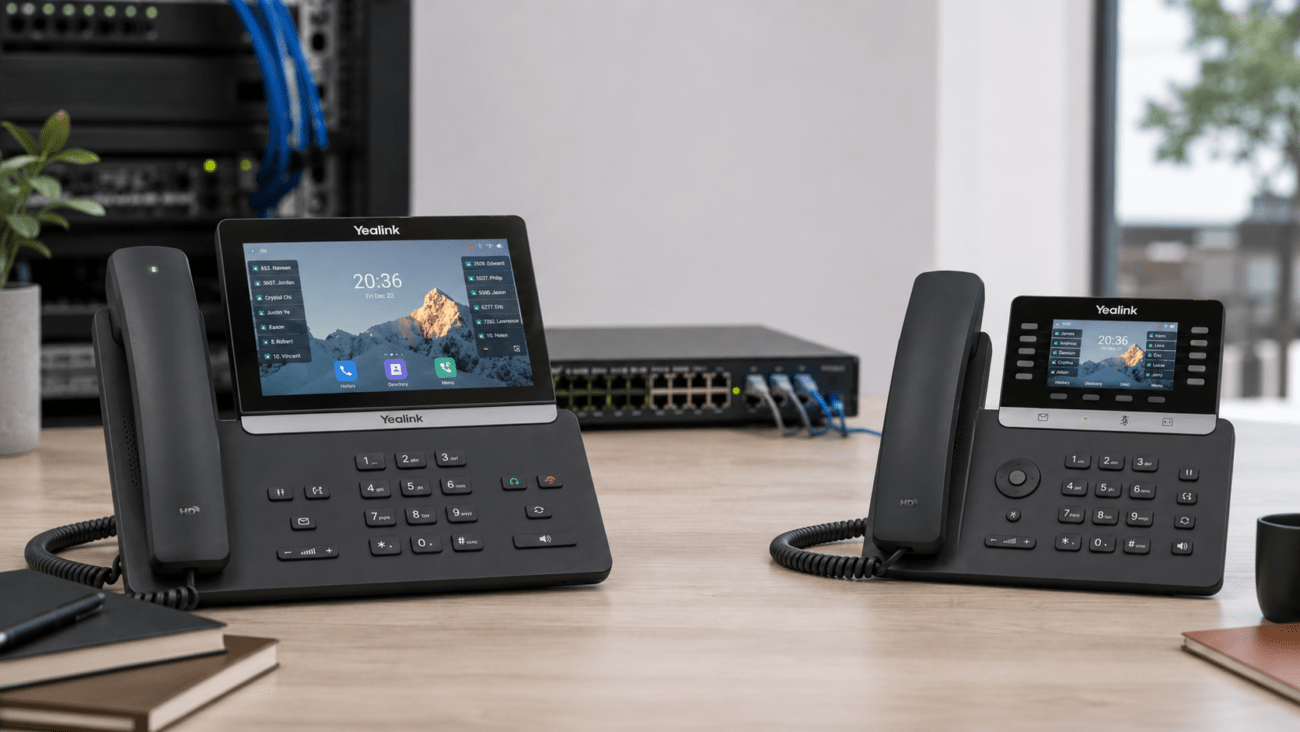
Old IP phones struggle with modern codecs and packet loss, and often lack reliable echo cancellation or noise filtering. Evaluate your devices regularly. Consider modern phones such as:
See more advanced VoIP phone options for offices, reception, and call centers.
How to Configure Router QoS for VoIP (With Tips)
QoS does not have to be complex. For VoIP, target:
- Prioritizing SIP (usually port 5060) from your IP PBX or phones
- Prioritizing RTP streams (the audio) – ask your phone vendor or PBX admin for exact port range
- Setting device or port-based rules for phones
- Placing guest or heavy download devices at the lowest priority
Test after each change — some routers require a reboot for new rules to take effect. To go deeper, consult your router’s manual or get help from an IT partner with VoIP experience. If you’re planning a new network, see our IP PBX system recommendations.
Key Buyer Considerations Before You Upgrade
Compatibility
- Confirm your PBX, phones, and network switches support SIP, VLAN tagging, and can handle current-generation codecs (e.g., G.722 or Opus for HD voice).
- If you’re using Teams Rooms or Zoom Rooms, make sure your gear is certified or tested for those platforms—this often requires specific firmware for QoS or echo cancellation.
Setup Requirements
- Plan for possible router and firewall adjustments for SIP and RTP ports
- Set up VLANs on managed switches to segregate voice from other data
- Document settings so they can be restored or duplicated as your system grows
Need expert help? Providers like Axion Communications help with end-to-end VoIP deployment and troubleshooting, covering both setup and ongoing tuning.
Limitations and Mistakes to Avoid
- Don’t underestimate the impact of a single misconfigured device—it can affect all calls
- Consumer-grade devices don’t scale well under business loads
- Even with perfect setup, all VoIP calls depend on internet stability—so have a backup or contingency for outages
- If using WiFi, avoid placing APs above drop ceilings or behind objects that block radio signals
Setting realistic expectations for call quality leads to fewer headaches down the road.
FAQ: VoIP Call Quality Issues Handled Simply
- Why is my VoIP call quality poor even with fast internet?
- High-speed internet doesn’t guarantee great calls unless voice traffic is prioritized. Network jitter, latency, packet loss, and unfocused routers or unmanaged switches let voice packets get stuck in the queue, causing issues.
- How can I fix choppy or robotic VoIP audio quickly?
- Start by testing for jitter, latency, and packet loss. Enable QoS on your router, prioritize VoIP, and use wired phones if possible. If a switch is unmanaged, upgrade it. Even one bad component can drag down quality.
- Does my business need special hardware for VoIP?
- For more than a handful of calls, you need a business router with QoS and managed PoE switches. Unmanaged devices can bottleneck voice data, especially under load.
- Is WiFi suitable for VoIP phones?
- WiFi works, but reliability drops with weak signals or crowded airwaves. Ethernet is best for fixed phones. If you use WiFi, use business-grade APs and plan placement carefully.
- What is the ideal bandwidth and network setup per VoIP call?
- Allow 100–200 kbps per call and prioritize voice VLANs. Multiply by max concurrent calls, add safety margin, and reserve bandwidth during office peaks.
- What’s an easy way to check if my problems are phone-related or network-related?
- Test several phones. If all have issues, focus on network or configuration. If only one does, check wiring or replace the handset first.
Conclusion for the Office Buyer
Improving VoIP call quality is usually a matter of identifying weak links in your network: inadequate switches, missing QoS, congested WiFi, or outdated phones. Work from the network outwards—test, tune, and replace only what’s necessary. With the right tools, most VoIP call quality issues can be fixed in a few steps, saving you the cost of a full system overhaul—and delivering reliable communication across your business.
Browse solutions for VoIP phones, business switches, and IP PBX systems to make your upgrades seamless—and call clarity consistent, no matter your industry.