Yealink T54W: What to Know Before Setting Up in Your Office
The Yealink T54W is a staple for IT departments and small business owners who need a reliable SIP-based desk phone for everyday office communication. This expanded guide explains not only how to get a T54W running, but highlights practical steps, network tips, accessory choices, common mistakes, and setup traps often missed in basic unboxing instructions.
Is the Yealink T54W the Right Fit for You?
The T54W is ideal for businesses and teams looking for a flexible SIP phone that fits right into both existing and new VoIP setups. If you’re planning a move to hosted VoIP, a hybrid IP PBX, or rolling out phones across remote workstations, this model’s combination of wired and Wi-Fi, support for expansion units, and ease of deployment make it popular for:
- Open offices and cubicle setups
- Reception and administrative roles
- Call queues and customer service pods
- Flexible or shared desk arrangements
- Remote worker or home office installs connecting to central PBX
Fast Buyer FAQs — T54W Setup and Options
- Compatible with: SIP-based VoIP systems, most hosted/cloud PBX services, Asterisk/FreePBX/3CX, and popular IP PBX equipment
- Wired vs. Wi-Fi: Ethernet (Gigabit) is best for steady call quality and ease of PoE power; Wi-Fi included for flexibility at remote or temp workstations
- What’s needed: PoE switch (see PoE switches) or AC adapter; VoIP provider SIP account info
- Optional add-ons: Expansion Module, EHS40 Headset Adapter for advanced users
- Easy mass rollout: Yes — supports auto-provisioning, works well with managed services (system integrators can help)
T54W Connection and Power Comparison
| Feature/Method |
Ethernet |
Wi-Fi |
| Network Speed |
Gigabit (stable) |
Depends on Wi-Fi strength |
| Use-Case |
Offices, fixed desks |
Remote/flex work, temp desks |
| Power Source |
PoE or Adapter |
Adapter (unless using PoE injector) |
| Setup Ease |
Simple plug-and-play |
Needs Wi-Fi config first |
| Call Quality |
Excellent (wired) |
Good—may vary with Wi-Fi congestion |
| Best Accessories |
Expansion Module, headset |
EHS Adapter, headset |
Understanding the Yealink T54W: Main Features and Benefits
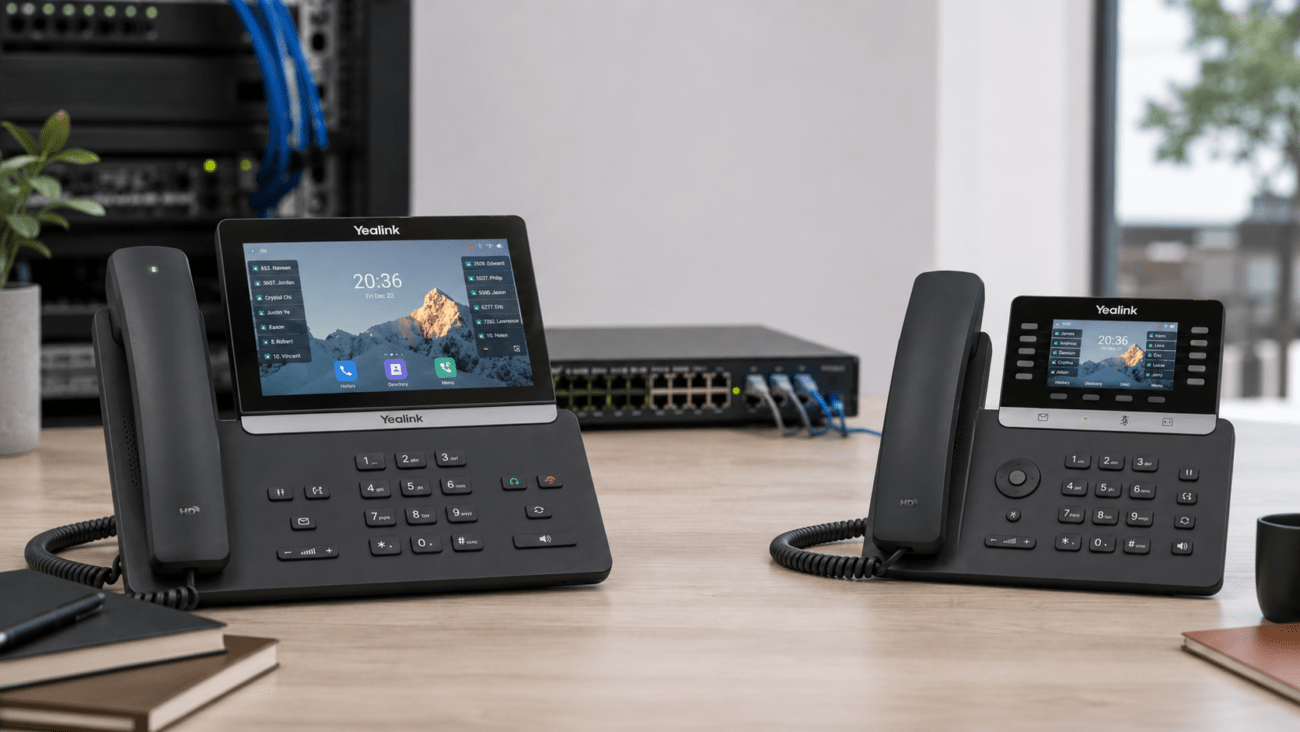
- Color Display & Menus: 4.3″ backlit LCD for easy navigation and call handling.
- Integrated Wi-Fi: Dual-band support, built-in — no need for extra dongles or adapters.
- Dual Gigabit Ports: 1 for LAN, 1 for PC — streamline your desk and network connections.
- Expansion Ready: Add a Yealink T5 Expansion Module for more programmable and BLF keys (perfect for high-touch users).
- Accessory Support: Use professional headsets with the Yealink EHS40 Headset Adapter for wireless or remote answering.
Preparing Your Office Network for VoIP Success
Avoid most call quality issues by preparing your infrastructure before any phones arrive:
- Bandwidth matters: Budget a minimum of 100 kbps up/down per active call as a baseline, scaling appropriately for heavy call centers or HD voice codecs.
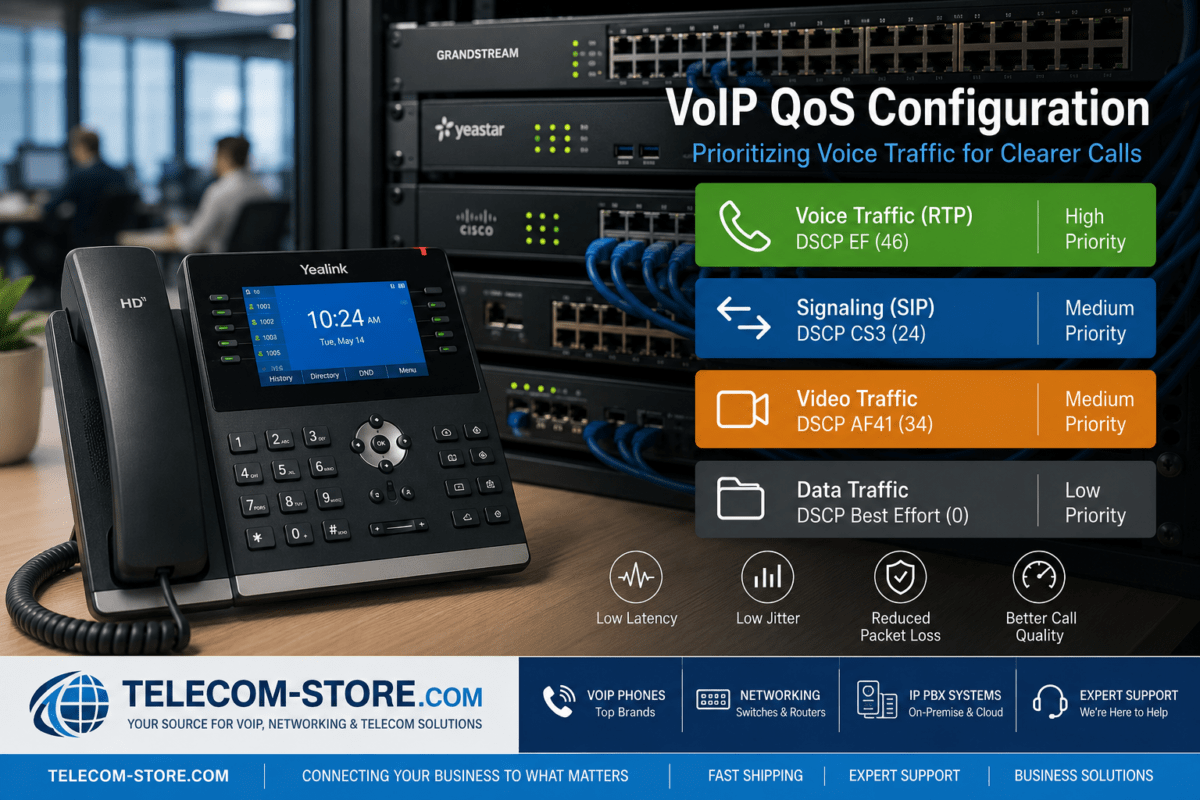
- QoS (Quality of Service): Properly set up your managed switches and router to prioritize voice packets. Many call quality glitches stem from missing or misconfigured QoS.
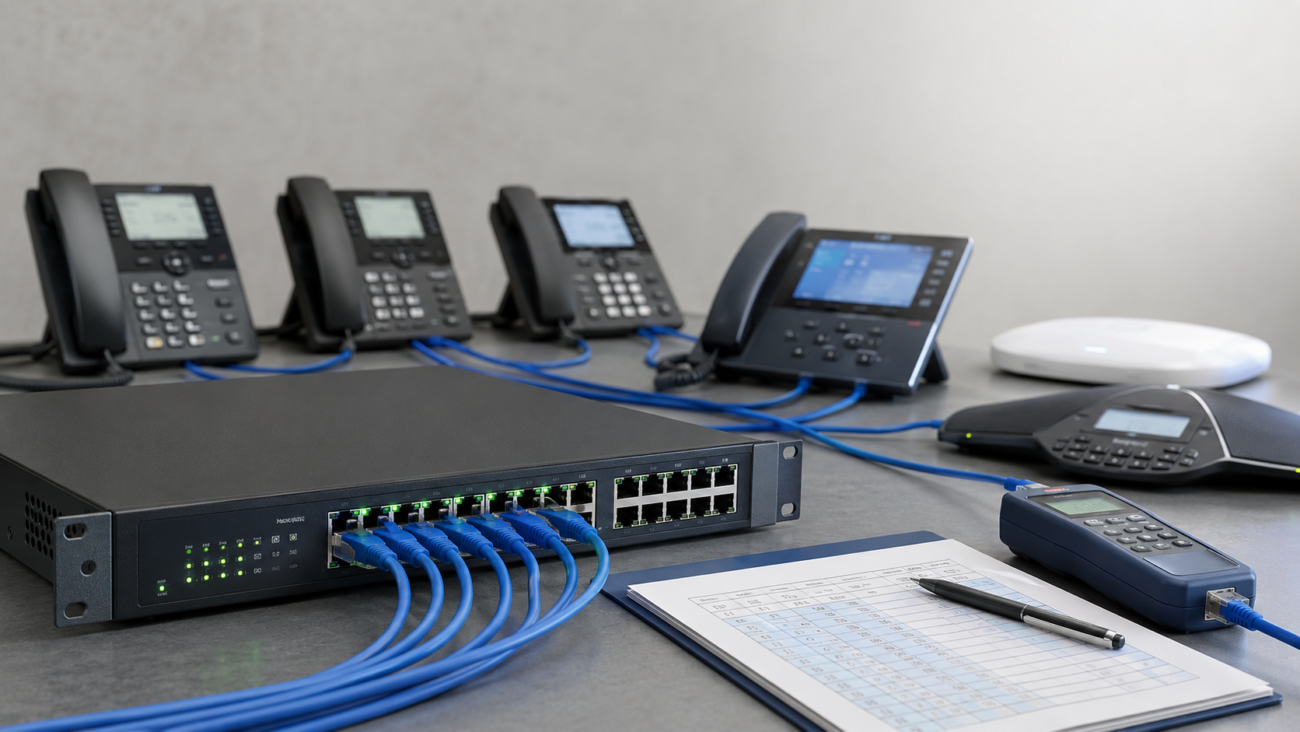
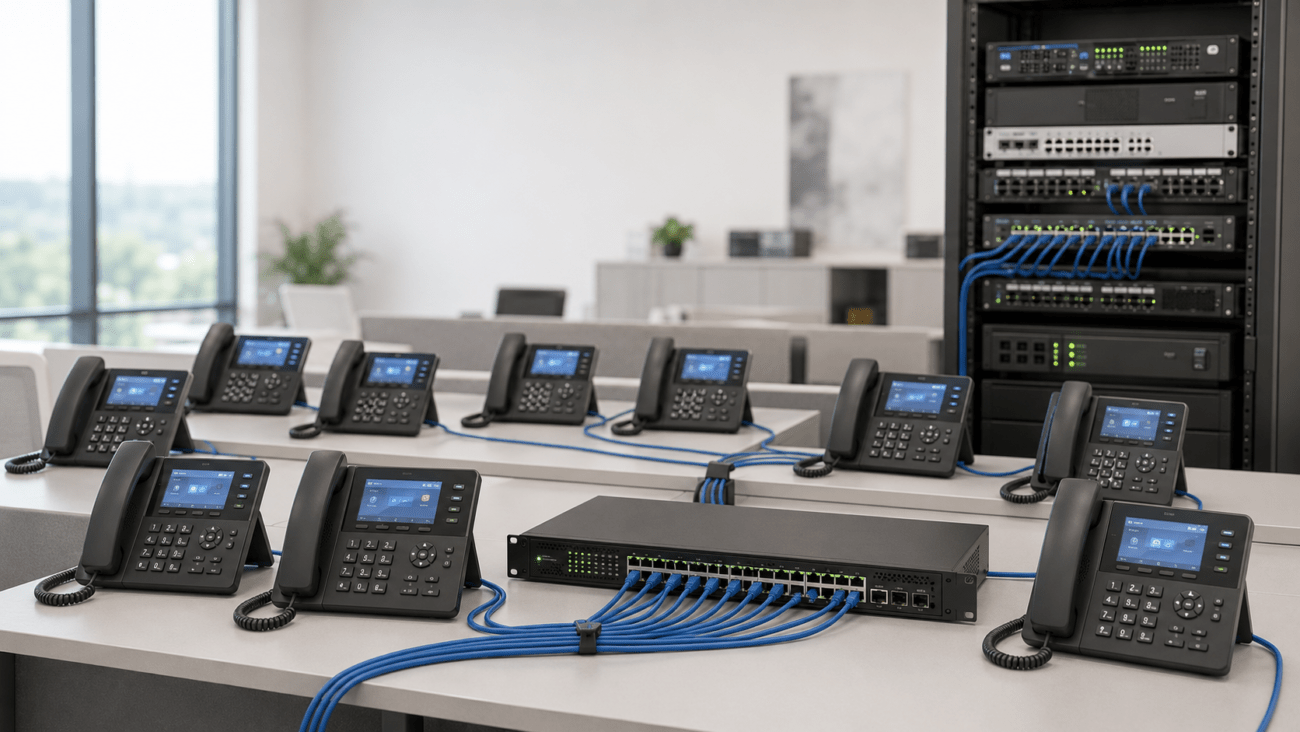
- PoE—Simplifies Desk Wiring: Connecting phones via PoE eliminates wall wart adapters and keeps cable runs tidy. Plan extra PoE switch ports for growth (see options).
- Confirm VoIP compatibility: Some providers have their own provisioning methods or restrict models. Always check if BYOD is allowed, and clarify provisioning needs up front.
Checklist: Have your SIP credentials, server addresses, and passwords ready before setup. If you don’t have these, ask your VoIP provider or integrator.
Yealink T54W Step-by-Step Setup: From Desk to Call
1. Hardware and Desk Setup
- Plug one end of your network cable (from PoE switch or standard port) into the phone’s network jack labeled “Internet.”
- Connect your office computer (if sharing the network drop) to the phone’s PC port. This won’t impact data speeds due to Gigabit support.
- Install phone stand, handset, and any accessories (expansion keyboard, headset, EHS adapter) now for convenience.
- If not using PoE, insert the AC adapter into a surge-protected outlet.
The T54W should power up and run a boot sequence. Wait for the home screen and follow prompts.
2. Discover the Phone’s IP Address
- On the keypad, press OK. The current IP address will appear on the display (e.g., 192.168.1.120).
- Record this — you’ll need it to access the web admin portal.
3. Access the Admin Web Portal
- On a PC (same network), open a browser. Enter:
http://[IP address of phone] — e.g. http://192.168.1.120
- Default login is
admin for both username and password, unless changed by your IT team or auto-provisioning.
- If login fails, check with your IT department or telecom provider in case security defaults were updated or phone is already provisioned.
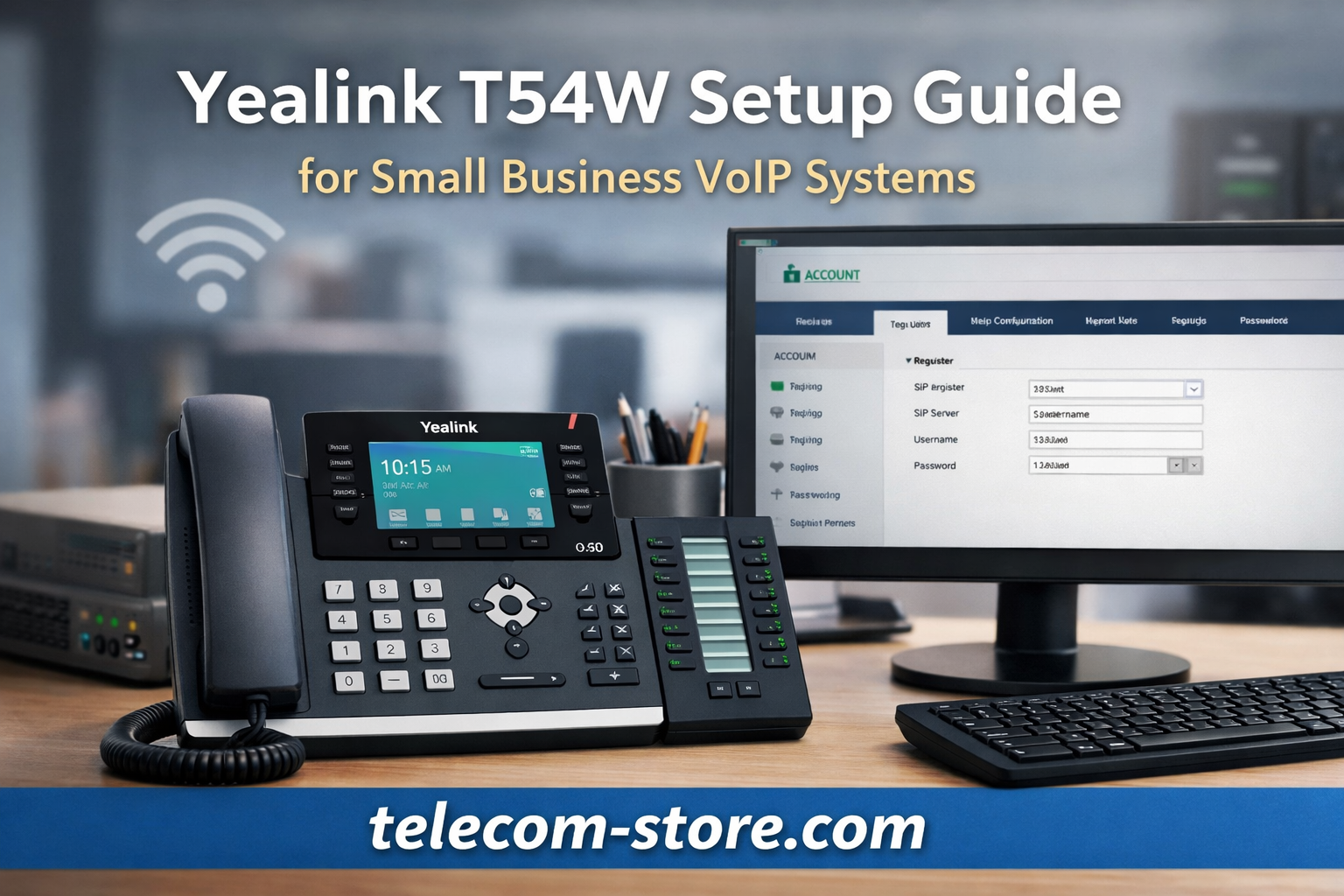
4. Register the SIP Account
- Navigate to Account → Register.
- Carefully fill in SIP server, username, password, and display name values. These must match your provider details exactly (case-sensitive in most cases).
- Click save or apply. Wait 10–20 seconds; a “Registered” status should show. If not, review credentials and firewall settings.
Common mistake: Typos or extra spaces in your SIP info will cause registration failure every time. Copy/paste carefully from your provider email.
5. Optional: Enable Wi-Fi on the T54W
- From the device menu, go to Network → Wi-Fi. Scan, select your network, and enter the password.
- Wi-Fi is a helpful feature for conference rooms, quick setups, or locations that lack convenient cabling. However, crowded business Wi-Fi can create call quality variations. For daily users, ethernet is still preferable.
- Some offices run a dedicated Wi-Fi SSID for VoIP handsets — if so, your IT or MSP should provide connection details.
Accessory Options: Customizing the Yealink T54W for Office Roles
Expansion Modules
For users handling multiple extension lines or busy reception desks, the Yealink T5 Expansion Module adds more keys for speed dial, BLF, and direct transfer. This saves time and reduces call-handling errors.
Headset Integration
The Yealink Headset Adapter EHS40 USB enables wireless headset call control—key for support teams or frequent call-takers. Many office headsets (wired and wireless) are compatible (see our VoIP headset selection), just confirm with your vendor.
System Compatibility: Which VoIP Platforms Can You Use?
- Supported: SIP-based hosted VoIP, cloud PBX, on-premise IP PBX like FreePBX, 3CX, Asterisk, and many major business telecom services.
- Auto-provisioning: Supported with most platforms for hands-free mass deployment using HTTP, DHCP, or vendor tools. Often handled by integrators like Axion Communications for larger clients or remote offices.
- Limitations: If your organization uses Microsoft Teams or Zoom Rooms with native desk phone integration, consider Teams/Zoom-certified Yealink models. Standard SIP phones like the T54W might be able to connect using third-party bridging, but core Teams/Zoom features may not be available.
Auto-Provisioning and Bulk Rollout Advice
Auto-provisioning saves IT teams major time by allowing them to set config files and push settings or firmware company-wide. Yealink supports multiple provisioning methods endorsed by business VoIP providers and managed services integrators.
- Provision via HTTP, HTTPS, or TFTP server
- DHCP Option 66 for network-triggered provisioning
- Vendor cloud provisioning portals (ask your telecom store or MSP)
Always test on a small batch before company-wide rollouts. Regularly update base configs to apply security patches or feature updates more easily.
Troubleshooting: Top Issues & How to Avoid Them
1. Phone Not Registering
- Double-check SIP details for typos or outdated passwords
- Check network firewalls; SIP uses UDP port 5060, while RTP handles the media stream (ports often set in 10,000–20,000 range—be sure they’re not blocked)
- If using VLANs, verify phone and PBX are in compatible or routed networks
2. No Audio or One-Way Audio
- Confirm RTP ports are open, and test with other network devices
- Disable SIP ALG (Application Layer Gateway) on some routers if it interferes
3. Poor Call Quality
- If over Wi-Fi, check signal strength and look for high interference or competing traffic (avoid crowded frequency channels)
- Prioritize traffic using QoS for VoIP, especially during remote/hybrid work shifts when bandwidth can spike
- Firmware out of date? Upgrade for latest codec and echo cancellation enhancements
Other Mistakes to Skip
- Don’t forget to label and document every phone’s extension and IP address during rollout—it streamlines user support later
- If reusing handsets, factory reset with a 10-second hold of the OK button before entering new account information
Considerations Before and After Ordering
- Provider Approval: Even though SIP is widely supported, check your provider’s official compatibility or approved firmware list to avoid unsupported issues down the line
- Power planning: Calculate total PoE ports (including for future desks), or ensure wall power is available for every non-PoE desk. Consider a backup power source—phones go down if the office loses electricity and your switch isn’t on UPS
- Remote site or multi-site deployments: Particularly with cloud PBX or multi-location use, consider using auto-provisioning from the start for easier management and updates
Conclusion: Yealink T54W—A Proven Choice for Small Business VoIP
If you’re setting up a business phone system, the Yealink T54W stands out for call quality, expansion flexibility, and broad compatibility—provided you avoid common setup pitfalls. Whether you’re replacing legacy phones or rolling out VoIP for new teams, gather your SIP info, check your power and network, pick needed accessories, and consider auto-provisioning for scale. Experienced system integrators can assist with planning, setup, and future support. Browse compatible accessories and explore other office VoIP phones when customizing your deployment.
FAQs: Yealink T54W for Office and Business VoIP
- What accessories are recommended for Yealink T54W in a business office?
- The most popular: Yealink T5 Expansion Module (for programmable keys, BLF, direct transfer), EHS40 Adapter for wireless headset answering, and PoE switches (see models) for simple wiring. For busy call takers, check our business headset range.
- Should I choose wired or Wi-Fi for Yealink T54W in an office?
- Wired Ethernet and PoE provide the most reliable voice quality and lowest troubleshooting. Wi-Fi is fine for temporary setups or remote locations, but physical connection is always ideal for main work desks.
- What mistakes do IT teams make when deploying Yealink T54W?
- Skipping network QoS, using the wrong SSH or SIP credentials, forgetting to update firmware, not labeling phones clearly, or skipping power planning for PoE vs. adapters—these are frequent errors. Always pilot your layout and check everything before large deployments.
- How do I reset a Yealink T54W to factory settings?
- Hold the OK button on the phone keypad about 10 seconds. Confirm when prompted: this erases stored SIP and returns the phone to factory defaults. Useful for redeployment or troubleshooting persistent registration issues.
- Are Yealink T54W phones compatible with Teams or Zoom Rooms?
- The T54W works best as a SIP phone. For native Teams/Zoom features and licensing, buy certified Yealink Teams/Zoom models. Some providers offer SIP integration bridges to connect T54W phones to UC platforms with limited feature sets.
- Can the T54W be auto-provisioned for mass deployment?
- Yes, using your provider’s HTTP server, DHCP options, or Yealink’s management portal. Set up templates, push settings, and manage firmware centrally—big timesaver for multi-office VoIP rollouts and MSP support.
Have a specific deployment or compatibility question? Contact our VoIP phones team for practical advice, demo options, or to plan a rollout that avoids common mistakes.