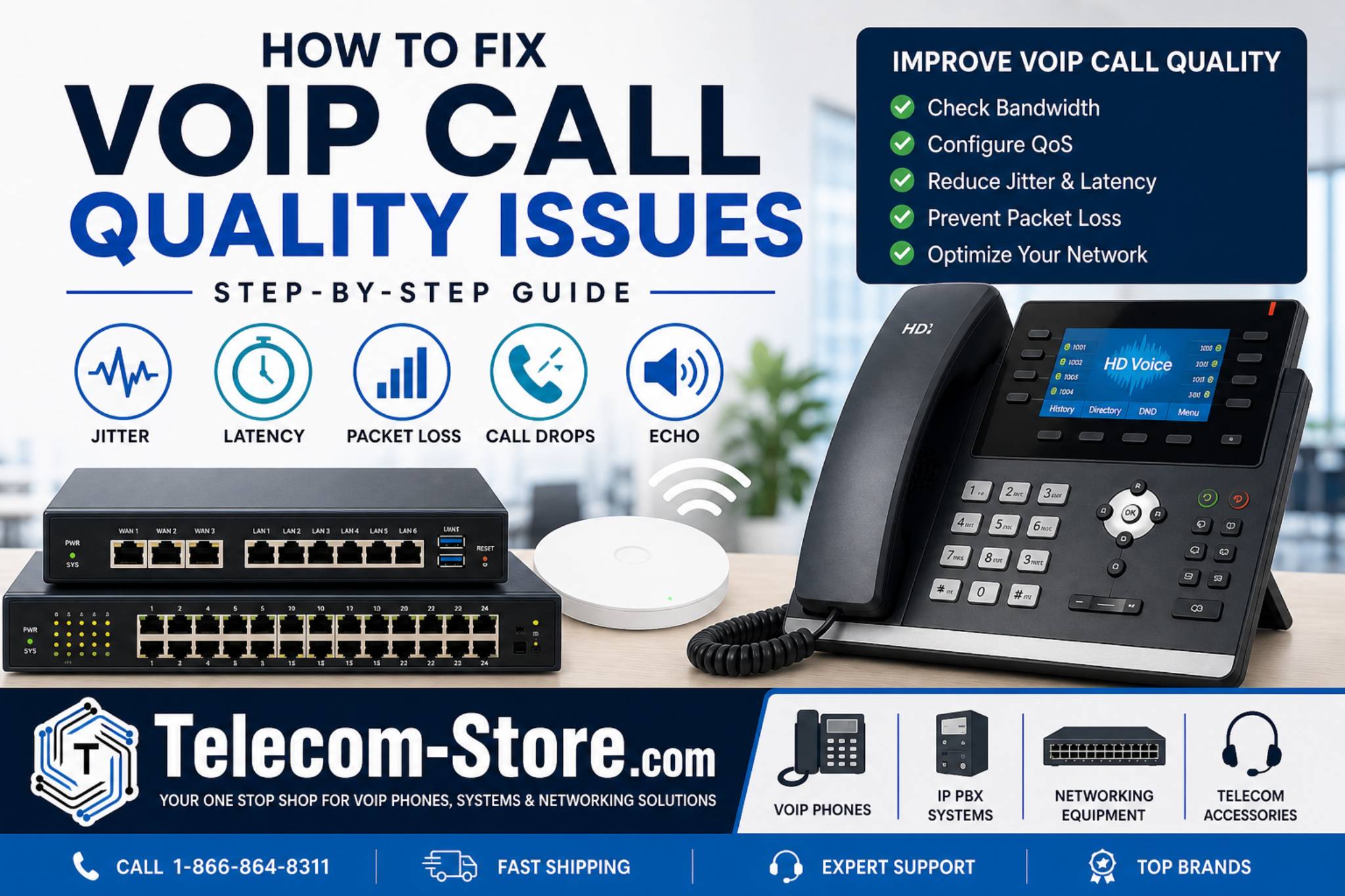
How to Fix VoIP Call Quality Issues
VoIP call quality issues are one of the most common challenges businesses face when moving to IP-based communication. Problems such as choppy audio, delays, echo, and dropped calls can disrupt operations and reduce confidence in your phone system.
The good news is that most VoIP call quality problems are predictable—and fixable. With the right troubleshooting process and network setup, you can significantly improve performance without overhauling your entire system.
This guide walks through how to fix VoIP call quality step-by-step, explains the root causes, and highlights the network and equipment considerations that matter.
Common VoIP Call Quality Issues
Before fixing anything, it helps to identify what you’re actually dealing with. Most VoIP issues fall into a few categories:
- Choppy or robotic audio → typically caused by jitter
- Call delays (lag) → caused by high latency
- Dropped calls → often related to network instability
- One-way audio → usually firewall or NAT issues
- Echo → device or network configuration problems
Understanding the symptom helps you target the right fix instead of guessing.
What Causes Poor VoIP Call Quality
VoIP depends entirely on your network. Unlike traditional phone lines, there’s no dedicated circuit—your voice packets compete with everything else on your internet connection.
The main causes of poor VoIP call quality include:
1. Insufficient Bandwidth
Every VoIP call requires consistent bandwidth. If your network is saturated with downloads, streaming, or large uploads, call quality suffers.
2. Jitter
Jitter is the variation in packet arrival times. Even small fluctuations can cause audio to sound broken or robotic.
3. Latency
Latency is delay. Anything above ~150ms starts to become noticeable in conversations.
4. Packet Loss
Lost packets mean missing pieces of audio. This results in clipped or incomplete speech.
5. Network Hardware Limitations
Older routers and switches often lack proper VoIP prioritization features.
Step-by-Step VoIP Troubleshooting Guide
If you’re experiencing VoIP call quality issues, follow this process in order.
Step 1: Test Your Network Connection
Run a VoIP-specific speed test and check:
- Download and upload speeds
- Jitter (should be under 30ms)
- Latency (ideally under 100ms)
- Packet loss (should be 0%)
If these metrics are off, the issue is network-related—not your phones.
Step 2: Check VoIP Bandwidth Requirements
A single VoIP call typically requires:
- 100 kbps (standard codec)
- 150–200 kbps (high-quality audio)
Multiply that by the number of simultaneous calls.
If your bandwidth is borderline, calls will degrade during peak usage.
Step 3: Configure QoS (Quality of Service)
One of the most effective ways to fix VoIP call quality is enabling QoS.
QoS prioritizes voice traffic over other data on your network.
For example, a business-grade router like:
Grandstream GWN7003 Multi WAN VPN Router with 9 Ports
This type of router allows you to:
- Prioritize SIP and RTP traffic
- Limit bandwidth for non-essential devices
- Ensure consistent call performance
Without QoS, VoIP competes with everything else—and usually loses.
Step 4: Upgrade Your Network Switch
If you’re using IP phones, especially PoE devices, your switch matters.
A managed PoE switch like:
NEC Routers Switches QX F1006 24 Port Gigabit PoE Switch
Provides:
- Stable power delivery
- VLAN support for voice traffic
- Better traffic handling
Unmanaged switches often contribute to VoIP call quality issues because they can’t prioritize traffic.
Step 5: Optimize Your Wireless Network
If you’re using WiFi for VoIP (not ideal, but common), ensure coverage is solid.
A ceiling-mounted access point like:
EnGenius Dual-Band WiFi 6 Ceiling Access Point for Busy Spaces
Helps:
- Reduce dead zones
- Improve signal consistency
- Handle multiple devices more efficiently
VoIP over weak WiFi is one of the fastest ways to create call quality problems.
Step 6: Evaluate Your VoIP Phones
Not all phones handle network conditions equally.
Modern devices include better audio processing and noise reduction.
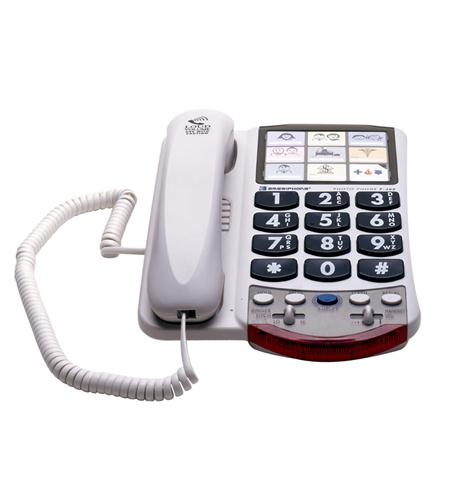
For example:
These models support:
- HD voice codecs
- Improved echo cancellation
- Better handling of packet loss
If you’re using outdated hardware, upgrading can make a noticeable difference.
VoIP QoS Settings Router Explained
QoS is often misunderstood but critical.
At a basic level, you want to:
- Prioritize SIP signaling (port 5060)
- Prioritize RTP audio streams
- Limit bandwidth for non-essential traffic
Many business routers allow:
- Traffic classification
- Bandwidth shaping
- Device prioritization
Without proper QoS configuration, even fast internet connections can experience poor VoIP call quality.
Buyer Considerations
When addressing VoIP call quality issues, equipment selection matters. Here’s what to evaluate:
Compatibility
Ensure your phones, PBX system, and network hardware support:
- SIP standards
- VLAN tagging
- QoS features
Setup Requirements
Business VoIP setups often require:
- Router configuration
- Switch VLAN setup
- Firewall adjustments
Some providers, like Axion Communications, can assist with deployment and configuration.
Limitations
Even with the best setup:
- Internet outages still affect VoIP
- Wireless environments can introduce variability
- Consumer-grade equipment may struggle under load
Understanding these limitations helps set realistic expectations.
Practical Conclusion
Fixing VoIP call quality issues is usually not about one single change—it’s about aligning your network, hardware, and configuration.
Start with your network metrics.
Then apply QoS.
Upgrade weak points in your infrastructure.
Most businesses see significant improvement without major cost once the root cause is identified.
FAQ Section
Why is my VoIP call quality poor even with fast internet?
Fast internet doesn’t guarantee VoIP performance. Issues like jitter, latency, and packet loss can still occur. Without QoS settings, voice traffic competes with other data, leading to poor VoIP call quality even on high-speed connections.
How to fix choppy VoIP calls?
Choppy VoIP calls are usually caused by jitter or packet loss. Start by testing your network, then enable QoS on your router. Reducing network congestion and using wired connections instead of WiFi can also help stabilize audio.
What are the VoIP bandwidth requirements per call?
Each VoIP call typically requires 100–200 kbps depending on the codec used. Multiply this by the number of simultaneous calls to estimate your total bandwidth needs. Insufficient bandwidth leads to degraded call quality.
What is jitter in VoIP and how do you fix it?
Jitter is the variation in packet delivery timing. It causes audio distortion and breaks. Fix it by enabling QoS, upgrading your router, and reducing competing network traffic.
Do I need a special router for VoIP?
Not always, but business-grade routers with QoS capabilities significantly improve VoIP performance. Consumer routers often lack the control needed for consistent call quality.
Why does my VoIP call have a delay?
Delay is caused by high latency. This can result from long routing paths, overloaded networks, or poor ISP performance. Keeping latency under 100ms improves call clarity.
Is WiFi bad for VoIP calls?
WiFi can work, but it introduces variability. Signal interference, distance, and congestion can all affect call quality. Wired connections are more reliable for VoIP.
How do I prioritize VoIP traffic on my network?
Use QoS settings on your router to prioritize SIP and RTP traffic. This ensures voice packets are transmitted before other data, reducing call quality issues.