Setting Up Multicast Paging on Yealink Phones: What Business Buyers Need to Know
Yealink phones make instant announcements possible everywhere in your business—from the front desk to the warehouse—using multicast paging. Unlike dialing each user or group, multicast paging broadcasts an audio message across multiple phones or speakers simultaneously. Setting this up is straightforward, but there are network, hardware, and compatibility details for IT managers and business owners to review before deploying.
At a Glance: Which Paging Setup Matches Your Needs?
| Paging Method |
Best For |
Key Hardware |
Network Needs |
| Direct Multicast Paging (Yealink to Yealink) |
Office or small spaces, all IP phones |
Yealink phones |
Same VLAN, IGMP snooping recommended |
| IP Paging to PoE Speakers |
Warehouses, retail, open floors |
IP speakers, PoE switches |
PoE switch, multicast support |
| Hybrid Paging with Amplifiers |
Integrating legacy analog speakers |
VoIP paging adapter, amplifier like Bogen 15 Watt Amplifier |
Switch must allow multicast, correct cabling |
What Is Multicast Paging?
Multicast paging lets you deliver live or pre-recorded messages across your whole site or to designated groups at once. Messages are routed using a shared IP and port (often in the 239.x.x.x range), so subscribing phones, IP speakers, and supported adapters all receive the announcement without placing dozens or hundreds of simultaneous calls. This is more efficient for IT infrastructure and much faster for users.
Key Advantages
- Less network congestion—one stream reaches all listeners
- Simple for IT: add devices, no extra call setup
- Scalable for growth: expand paging zones or endpoints without complex reconfiguration
Ideal environments include small business offices, schools, warehouses, retail floors, and anywhere safety or operational updates are needed across multiple zones.
Compatibility: How Yealink Phones Make Multicast Paging Easy
Most current Yealink business IP phones—including the SIP-T54W, SIP-T57W, T46U, and similar—support both sending and receiving multicast page audio out of the box. This is a core feature for VoIP VoIP phones operating on today’s business networks.
- Configure multiple listening addresses—set up different zones (e.g., front office, shipping, warehouse, break room)
- Assign dedicated DSS keys as “paging” buttons
- Control priority, label, and volume separately for each group
This provides excellent flexibility for a wide range of paging setups. You can even layer SIP-based and multicast paging for different notification flows.
Step-by-Step: Multicast Paging Setup on Yealink Devices
Step 1: Decide on Your Multicast IP Address and Port
Pick an address in the 239.x.x.x range (not conflicting with any other service), such as 239.1.1.10:5000. All devices in the paging group must use this exact address/port combination to receive the audio.
Step 2: Set Up Yealink Phones to Listen (Receive)
- Access the phone’s web interface (type the phone’s IP into a browser and log in as admin).
- Navigate to Directory → Multicast Paging.
- Add an entry with the multicast IP and port, for example IP:
239.1.1.10 and Port: 5000, then label it (“Paging” or your zone name).
- Save and reboot if required.
Step 3: Set Up a DSS Paging Key (Transmit)
- In the Yealink web interface, go to DSS Keys settings.
- Choose an unused key, set its type to Multicast Paging.
- Enter the same multicast IP and port as above.
- Save changes. Test by pressing the key—your voice will be broadcast to all recipient devices on that IP/port.
Step 4: Test Your Setup
- Press the paging key. Confirm audio is received on all configured phones and paging endpoints.
- If there’s no audio, double-check IP/port entries, that all devices are on the same VLAN, and that network switches forward multicast traffic.
Expanding Coverage: Hardware for Paging Beyond the Phones
For warehouses, large offices, or integration with existing analog paging systems, you may want to add more than just phone endpoints:
VoIP Paging Adapters
- Example: Algo 8301 IP Paging Adapter—bridges multicast or SIP-based audio calls to an amplifier input.
This is essential if you have traditional wired speakers or distributed PA amps.
Amplifiers
Speaker Options
IP/Paging Speakers
- Network-connected IP speakers can receive multicast directly. Look for models with PoE support to simplify installation and power delivery.
For a cost-effective all-in-one solution, consider SIP/PoE ceiling speakers that connect right into your LAN.
Analog Speakers
See more paging system hardware.
Network Requirements and Setup Mistakes to Avoid
Essentials for Smooth Paging
- VLANs: All sender and receiver devices should be in the same subnet and VLAN by default. Multicast does not always cross VLANs without specific routing rules.
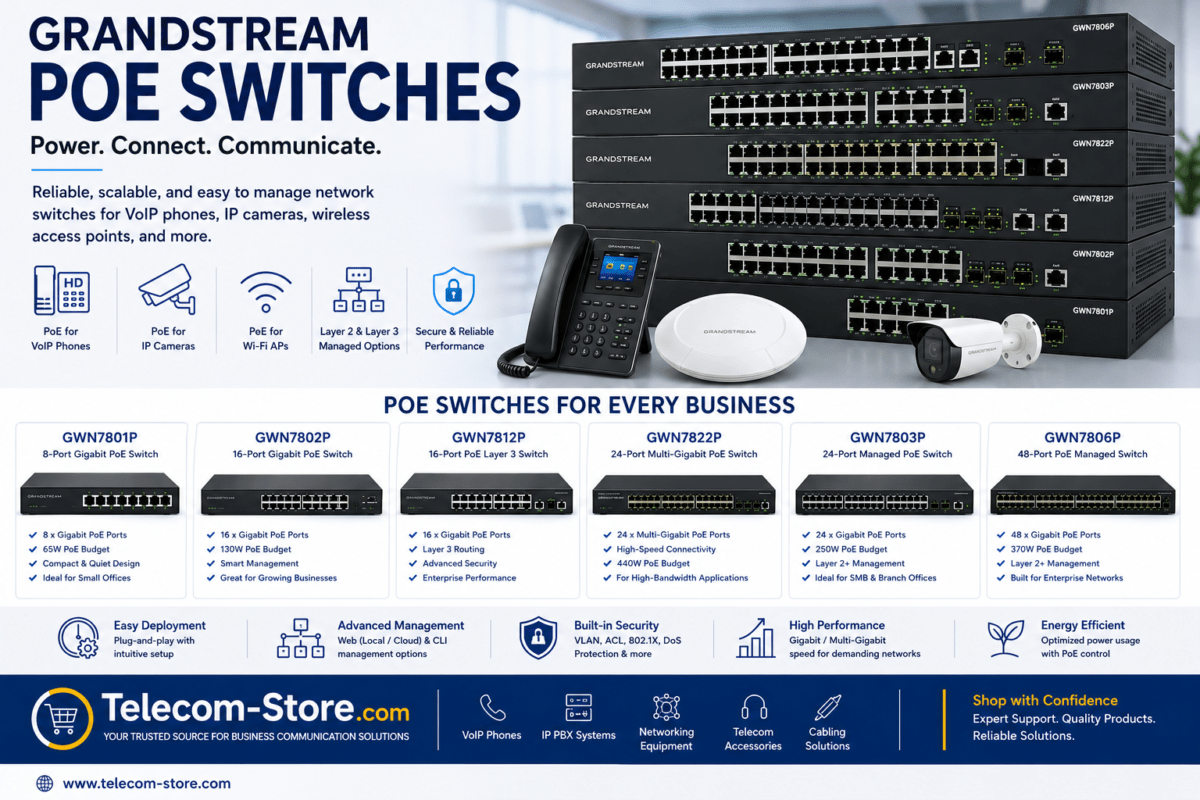
- Network Switches: Use managed switches—see managed network switch options—and enable IGMP snooping to prevent multicast flooding to non-listener ports. PoE switches are best for powering IP speakers directly.
- Firewall: Do not block multicast ports (default is UDP 5000 but may vary).
- Verify that multicast is not disabled at the network core or on access switches.
Poor Sound? Here’s What to Watch For
- Codec Mismatch: All phones and paging end devices should use G.711 u-law (most widely compatible for Yealink, amplifiers, and IP speakers).
- Network Congestion: Avoid unnecessary bandwidth strain. If possible, use paging during lighter traffic times, or set appropriate VLAN QoS rules.
- Speaker Layout: Ceiling speakers provide even coverage indoors; horn speakers help in loading docks or factories. Don’t install them too close (can cause echo or feedback), and test at actual operating volume before approval.
Buyer Considerations Before You Deploy
1. Hardware Compatibility
- All phones must support multicast receive/send. For offices with different brands or older models, verify compatibility lists. Most Yealink T-series (T4x, T5x) are compliant.
2. Infrastructure
- If using IP speakers or PoE, confirm your network supports it. Managed PoE switches simplify new device additions and troubleshooting.
- Integrating with a legacy PA? Budget for paging adapters and consider future scalability—multicast is easily expanded, but SIP systems provide more control at larger scale (e.g., custom zones, scheduled bells).
3. Scalability and Growth
- Add more phones or speakers as your building expands—no special reconfiguration needed, just subscribe new endpoints to your group multicast IP/port.
4. Limitations and What to Watch Out For:
- Some older or unmanaged switches may block or flood multicast, causing paging to fail or to overload network ports. Test your network with a few devices before mass deployment.
- Multicast paging has less group control than SIP-paging; for businesses needing frequent changes to paging groups, consider hybrid solutions.
Typical Issues and How to Troubleshoot
No Audio on Some Devices
- Verify IP and port match the sending device.
- Ensure all get multicast packets—test by placing the receiving and sending phone on the same switch port.
Audio Delay or Dropouts
- Check for network congestion and cable faults.
- Enable QoS rules for multicast if available.
Some Phones Don’t Receive Any Page
- Multicast may be disabled per port or VLAN. Confirm with a network monitoring tool or switch config.
- Check local firewalls and VLAN settings.
Where Multicast Paging Works Best: Use Cases
- Offices: Team-wide or department announcements, reception-to-all calls, conference room notifications
- Warehouses: Safety instructions, shift or break calls, alerts for shipping/receiving
- Retail: Customer assistance pages, promotions, inventory or loss prevention calls
Multicast paging reduces disruption by delivering messages fast, clearly, and across wide layouts with little management overhead.
Conclusion for Business IT Buyers
Setting up multicast paging with your Yealink IP phones gives your team a reliable platform for instant communications. For most business environments, this system works without extra licenses or recurring costs. The setup process is simple, but pay attention to network design and paging hardware—especially if mixing IP and legacy analog speakers.
For assistance configuring complex deployments (large offices, warehouse integration, paging hardware sourcing), our partners at Axion Communications can provide hands-on support and design services. And for hardware, see our curated selection of managed switches, Yealink phones, and paging system accessories.
Frequently Asked Questions (FAQ)
- What is multicast paging on Yealink phones?
- Multicast paging lets you broadcast audio from one Yealink phone to groups of phones or paging devices at once, using a shared multicast IP. There’s no need to dial individual extensions or groups like with traditional paging.
- Can I connect Yealink paging to traditional speakers or amplifiers?
- Yes. You’ll need a VoIP paging adapter, such as the Algo 8301, which converts multicast audio to an analog signal for legacy PA amplifiers like the Bogen 15 Watt Amplifier.
- What are the common network requirements for multicast paging?
- Keep all paging endpoints on the same VLAN, ensure network switches allow multicast, and enable IGMP snooping to keep network traffic efficient.
- Which Yealink models support multicast paging?
- Most current Yealink business phones, such as T54W, T46U, T57W, and similar, offer built-in multicast paging settings. Check the web interface (Directory > Multicast Paging) to confirm.
- Why don’t my phones receive the announcement?
- Check network configuration—IP and port, VLAN/subnet, multicast allowed—and that the correct codec (G.711 u-law) is in use. Testing with two phones in the same switch can help isolate issues.
- Do I need managed switches for multicast paging to work well?
- For small, single-VLAN networks, unmanaged switches may work, but managed switches offer critical control (VLANs, IGMP snooping) and stability as you add more devices.