Microsoft Is Moving Teams Phones and SIP Devices to the Teams Rooms Pro Management Portal: What IT Teams Need to Know
Microsoft is changing where organizations manage a large portion of their Microsoft Teams device estate.
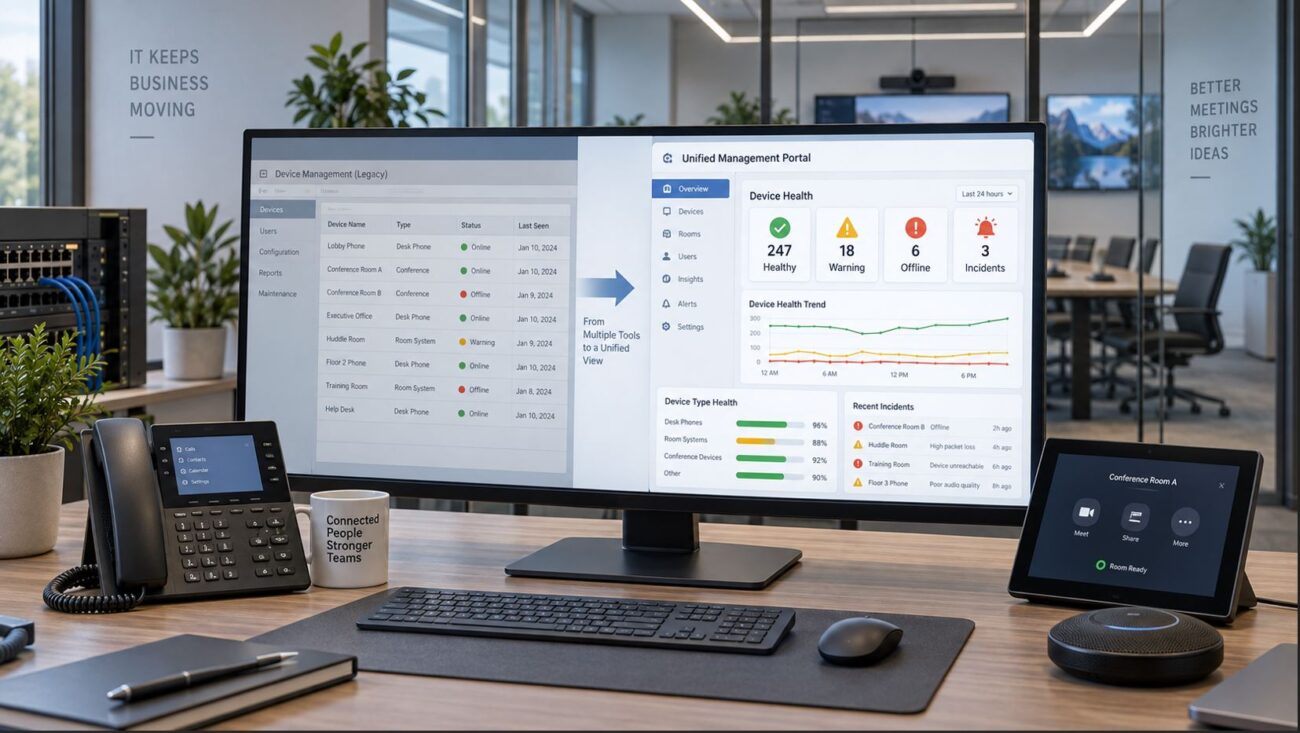
Teams Phones, Microsoft Teams Rooms on Android, Teams Panels, and SIP devices are transitioning from the Microsoft Teams Admin Center to the Microsoft Teams Rooms Pro Management Portal. The change is part of Microsoft’s effort to consolidate device inventory, monitoring, configuration, updates, and remote-management functions into one administrative environment.
For IT departments managing dozens, hundreds, or thousands of endpoints, this is more than a change in portal location. Administrators should verify device visibility, software readiness, permissions, update policies, network connectivity, and legacy SIP hardware before existing Teams Admin Center workflows are retired.
Microsoft’s current transition guidance identifies September 2026 as the phase in which remaining overlapping Teams Admin Center device-management workflows are retired and the Pro Management Portal becomes the primary management interface.
What Is Changing?
Microsoft is moving management of several Teams device categories into the Teams Rooms Pro Management Portal, commonly abbreviated PMP.
The affected device categories include:
Microsoft Teams Phones
Teams Rooms on Android
Teams Panels
SIP devices connected through Microsoft Teams SIP Gateway
Teams Rooms on Windows had already been moved toward centralized management through the Pro Management Portal. The newer transition expands that strategy across much more of the Teams endpoint environment.
Microsoft’s goal is to give administrators a more consistent place to manage devices deployed in conference rooms, offices, reception areas, common spaces, warehouses, remote locations, and other business environments.
Microsoft’s official transition guidance is available at Microsoft Learn.
Microsoft’s 2026 Migration Timeline
Phase
Timing
What IT Teams Should Expect
Preparation
Through May 2026
Administrator guidance, early PMP capabilities, and migration planning.
Transition begins
End of June 2026
Android device-management capabilities begin appearing in PMP and some TAC workflows begin redirecting.
Expanded capability
July-August 2026
Fuller management workflows become available in PMP and TAC redirects increase.
Primary portal transition
September 2026
Remaining overlapping TAC management workflows are scheduled for retirement and PMP becomes the primary device-management portal.
Microsoft notes that rollout dates can be refined as development progresses, so enterprise administrators should continue monitoring Microsoft 365 Message Center notices and Microsoft’s transition documentation.
Which Devices Are Affected?
Microsoft Teams Phones
Native Teams desk phones are part of the migration. These include Microsoft Teams-certified devices designed to sign directly into Teams and provide native calling, directory, presence, voicemail, calendar, and collaboration features.
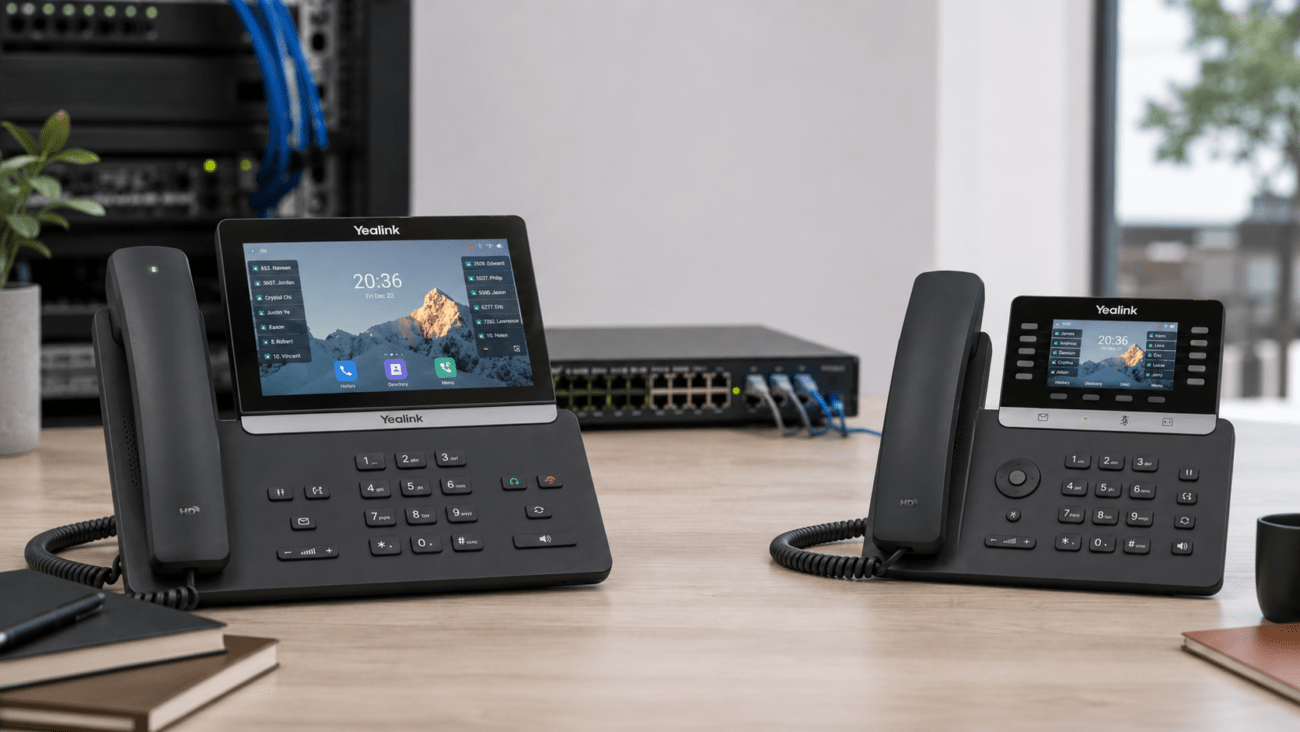
For organizations replacing older endpoints, a native Teams phone such as the Yealink MP58 E2 Teams Phone provides a Teams-oriented endpoint rather than relying on legacy SIP compatibility.
SIP Phones Using Teams SIP Gateway
SIP devices are also included in Microsoft’s unified management direction.
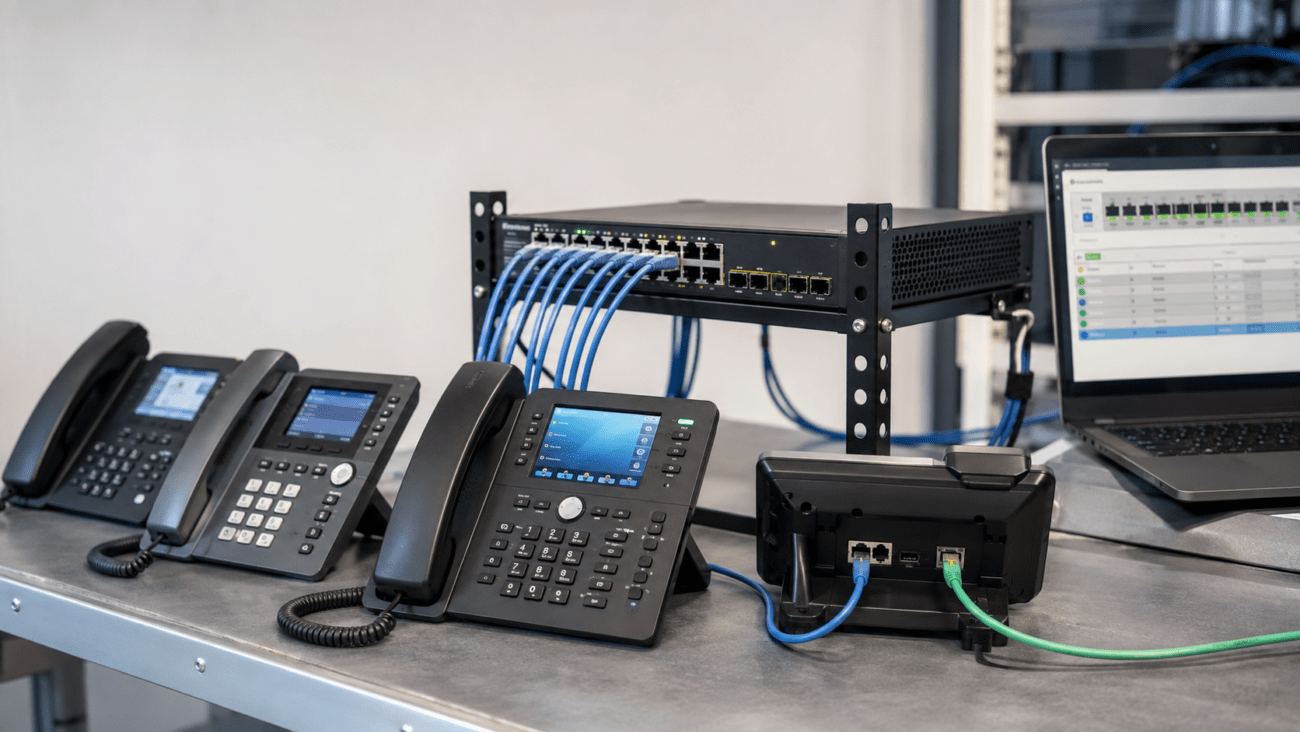
SIP Gateway can be useful for common-area phones, basic calling stations, warehouses, break rooms, utility locations, and other environments where a full native Teams touchscreen experience may not be necessary.
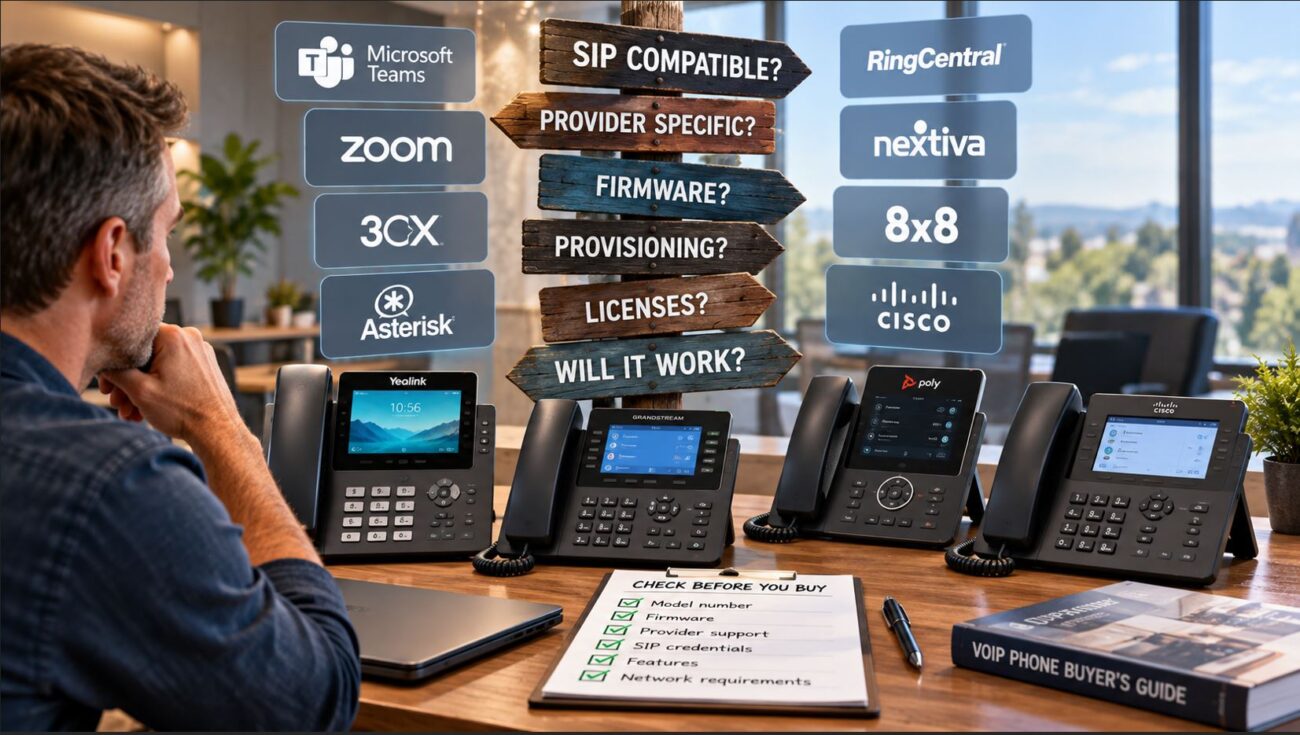
However, SIP Gateway support depends on the exact manufacturer, model, firmware, and Microsoft’s current compatibility requirements. A standard SIP phone is not automatically compatible with Teams.
Teams Rooms on Android
Android-based Teams Rooms systems are moving into the same management environment. That gives administrators a more consistent operational model when supporting both conference-room systems and individual Teams endpoints.
Teams Panels used outside meeting spaces for room scheduling and availability are also included in the consolidated management strategy.
What Can IT Administrators Manage in PMP?
Microsoft is positioning the Teams Rooms Pro Management Portal as a broader device-management environment rather than simply a monitoring interface for conference rooms.
Capabilities identified by Microsoft include:
Device inventory and metadata
Application information
Device health monitoring
Remote restart
Remote sign-in and sign-out
Log collection
Remote provisioning
Configuration settings
Settings templates
Manual software updates
Automated update management
Update rings
SIP device management
The practical benefit is that an administrator supporting conference rooms, desk phones, shared devices, and selected SIP endpoints can increasingly work from one management platform instead of switching between multiple administrative interfaces.
Existing Devices Should Appear Automatically
Microsoft states that Teams Rooms on Android, Teams Panels, Teams Phones, and SIP phones already enrolled in Teams Admin Center should appear automatically in the Pro Management Portal when migration requirements are satisfied.
That means most organizations should not have to manually recreate their entire device inventory.
However, automatic appearance does not guarantee that every device is immediately manageable. Administrators should verify connectivity, software versions, authentication policies, and device health before assuming the migration is complete.
The Admin Agent Version Is Important
One of the most important migration checks is the Microsoft Teams Admin Agent running on supported Android devices.
Microsoft’s current guidance specifies Admin Agent AA 830, version 1.0.0.202606082157.product, or a later eligible version as the minimum requirement for managing Android devices through PMP.
Microsoft is accelerating deployment of minimum required Admin Agent versions to help prepare devices for the transition.
IT teams should therefore avoid treating device firmware and the Teams Admin Agent as routine housekeeping during this migration. An endpoint that remains too far behind may become difficult to manage after Teams Admin Center management functions are removed.
What About Devices That Have Been Offline?
Long-term offline devices deserve special attention.
A phone sitting in storage, a spare device that has been powered off for months, or an endpoint disconnected during an office renovation may not have received the software required for the new management environment.
Microsoft distinguishes between devices with newer and much older Admin Agent versions. Some devices can update automatically after reconnecting, while older devices may first require an OEM firmware update before Microsoft’s newer management components can take over.
This makes September 2026 a good time to inventory spare and seldom-used Teams hardware instead of checking only actively deployed endpoints.
IT Migration Checklist
Task
Priority
Recommended Action
Access PMP
High
Confirm the appropriate administrators can sign in to the Teams Rooms Pro Management Portal.
Verify inventory
High
Compare device counts between existing records and PMP.
Check Admin Agent versions
High
Update endpoints that do not meet Microsoft’s current requirements.
Review network access
High
Confirm required Microsoft Teams device-management endpoints are allowed through firewalls and security controls.
Review Conditional Access
High
Make sure policies assigned to resource accounts do not prevent device authentication.
Import settings
Medium
Move required TAC configuration profiles into PMP Settings Templates where applicable.
Review update strategy
Medium
Understand the new PMP update-ring behavior and maintenance windows.
Check offline devices
Medium
Power on and update spare or infrequently used devices.
Audit SIP hardware
Medium
Verify SIP Gateway model and firmware compatibility.
Review administrator roles
Medium
Apply least-privilege Teams or PMP roles rather than relying unnecessarily on Global Administrator accounts.
Administrator Permissions Are Changing in Importance
Organizations should also review who has access to device-management functions.
Microsoft identifies several Microsoft Entra and PMP roles that can provide access, including Teams Administrator, Teams Device Administrator, Global Reader, and portal-specific roles.
Administrators scoped only through certain Microsoft Entra Administrative Units may require additional role configuration because Microsoft currently documents limitations with Administrative Unit-scoped access to PMP.
This is an opportunity to clean up overly broad administrator permissions while the device-management workflow is already being reviewed.
Update Management Deserves a Separate Review
Device updates are one of the most operationally important parts of the migration.
PMP supports application and firmware update management for supported Teams Android devices, including update rings and rollout monitoring.
Microsoft also states that PMP uses a default nightly maintenance window between 12:00 a.m. and 5:00 a.m. local device time for these updates, and administrators currently cannot define a different maintenance window.
For organizations with 24-hour contact centers, healthcare operations, manufacturing facilities, transportation sites, or other always-on locations, that behavior should be reviewed before broad deployment.
SIP Gateway Environments Need Extra Attention
Organizations using SIP Gateway should treat this portal migration as an opportunity to reassess older phone hardware.
A device may still power on and make calls but nevertheless be approaching end of support, running outdated firmware, or requiring more administrative work than a modern replacement.
A practical SIP Gateway audit should classify endpoints into three groups:
Supported devices worth retaining.
Unsupported or aging devices that should be replaced.
Users who would benefit from a native Microsoft Teams phone.
This hybrid approach can preserve existing hardware where it still makes operational and financial sense while modernizing higher-value users and unsupported endpoints.
Native Teams Phone vs. SIP Gateway Device
Requirement
Native Teams Phone
SIP Gateway Phone
Basic calling
Yes
Yes, on supported devices
Native Teams interface
Yes
No
Reuse older hardware
No
Potentially
Teams meetings from desk phone
Better fit
Limited compared with native Teams endpoints
Common-area deployment
Yes
Often cost-effective
Long-term standardization
Strong choice
Depends on hardware lifecycle
Do You Need a Teams Rooms Pro License to Manage Phones?
The portal name can create some confusion because organizations may assume every device requires a Teams Rooms Pro license.
Microsoft’s transition documentation provides multiple paths for portal access. An organization may qualify through existing Teams Rooms licensing, Teams Shared Space licensing, or already enrolled Teams devices, depending on the deployment.
Feature availability can still depend on licensing and device type, so administrators should verify Microsoft’s current licensing documentation rather than assuming all PMP capabilities apply equally to every endpoint.
What IT Teams Should Do Now
If your organization uses Microsoft Teams Phones, Teams Rooms on Android, Teams Panels, or Teams SIP Gateway devices, do not wait until an administrator discovers that a familiar Teams Admin Center workflow has disappeared.
Complete a structured migration review now:
Sign in to the Teams Rooms Pro Management Portal.
Verify that all expected devices are present.
Identify devices that are offline or unmanageable.
Update Admin Agent and OEM firmware where necessary.
Review network access and Conditional Access policies.
Validate administrator permissions.
Move required configuration profiles into PMP.
Review update rings and maintenance behavior.
Audit SIP Gateway endpoints for continued support.
Replace aging or unsupported hardware where appropriate.
Frequently Asked Questions
Is Microsoft removing Teams Phones from Teams Admin Center?
Microsoft is retiring overlapping Teams Admin Center device-management workflows as management shifts to the Teams Rooms Pro Management Portal. Microsoft’s current transition plan identifies September 2026 as the phase when remaining overlapping workflows are retired.
Are SIP phones moving to the Teams Rooms Pro Management Portal?
Yes. Microsoft’s transition guidance specifically includes SIP devices alongside Teams Phones, Teams Panels, and Teams Rooms on Android.
Will existing Teams phones automatically appear in PMP?
Microsoft states that enrolled supported devices should automatically appear in the Pro Management Portal when migration prerequisites are satisfied.
Do I have to reprovision every Teams phone?
Not necessarily. Existing enrolled devices are designed to transition automatically, although devices with outdated software, long offline periods, authentication issues, or network restrictions may require administrator action.
What happens if a phone has been offline for months?
It may have missed required Admin Agent or firmware updates. Older devices can require an OEM firmware update before they can connect properly to the new management environment.
Can old SIP phones still work with Microsoft Teams?
Some can. Microsoft Teams SIP Gateway supports selected models and firmware versions. Verify the exact endpoint before deployment. See our 2026 Teams SIP Gateway compatibility guide for additional planning considerations.
Should businesses replace SIP Gateway phones with native Teams phones?
Not automatically. Supported SIP phones can remain practical for basic calling and common-area use. Native Teams phones are usually the better choice for users who need richer Teams integration, modern interfaces, meetings, presence, or longer-term standardization.
Final Recommendation
Microsoft’s move toward the Teams Rooms Pro Management Portal is ultimately a consolidation project: Teams Rooms, Teams Phones, Teams Panels, and SIP devices are increasingly being managed through a common administrative environment.
For IT teams, the biggest risk is not the new portal itself. The risk is discovering too late that an outdated phone, offline endpoint, restrictive security policy, old Admin Agent, or unsupported SIP device cannot be managed after familiar Teams Admin Center workflows are retired.
Inventory the environment now, verify every device in PMP, update older endpoints, review administrator access, and use the migration as an opportunity to retire hardware that no longer makes operational sense.
For organizations expanding or refreshing their Microsoft Teams hardware, Telecom-Store.com carries Microsoft Teams phones, SIP phones, Teams Rooms systems, PoE networking equipment, and business communications hardware for new deployments and upgrade projects.
To provide the best experiences, we use technologies like cookies to store and/or access device information. Consenting to these technologies will allow us to process data such as browsing behavior or unique IDs on this site. Not consenting or withdrawing consent, may adversely affect certain features and functions.
Functional
Always active
The technical storage or access is strictly necessary for the legitimate purpose of enabling the use of a specific service explicitly requested by the subscriber or user, or for the sole purpose of carrying out the transmission of a communication over an electronic communications network.
Preferences
The technical storage or access is necessary for the legitimate purpose of storing preferences that are not requested by the subscriber or user.
Statistics
The technical storage or access that is used exclusively for statistical purposes.The technical storage or access that is used exclusively for anonymous statistical purposes. Without a subpoena, voluntary compliance on the part of your Internet Service Provider, or additional records from a third party, information stored or retrieved for this purpose alone cannot usually be used to identify you.
Marketing
The technical storage or access is required to create user profiles to send advertising, or to track the user on a website or across several websites for similar marketing purposes.