

Blog
Yealink T54W Setup Guide for Small Business VoIP Systems

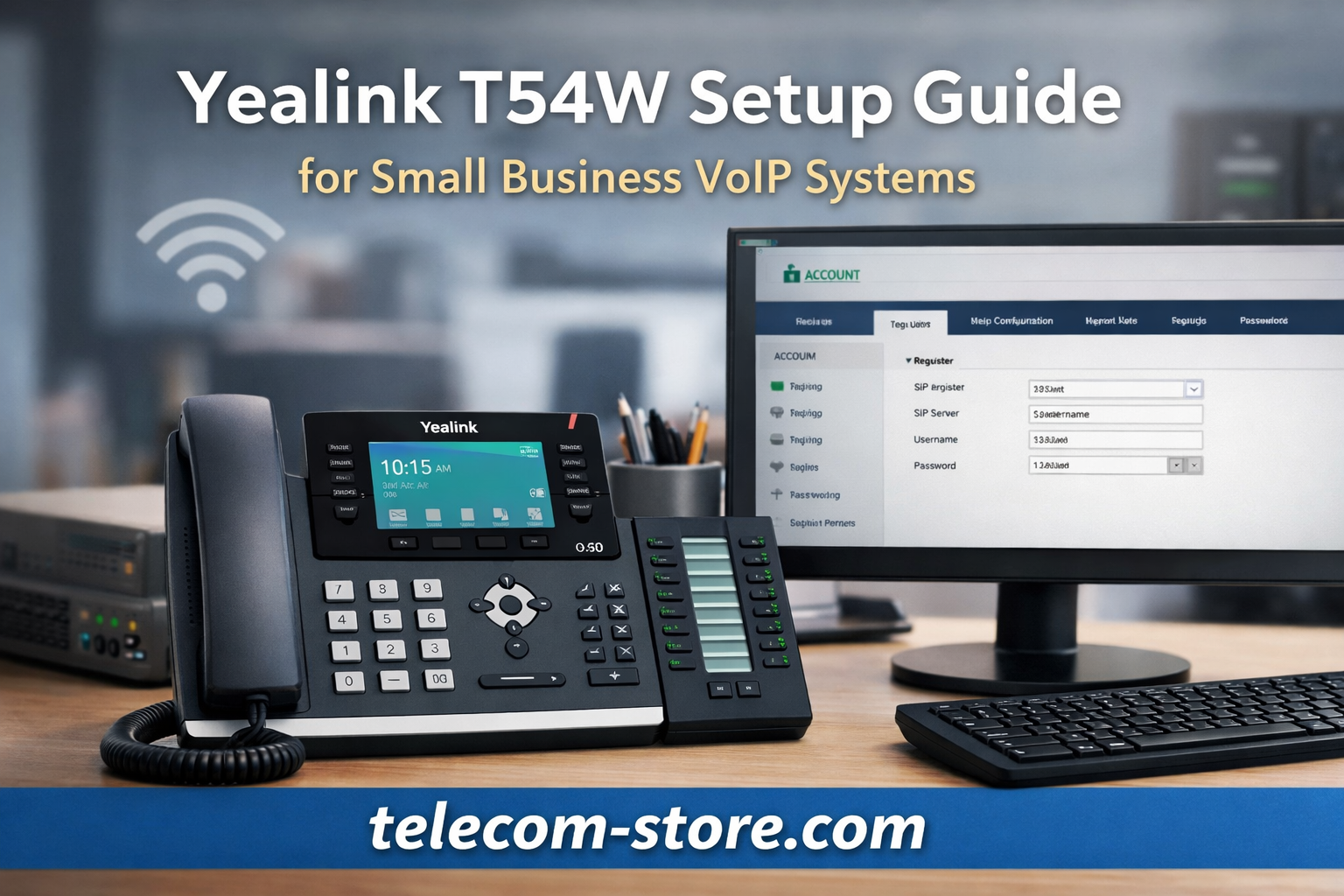
Reliable communication is an essential part of daily operations for many organizations. Businesses that deploy VoIP systems often rely on desk phones designed for stability, call quality, and integration with modern PBX platforms. The Yealink T54W VoIP phone is commonly used in office environments because it supports SIP-based systems, wireless networking, and a range of business calling features.
This guide explains how to set up the Yealink T54W phone within a small business VoIP environment. It covers network preparation, physical installation, SIP account configuration, and practical troubleshooting steps.
Businesses that purchase telecom hardware through trusted suppliers often work with integrators or service providers. For example, organizations deploying VoIP infrastructure may also partner with companies such as https://www.axioncommunications.com/ for system integration and communication services.
What Is the Yealink T54W VoIP Phone?
The Yealink T54W is a business-class desk phone designed for SIP-based VoIP systems. It includes a color display, dual Gigabit Ethernet ports, integrated Wi-Fi, and support for expansion modules.
You can view the product here:
SIP-T54W Prime Business Phone
The device is commonly used in environments such as:
- Small business offices
- customer support teams
- administrative departments
- remote workstations connected to hosted VoIP systems
Because it supports standard SIP protocols, the phone works with many IP PBX platforms and hosted VoIP providers.
Key Features of the Yealink T54W
Before configuring the phone, it helps to understand its capabilities.
Color Display and User Interface
The T54W includes a color LCD screen that allows users to view call information, contacts, and system menus clearly.
Built-In Wi-Fi Connectivity
Unlike some earlier VoIP phones, the T54W includes built-in Wi-Fi. This allows the phone to connect to a wireless network when Ethernet cabling is not available.
Gigabit Ethernet Ports
Dual Ethernet ports allow the phone to connect to a network switch while also providing a pass-through port for a computer.
Expansion Module Compatibility
For receptionists or administrative users who manage multiple lines, the phone supports expansion modules such as the:
These modules add programmable buttons and additional line monitoring.
Network Requirements for VoIP Phone Setup
Before installing the Yealink phone, confirm that the network environment supports VoIP traffic.
Stable Internet Connection
VoIP calls rely on internet connectivity. Businesses should ensure they have a stable broadband connection with adequate bandwidth for voice traffic.
Quality of Service (QoS)
Network routers and switches should prioritize voice packets when possible. QoS settings help maintain call quality during periods of heavy network usage.
Power over Ethernet (PoE)
The T54W can be powered through PoE. If your network switch does not support PoE, you may need a compatible power adapter.
Step-by-Step Yealink T54W Setup
The following steps outline a typical installation process.
Step 1: Connect the Hardware
Connect the phone to the network using an Ethernet cable.
Typical connections include:
- Ethernet cable from network switch to the phone
- Optional computer connection through the phone’s PC port
- Optional headset or accessories
Once connected, the phone will boot automatically if powered through PoE.
Step 2: Obtain the Phone’s IP Address
After the device starts, you need its IP address to access configuration settings.
To find it:
- Press the OK button on the phone.
- The screen will display the phone’s IP address.
You will use this address to log in to the web configuration interface.
Step 3: Access the Web Configuration Interface
Open a web browser on a computer connected to the same network.
Enter the phone’s IP address into the browser.
Example:
http://192.168.1.100The login screen will appear.
Typical default credentials:
Username: admin
Password: admin
After logging in, the web interface allows you to configure SIP accounts and system settings.
Step 4: Configure the SIP Account
Most VoIP systems require a SIP account configuration.
Navigate to:
Account → Register
Enter the information provided by your VoIP provider.
Typical fields include:
- SIP server address
- SIP username
- SIP password
- display name
Once saved, the phone will attempt to register with the VoIP server.
If successful, the phone will show a registered status.
Step 5: Configure Wi-Fi (Optional)
If you prefer to connect using wireless networking, navigate to:
Network → Wi-Fi
Enable Wi-Fi and scan for available networks.
Enter the wireless password and connect to the desired network.
Although Wi-Fi is supported, many businesses prefer wired connections for consistent call quality.
Optional Accessories for the Yealink T54W
Businesses often add accessories depending on the user’s role.
Expansion Modules
Receptionists and administrative staff may benefit from additional programmable keys.
Example product:
Headset Integration
Users who spend extended time on calls may prefer a headset.
Yealink supports headset adapters such as:
Yealink Headset Adapter EHS40 USB
These accessories allow compatibility with many professional headsets.
Compatibility with VoIP Systems
The Yealink T54W phone supports the SIP protocol, making it compatible with many platforms.
Common deployment environments include:
- hosted VoIP services
- cloud PBX systems
- on-premise IP PBX installations
- Asterisk-based systems
Because SIP is an open standard, the phone can be integrated with a wide range of telephony platforms.
However, some providers use auto-provisioning systems that automatically configure phones. In those environments, manual configuration may not be required.
Auto-Provisioning for Business Deployments
Larger organizations often deploy phones using auto-provisioning servers.
Auto-provisioning allows administrators to:
- automatically configure SIP credentials
- push firmware updates
- manage phone settings remotely
Yealink phones support several provisioning methods including:
- HTTP provisioning servers
- DHCP option provisioning
- vendor-specific provisioning services
This approach reduces manual configuration and simplifies device management.
Troubleshooting Common Setup Issues
Even when following setup steps carefully, VoIP phones occasionally encounter issues.
Phone Not Registering
Possible causes include:
- incorrect SIP credentials
- incorrect SIP server address
- firewall restrictions
Confirm that the SIP username, password, and server information are correct.
No Audio During Calls
Audio issues can occur when NAT settings are not configured correctly or when network firewalls block RTP traffic.
Check firewall settings and ensure that voice ports are allowed.
Poor Call Quality
Call quality problems often result from network congestion.
Implementing QoS and using wired Ethernet connections can improve performance.
Limitations and Considerations
Although the Yealink T54W is suitable for many business environments, organizations should consider several factors before deploying it.
Network Reliability
VoIP phones rely on network connectivity. Businesses should ensure that their network infrastructure is stable and properly configured.
Power Backup
If power is lost, VoIP phones may stop working unless supported by backup power systems.
Provider Compatibility
Although SIP is widely supported, some VoIP providers use proprietary provisioning systems. Confirm compatibility before purchasing hardware.
Conclusion
The Yealink T54W VoIP phone is designed to operate within modern SIP-based communication systems used by many businesses. With proper network configuration and correct SIP account details, the phone can be installed quickly and integrated into a variety of VoIP environments.
Small businesses implementing VoIP solutions should focus on stable networking, proper provisioning methods, and compatible hardware. When deployed correctly, devices like the Yealink T54W can provide reliable voice communication for office teams and remote workers.
Organizations often work with telecom providers or system integrators when planning their communication infrastructure. Companies such as https://www.axioncommunications.com/ assist businesses with VoIP deployments and telecommunications solutions.
FAQ Section
How do I set up a Yealink T54W VoIP phone?
To set up a Yealink T54W phone, connect it to your network using Ethernet or Wi-Fi. Then obtain the phone’s IP address and access the web configuration interface from a browser. Enter the SIP account credentials provided by your VoIP provider. After saving the settings, the phone should register with the server and be ready for calls.
Does the Yealink T54W support Wi-Fi?
Yes. The Yealink T54W phone includes built-in Wi-Fi capability. This allows the phone to connect to a wireless network when Ethernet wiring is not available. However, many businesses prefer wired Ethernet connections because they provide more stable network performance and consistent voice quality.
What VoIP systems are compatible with the Yealink T54W?
The Yealink T54W supports the SIP protocol, which is widely used in VoIP systems. It can operate with hosted VoIP providers, cloud PBX platforms, and on-premise IP PBX systems such as Asterisk-based solutions. Compatibility should always be confirmed with the VoIP provider before deployment.
How do I find the IP address of a Yealink phone?
Press the OK button on the Yealink T54W phone keypad. The display will show the device’s current IP address. This address can be entered into a web browser to access the phone’s configuration interface for SIP account setup and other settings.
Can the Yealink T54W work with expansion modules?
Yes. The phone supports expansion modules such as the Yealink EXP50. These modules provide additional programmable keys that can be used for monitoring extensions, speed dialing, and managing multiple call lines. This feature is often useful for receptionists or administrative staff.
What accessories work with the Yealink T54W phone?
Several accessories are compatible with the Yealink T54W VoIP phone. These include headset adapters, expansion modules, and optional power adapters. Accessories can improve usability for specific roles, particularly employees who handle frequent calls or manage multiple lines.
Why is my Yealink phone not registering to the VoIP server?
Registration issues usually occur when SIP credentials are incorrect or when network firewalls block SIP communication. Verify the SIP username, password, and server address provided by your VoIP provider. Network administrators should also confirm that required SIP and RTP ports are open.